
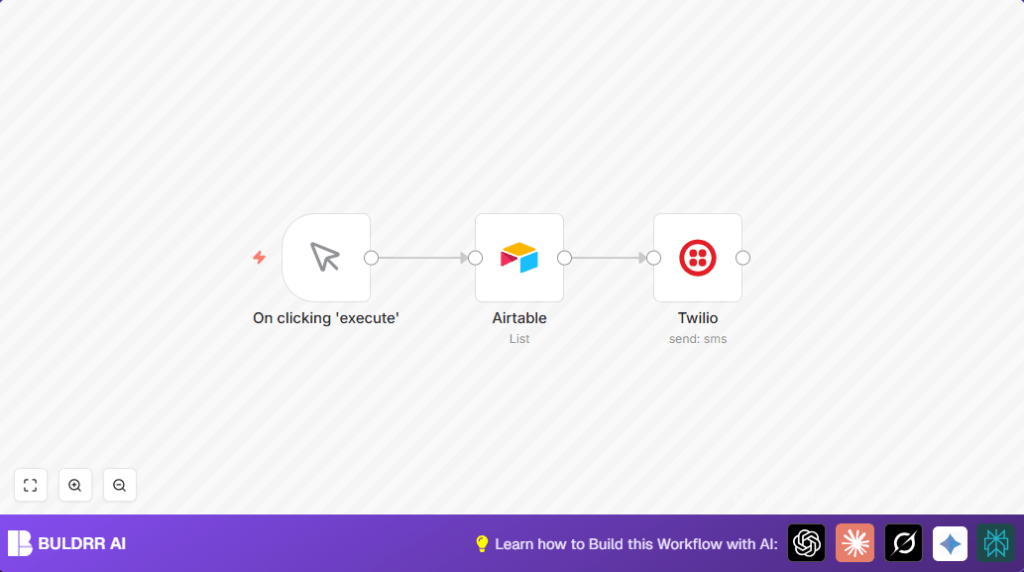

What this workflow does
This workflow sends SMS messages to phone numbers stored in an Airtable table.
The messages use the contact’s name to make each SMS personal.
It runs inside n8n and uses Twilio to send the SMS.
It solves the problem of sending messages one by one by hand and avoiding mistakes or missing contacts.
When run, it sends many customized SMS messages easily and fast.
Tools and services used
- n8n: Automation platform to run the workflow.
- Airtable: Stores contact names and phone numbers.
- Twilio: Sends messages through its SMS API.
Inputs, processing steps, and output
Inputs
- Contact list with Name and Phone Number fields from Airtable.
- Twilio credentials and phone number for SMS sending.
Processing steps
- Manual trigger starts the workflow inside n8n.
- Airtable node fetches all contacts from the specified base and table.
- Twilio node sends an SMS to each contact using their phone number, with text personalized by including the contact’s name.
Output
Each contact in the Airtable table receives a unique SMS message sent from the Twilio number.
Who should use this workflow
This works well for people who want to send many SMS messages fast.
It suits community managers, nonprofits, or businesses that have contact info in Airtable.
Users who want to avoid mistakes and save time when texting many people will find it helpful.
Beginner step-by-step: How to use this workflow in n8n
Download and import the workflow
- Click the Download button on this page to save the workflow file.
- Open your n8n editor where you want to use the workflow.
- Choose Import from File and select the downloaded workflow file.
Set your credentials and details
- Add your Airtable API key by creating or editing Airtable credentials in n8n.
- Update the Airtable node to use your base ID and table name that contain Name and Number fields.
- Set your Twilio Account SID and Auth Token in credentials.
- Enter your Twilio phone number in the Twilio node’s From field.
Test and activate
- Run the workflow manually by clicking the Execute Workflow button to test one round of SMS sending.
- Check for errors and corrections if needed.
- When ready, activate the workflow with the toggle switch to use it anytime.
If running self-host n8n, the same steps apply for stable use.
Customization ideas
- Change message content in Twilio node to include event dates or other details.
- Add an If or Set node before Twilio to send SMS only to certain contacts by filtering fields.
- Replace the manual trigger with a Cron node to schedule SMS sending automatically.
Common issues and fixes
- Twilio API error: Invalid phone number
This means phone numbers are not in the correct format.
Solution: Check that numbers use E.164 format with plus and country code like +1234567890. - Airtable node returns empty data
Cause is often wrong base ID, table name, or API key permissions.
Solution: Reconfirm the base and table names and API key setup.
Pre-Production checklist
- Ensure phone numbers in Airtable are correct and properly formatted.
- Confirm Twilio phone number works for your sending region.
- Verify Airtable and Twilio APIs in n8n credentials manager.
- Run a test message before bulk sending.
- Make a backup copy of your Airtable base.
Summary of results
✓ Automates sending personalized SMS to all Airtable contacts.
✓ Saves hours from manual copying and pasting.
✓ Reduces mistakes like wrong numbers or missed contacts.
✓ Sends bulk texts with customized greetings automatically.
✓ Users get faster, more reliable messaging for outreach.
