
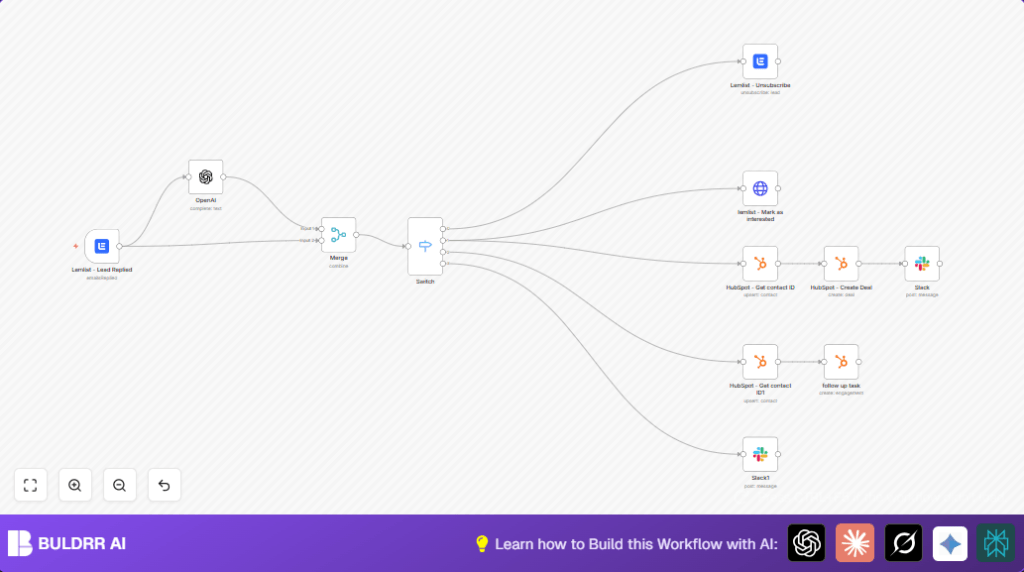

What This Workflow Does
This workflow catches email replies from Lemlist leads, then uses OpenAI to sort these replies into clear groups. It automatically updates HubSpot CRM and sends messages to Slack with the right info for the sales team. This helps save time, avoid mistakes, and follow up fast on leads who want to buy.
It works by getting replies via a webhook, then classifies them as “Interested”, “Out of Office”, “Unsubscribe”, or “Other” using AI. Each type makes the workflow do different actions like unsubscribing leads, creating deals, or setting reminders.
Who Should Use This Workflow
Sales managers and teams who get many email replies from campaigns can use this. It helps people who want to stop spending hours reading emails and manually updating CRMs. Also good for users wanting clear, fast info about lead interest and better team messages.
Tools and Services Used
- n8n: to build and run the workflow automation.
- Lemlist API: to get emails and manage leads.
- OpenAI API: to classify the type of reply.
- HubSpot API: to create deals and tasks in CRM.
- Slack API: to notify sales teams.
Beginner Step-by-Step: How to Use in n8n Production
Step 1: Download the Workflow
- Click the Download button on this page to get the workflow file.
- Make sure you already have an n8n account and you are in the n8n editor.
Step 2: Import Workflow
- In n8n, pick “Import from File” option.
- Choose the downloaded workflow file.
Step 3: Configure Credentials
- Enter API Keys and OAuth2 credentials for Lemlist, HubSpot, Slack, and OpenAI.
- Update fields like campaign IDs, emails, Slack channel IDs if needed.
- Copy-paste the provided OpenAI prompt into the OpenAI node.
Step 4: Test the Workflow
- Run a test with sample lead reply data to see if classification and updates work.
Step 5: Activate for Production
- Enable the active toggle at top right of n8n editor to start live processing.
- Monitor the Executions tab for errors or issues.
For special cases, visit self-host n8n to run this on your own server.
Inputs, Processing, and Outputs
Inputs
- Email reply events from Lemlist webhook.
- Lead email and campaign details.
- The plaintext of the email reply.
Processing Steps
- Catch reply via Lemlist Trigger.
- Send reply text to OpenAI with prompt to classify category.
- Merge original and AI results in Merge node.
- Use Switch node to select action path by category.
- Batch handle each category: unsubscribe leads, mark interested, create deals, set follow-up tasks, or notify via Slack.
Outputs
- Leads unsubscribed in Lemlist when requested.
- New deals created in HubSpot for interested leads.
- Follow-up tasks scheduled in HubSpot for out-of-office replies.
- Sales team notified in Slack with clear info.
Important Code / Prompt for OpenAI Node
This prompt guides AI to classify emails into categories with simple rules and examples. Copy-paste as is for best accuracy.
=The following is a list of emails and the categories they fall into:
Categories=["interested", "Out of office", "unsubscribe", "other"]

Interested is when the reply is positive.

{{$json["text"].replaceAll(/^\s+|\s+$/g, '').replace(/(\r\n|\n|\r)/gm, "")}}
Category:
Common Problems and Fixes
- Workflow doesn’t start: Usually webhook URL missing in Lemlist campaign settings.
- Wrong AI category: The prompt might be unclear, simplify or add more examples.
- HubSpot nodes fail: Check OAuth2 credentials, refresh or add missing permissions.
- Unsubscribe fails: Verify campaign ID in Lemlist node is correct.
Customization Ideas
- Change campaign or teams by updating IDs in Lemlist or HTTP Request nodes.
- Add or change AI categories in OpenAI prompt for better sorting.
- Send Slack messages to more channels by duplicating Slack nodes.
- Modify HubSpot deals or task details to fit your sales process.
- Add nodes to update HubSpot contacts based on reply info.
Deploying the Workflow
Activate the workflow inside n8n by toggling the active switch.
Watch the Executions page for any errors.
Set error alerts in n8n to notify if anything stops.
This can handle many leads daily if n8n has enough resources.
Summary
✓ Saves hours every day by automating lead reply handling.
✓ Stops errors from manual work and keeps data accurate.
✓ Prioritizes hot leads and sends clear notifications.
✓ Makes sure no leads get missed from out-of-office or unsubscribe replies.
