
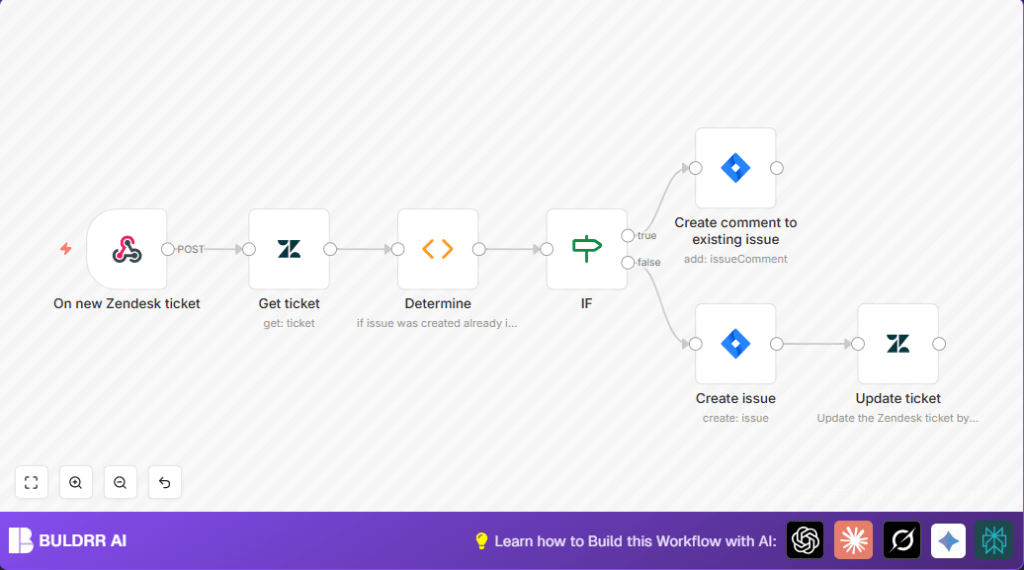

What This Automation Does
This workflow links Zendesk support tickets to Jira issues automatically.
It stops the slow, manual task of copying info and making Jira tickets from Zendesk ones.
When a new Zendesk ticket comes in, the workflow checks if a Jira issue exists for it.
If a Jira issue is there, it adds new Zendesk comments to that issue.
If no issue exists yet, it makes a new Jira issue using the ticket details.
Then, it saves the Jira issue ID back inside the Zendesk ticket for later.
This helps teams work faster by linking tickets and issues without mistakes or extra work.
Tools and Services Used
- Zendesk: To manage support tickets and get ticket info.
- Jira Software Cloud: For creating and updating development issues.
- n8n: The automation tool that connects Zendesk and Jira.
- Webhook URL: To catch new ticket events from Zendesk into n8n.
How This Workflow Works
Inputs
- New Zendesk ticket data sent by webhook to the Webhook node.
- Zendesk ticket ID and details fetched using Zendesk API.
- Stored Jira issue key inside Zendesk ticket custom field.
Processing Steps
- Check for Jira issue key: A Function node reads Zendesk ticket custom fields to find Jira issue key.
- If key exists: The IF node branches toward adding a comment on the Jira issue.
- If no key: A new Jira issue is created with ticket subject and description, including a Zendesk link.
- Store issue key: The Zendesk ticket is updated with the new Jira issue key in its custom field.
Outputs
- New Jira issues created for Zendesk tickets without existing Jira links.
- Comments added on Jira issues for Zendesk ticket updates.
- Zendesk tickets updated to link back to related Jira issues.
Who Should Use This Workflow
Teams using Zendesk for support and Jira for development who want to avoid manual ticket-to-issue copying.
Non-technical users who want to save time and reduce errors linking tickets and issues.
Anyone ready to automate linking customer issues with development work automatically.
Beginner Step-by-Step: Using this Workflow in n8n Production
Step 1: Download and Import Workflow
- Find the Download button on this page and save the workflow file.
- Open your n8n editor where you want to run this automation.
- Click on Import from File and select the downloaded workflow JSON.
Step 2: Set Up Credentials
- Add your Zendesk API credentials in n8n Credentials settings.
- Enter Jira Software Cloud API credentials in n8n Credentials too.
Step 3: Update IDs and Fields
- Check and update the Zendesk custom field ID in the Function node “Determine” where Jira issue key is read.
- Check the same custom field ID in the Zendesk update node to store new issue keys.
- Update Jira Project ID and Issue Type ID in the Jira create issue node to match your Jira setup.
Step 4: Test the Workflow
- Trigger the workflow by sending a test ticket from Zendesk or manually running the Webhook node.
- Verify Jira issues are created or updated, and Zendesk tickets are updated with the Jira key.
Step 5: Activate the Workflow
- Once testing is successful, turn on the workflow by clicking Activate in n8n.
- Make sure Zendesk triggers are live to send new ticket data to the workflow’s webhook URL.
- Monitor workflow runs in n8n to watch for errors or failed updates.
If self-hosting n8n is preferred for control or scaling, see self-host n8n for resources.
Common Customization Ideas
- Change the Jira project or issue type IDs to route issues differently.
- Update Zendesk custom field ID if that changes in your system.
- Add more info to Jira issue description, like extra ticket fields or details.
- Customize the comment added to Jira issues with formatting or extra context.
Troubleshooting Tips
- 401 Unauthorized Jira errors: Check API keys in Jira node credentials and renew if expired.
- Zendesk update fails on custom field: Verify that custom field ID is correct and data type matches.
- IF node always takes same branch: Check the expression
{{$node["Determine"].json["Jira issue key"]}}, ensure it returns correct string or empty.
Summary and Results
✓ Saves over one hour of manual work each day.
✓ Avoids errors linking Zendesk tickets with Jira issues.
✓ Keeps Jira and Zendesk in sync automatically.
→ Faster customer issue resolution by smoother team cooperation.
