
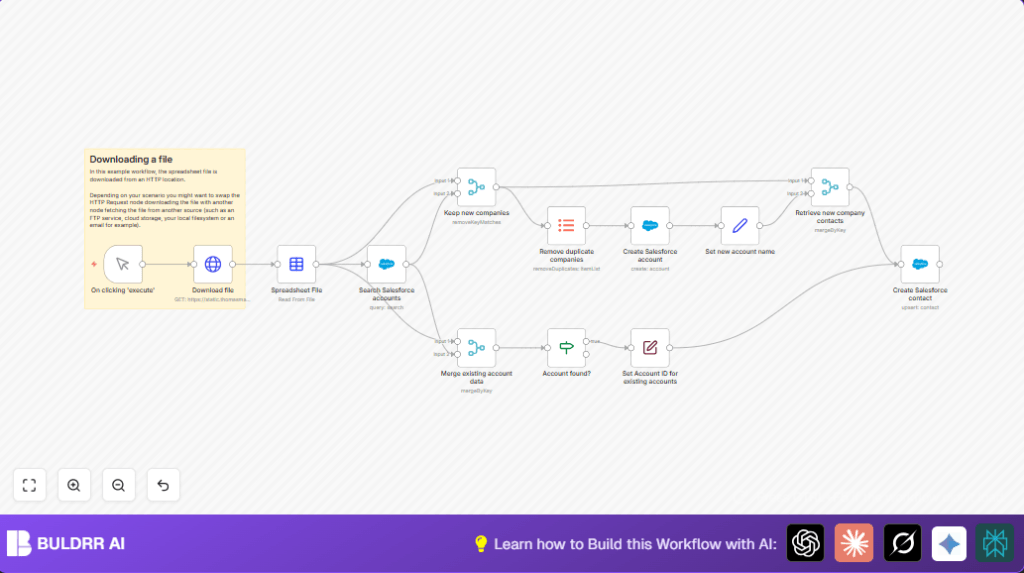

What This Automation Does
This n8n workflow takes company and contact data from an Excel file and moves it into Salesforce.
It saves time by checking if companies already exist in Salesforce.
New companies get added; existing ones are updated.
Contacts are linked correctly to their accounts.
The result is less manual work, fewer mistakes, and cleaner Salesforce data.
Tools and Services Used
- Salesforce API: For searching, creating, and updating accounts and contacts.
- n8n Automation: To design the workflow with nodes like Manual Trigger, HTTP Request, Spreadsheet File, Merge, Salesforce, and others.
- Excel Spreadsheet File: The input data source containing company and contact details.
- OAuth2 Credentials: To securely connect n8n with Salesforce.
Inputs → Processing Steps → Output
Inputs
- An Excel file URL that holds company names, contact emails, first and last names.
Processing Steps
- Download the file using an HTTP GET request.
- Parse the spreadsheet into JSON data records.
- Search Salesforce for each company name using SOQL queries with correct escaping of quotes.
- Filter out existing companies to avoid duplicate account creation.
- Remove duplicates from the new companies list.
- Create new Salesforce accounts for companies not found.
- Merge data of existing accounts with the imported contacts.
- Use conditional checks to separate processing paths for existing and new accounts.
- Rename Salesforce account ID key to “Account ID” to link contacts properly.
- Create or update Salesforce contacts with linked account IDs.
Output
- New and updated accounts in Salesforce.
- Contacts linked via correct Account IDs.
- Clean, de-duplicated Salesforce data matching the spreadsheet input.
Beginner Step-by-Step: How to Use This Workflow in n8n
Step 1: Import the Workflow
- Click the Download button on this tutorial page to get the workflow file.
- Open n8n editor where you make workflows.
- Select “Import from File” and choose the downloaded workflow JSON file.
Step 2: Configure Credentials
- Add your Salesforce OAuth2 credentials in the credentials manager.
- Double check the HTTP Request node URL is set to
https://static.thomasmartens.eu/n8n/Excel-File-to-Salesforce.xlsx. - If the spreadsheet columns differ, update any field mappings accordingly in the nodes.
Step 3: Test the Workflow
- Run the workflow manually by clicking the execute button on the Manual Trigger node.
- Watch the progress and check node outputs for errors or missing data.
Step 4: Activate Workflow for Production
- Once testing works, activate the workflow to run on manual or schedule triggers.
- If you want automated runs, replace the Manual Trigger with a Cron node.
- Ensure your Salesforce API limits and n8n setup are stable.
- Use a self-host n8n instance if you want full control and security.
Customization Ideas
- Add phone numbers or job titles in the contact create node under Additional Fields.
- Switch the input from HTTP Request to FTP or cloud storage nodes if needed.
- Use a Cron node for automatic scheduling instead of manual trigger.
- Log created accounts into a Google Sheet for tracking or auditing.
Troubleshooting
- Problem: SOQL query returns no results but companies exist.
Cause: Improper escaping of single quotes in company names.
Fix: Usereplace(/'/g, '\\')in the SOQL expression. - Problem: Contacts not linked to correct accounts.
Cause: Account ID field not renamed before contact upsert.
Fix: Rename Keys node must renameIdtoAccount ID. - Problem: Duplicate companies created.
Cause: Duplicates not removed properly.
Fix: Ensure Item Lists node removes duplicates on theCompany Namefield.
Pre-Production Checklist
- Test Salesforce credentials and connection in the Salesforce node.
- Check the spreadsheet URL downloads the file correctly.
- Confirm the spreadsheet columns match expected names like
Company Name,First Name,Last Name,Email. - Run workflow manually to verify account and contact creation/updating.
- Backup Salesforce data or have rollback plan to avoid data loss.
Deployment Guide
Activate the workflow in n8n after setup.
Run it manually or replace the trigger with a Cron node to automate imports on schedule.
Watch the n8n logs for errors and adjust mappings or queries when Salesforce schema changes.
Summary of Results
✓ Workflow imports company and contact data efficiently.
✓ Avoids duplicate Salesforce accounts with smart searching.
✓ Links contacts properly to accounts by Salesforce IDs.
→ Saves hours of manual data entry work.
→ Keeps Salesforce CRM data clean and updated.
