
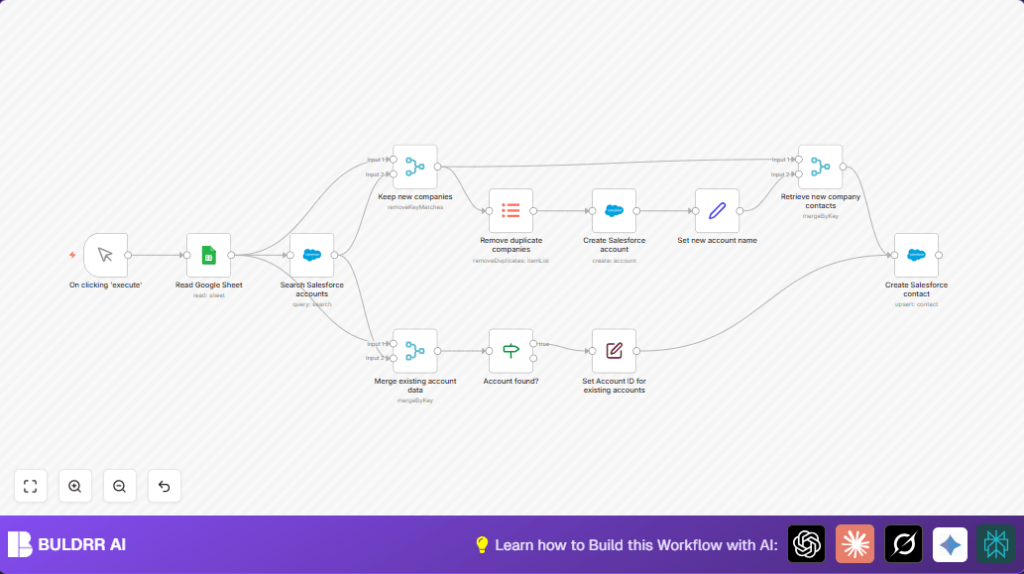

What This Workflow Does ????
This workflow reads company and contact data from a Google Sheet.
It checks if each company already exists in Salesforce by the company name.
New companies are added to Salesforce as new accounts.
Existing companies are updated to keep info accurate.
Contacts linked to these accounts are created or updated accordingly.
This saves time by avoiding manual data entry and removing duplicate records.
Who Should Use This Workflow
This workflow helps sales teams managing many accounts and contacts.
It suits anyone who collects lead data in Google Sheets and needs to sync it to Salesforce easily.
No advanced tech skills are required to use the workflow.
Tools and Services Used
- n8n: For automation and data processing.
- Google Sheets API: To read rows of company and contact info.
- Salesforce API: To search, create, and update accounts and contacts.
- OAuth Credentials: Secure authentication for Google Sheets and Salesforce connections.
Inputs, Processing, and Outputs
Inputs:
- Rows of company data from a Google Sheet, including company name and contact details.
- Salesforce account data queried to check for existing companies.
Processing Steps:
- Read rows from Google Sheets.
- Search Salesforce for accounts matching each company name.
- Separate new companies (not found in Salesforce) from existing ones.
- Create new Salesforce accounts for the new companies.
- Link created account IDs back to company data.
- Upsert (create or update) contacts linked to both new and existing accounts.
- Update existing accounts and contacts in Salesforce if needed.
Outputs:
- New Salesforce accounts created for unique companies.
- Salesforce contacts created or updated and linked to correct account IDs.
- Updated existing account records keeping data fresh.
Beginner Step-by-Step: How to Use This Workflow in n8n
Step 1: Import the Workflow
- Click the Download button on this page to get the workflow file.
- Open n8n editor where you want to use this workflow.
- Use the Import from File option and upload the downloaded workflow file.
Step 2: Configure Credentials and IDs
- Add or update the Google Sheets OAuth credentials inside n8n for the Google Sheets node.
- Add or update Salesforce OAuth credentials for the Salesforce nodes.
- Check Sheet IDs, tab names, and adjust them if your Google Sheet uses different values.
- Verify any account or contact fields mapped in the workflow are correct for your Salesforce instance.
Step 3: Test the Workflow
- Use the manual trigger node to run the workflow once.
- Watch the execution in n8n for any errors and fix as needed.
Step 4: Activate for Production
- After testing, click the Activate button to turn on the workflow.
- You can add triggers like schedules if you want it to run regularly.
- Monitor workflow runs via the n8n dashboard for smooth operation.
This process works well with self-host n8n setups, but also in cloud-based environments.
Edge Cases and Failures
- If the Salesforce query returns empty for known companies, check for query errors or special character escapes.
- New accounts may not get created if API permissions lack create rights or required fields are missing.
- Typo in field names like “acconuntId” instead of “AccountId” will cause contact creation errors.
- Duplicates may happen if matching criteria don’t consider all variations of company names.
Customization Ideas ✏️
- Change the Salesforce query to match companies using VAT numbers or other unique IDs for better accuracy.
- Add notifications via email or Slack after new accounts are created to alert the sales team.
- Remove duplicate contacts based on emails to keep contact lists clean.
Summary of Results
✓ Automatically syncs companies and contacts from Google Sheets to Salesforce.
✓ Avoids duplicate company accounts and contact entries.
✓ Saves hours by removing manual checking and data entry.
→ Keeps Salesforce account and contact data fresh and accurate.
→ Helps your sales team focus on leads, not data cleanup.
