

What This Automation Does
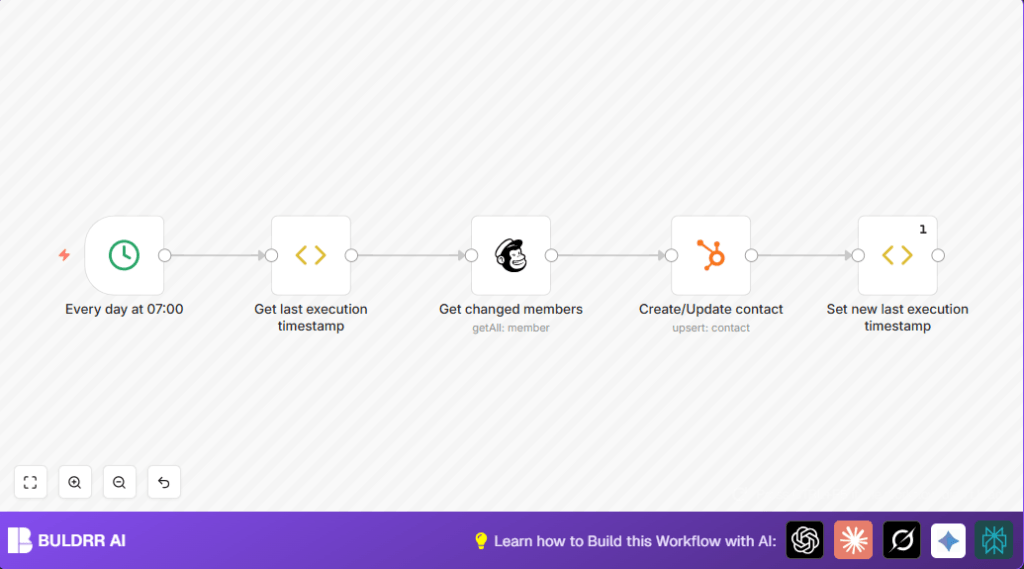
This workflow runs every day at 7:00 AM.
It finds all Mailchimp members who changed since the last time the workflow ran.
For each changed member, it creates or updates the matching contact in HubSpot.
Then, it remembers the current run time to use next time.
This way, the data stays up-to-date automatically, no manual work needed.
Tools and Services Used
- n8n: To build and run the workflow automation.
- Mailchimp API: To get members changed since last successful sync.
- HubSpot API: To create or update contact records.
Beginner Step-by-Step: How to Use This Workflow in n8n
Step 1: Import the Workflow
- Download the workflow file using the Download button on this page.
- Open the n8n editor (cloud or self-host n8n).
- Click on the top-right menu and choose “Import from File”.
- Select the downloaded workflow file and import it.
Step 2: Add Credentials and IDs
- Open the workflow and select the Mailchimp node. Add the Mailchimp API Key and select your List ID.
- Select the HubSpot node and enter your HubSpot App Token credential for authentication.
Step 3: Check and Update Settings
- Make sure the list ID in the Mailchimp node matches your subscriber list.
- If needed, adjust additional fields in the HubSpot node for first name, last name, and email.
Step 4: Test the Workflow
- Run the workflow manually once by clicking “Execute Workflow” inside the n8n editor.
- Check if changed members from Mailchimp appear and contacts are updated in HubSpot.
Step 5: Activate for Production
- To enable daily syncing, toggle the workflow’s “Active” switch on the top right.
- The workflow will now run automatically every day at 7 AM.
Workflow Inputs, Process, and Outputs
Inputs
- Mailchimp API access to get members who changed after the last sync time.
- HubSpot API access to create or update contacts.
- The stored timestamp of the last workflow run to know when to check changes from.
Process
- The Cron node triggers the workflow daily at 7:00 AM.
- The Function Item “Get last execution timestamp” gets and stores the last run time.
- The Mailchimp node uses this time to fetch members changed since then.
- The HubSpot node creates or updates contacts for each returned member.
- The Function Item “Set new last execution timestamp” updates the last run time with the current time.
Outputs
- HubSpot contacts created or updated with accurate names and emails from Mailchimp.
- An updated timestamp stored inside workflow static data for next run.
Customization Ideas ✏️
- Change the daily run time by editing the Cron node settings.
- Add more Mailchimp member fields like phone or address in the HubSpot node “Additional Fields” for richer contact info.
- Filter Mailchimp members by subscription status or specific segments to limit syncing.
Troubleshooting 🔧
Issue: No members returned by the Mailchimp node.
Check: The “Since Last Changed” date might be newer than actual changes.
Fix: Reset the last execution timestamp in the Function Item node to an earlier date for testing.
Issue: HubSpot API Authentication fails.
Check: HubSpot app token might be expired or incorrect.
Fix: Generate a new app token in HubSpot developer portal and update the node credentials.
Summary of Benefits
✓ Saves an hour of manual daily work.
✓ Keeps HubSpot contacts updated with accurate Mailchimp data.
✓ Runs automatically every morning without manual steps.
✓ Reduces mistakes and inconsistent customer info.
