
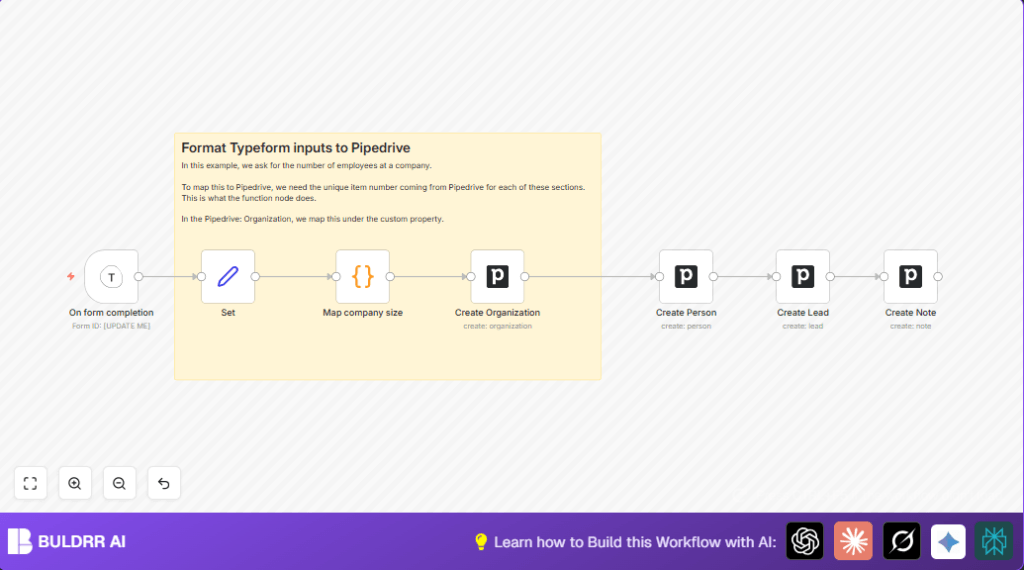

What This Workflow Does
This workflow takes new Typeform answers and puts them into Pipedrive automatically.
It stops manual copy-paste work and errors.
You get organizations, contacts, and leads ready fast.
The form data like company name, email, and questions become Pipedrive records.
Company size is converted to Pipedrive’s expected IDs using a little code.
A note is added so sales get full info easily.
Who Should Use This Workflow
Anyone who wants to skip repetitive manual entry from Typeform to Pipedrive.
Good for sales teams needing quick, accurate lead data without delays.
Users with basic n8n knowledge and Typeform plus Pipedrive accounts.
Helpful for managers who want better speed and fewer mistakes.
Tools and Services Used
- Typeform API: Sends form submission data to n8n.
- n8n Workflow Automation: Handles data processing and API calls.
- Pipedrive API: Creates organizations, persons, leads, and notes.
- JavaScript Code Node in n8n: Converts employee ranges into Pipedrive custom property IDs.
Workflow Inputs, Processing Steps, and Outputs
Inputs
- New Typeform submission with fields: company name, contact name, email, employee count, n8n familiarity, and questions.
Processing
- Trigger when form is submitted.
- Extract and rename form fields using Set node.
- Use Code node to translate company size text to Pipedrive IDs.
- Create a new Organization with the mapped employee count property via Pipedrive node.
- Create a Person linked to the Organization.
- Create a Lead linked to both Person and Organization.
- Add a Note to the Lead capturing specific questions and company size.
Outputs
- New Organization with correct size in Pipedrive.
- New Contact linked to the Organization.
- Lead attached to both for sales follow-up.
- Note added giving full context to salespeople.
Beginner Step-by-Step: How to Use This Workflow in n8n
1. Importing the Workflow
- Download the workflow file by clicking the Download button on this page.
- Open the n8n editor where you want to use the workflow.
- Click “Import from File” and upload the workflow JSON you downloaded.
2. Configuring Credentials and Fields
- Add your Typeform API Key and set the correct Form ID in the Typeform Trigger node.
- Add your Pipedrive API Key in the credentials section of each Pipedrive node.
- Check and update any custom property IDs inside the Code node and the Pipedrive organization creation node to match your Pipedrive setup.
- Update emails, channels, or folder IDs if used in Notes or other nodes.
3. Testing and Activation
- Send a test submission to your Typeform to trigger the workflow.
- Verify the new Organization, Person, Lead, and Note appear in Pipedrive correctly.
- If all works, toggle the workflow live using n8n’s activation switch.
- The workflow now processes submissions automatically in production.
For extra control and privacy, consider self-host n8n for running this workflow on your own server.
Code Node for Mapping Company Size
This Code node uses JavaScript to convert text from Typeform into Pipedrive’s size ID.
Include this exact code in the Code node:
switch ($input.item.json.employees) {
  case '< 20':
    $input.item.json.pipedriveemployees='59';
    break;
  case '20 - 100':
    $input.item.json.pipedriveemployees='60';
    break;
  case '101 - 500':
    $input.item.json.pipedriveemployees='73';
    break;
  case '501 - 1000':
    $input.item.json.pipedriveemployees='74';
    break;
  case '1000+':
    $input.item.json.pipedriveemployees='61';
    break;
}
return $input.item;
This code adds the pipedriveemployees property needed when creating the Organization.
You must make sure these IDs match the custom property IDs in your Pipedrive account.
If these IDs are different, update the code accordingly.
Customization Ideas
- Add more form fields in the Set node to send extra details into Pipedrive.
- Change the employee size ranges in the Code node to fit different company classifications.
- Add an Email node to notify sales team when new leads arrive.
- Attach file uploads from Typeform into Pipedrive notes.
- Connect a Slack node to send quick alerts about new leads.
Troubleshooting
- “Pipedrive create organization failed”: Usually because of wrong custom property ID for employee count.
Check that IDs in the Code node and Pipedrive node match your Pipedrive system. - “Typeform trigger never fires”: Webhook URL not registered in Typeform webhook integration.
Make sure the webhook URL from the Typeform Trigger node is added to the Typeform settings. - No email or person not linked to organization: Field mapping errors in the Set or create person node.
Double-check JSON paths and mappings carefully.
Pre-Production Checklist
- Confirm Typeform webhook is active and data arrives in n8n on test submissions.
- Validate Pipedrive API credentials work and allow creation of necessary records.
- Test the whole workflow with sample data.
- Verify custom property IDs in Pipedrive match those in the Code and Pipedrive nodes.
- Backup your workflow file before making any changes.
Deployment Guide
After testing, activate the workflow by switching it on.
Check the execution log for errors and fix them early.
If form or Pipedrive fields change later, update nodes accordingly.
The workflow runs well on both n8n.cloud and self-host n8n setups.
Summary of Results
✓ Removes manual copy-paste from Typeform to Pipedrive.
✓ Saves hours weekly on admin work.
✓ Reduces errors in lead data entry.
✓ Creates organizations, contacts, and leads with full details.
✓ Adds notes giving sales context about questions and company size.
✓ Works automatically on every new form response.
