
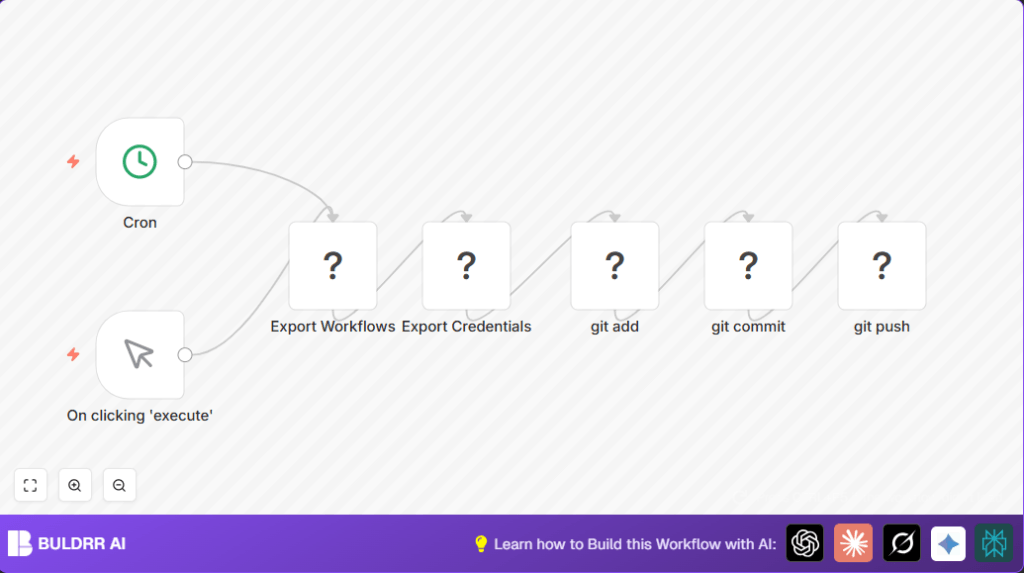

What this workflow does
This workflow saves your n8n workflows and credentials to a GitLab repository automatically.
It fixes the problem of manual exports that waste time and can miss backups.
When it runs, it exports, commits, and pushes data to keep backups safe without you doing anything.
Who should use this workflow
Anyone who runs multiple workflows in n8n and needs regular backups.
It helps automation users who want to stop spending hours backing up and avoid human errors.
Users who want guaranteed, scheduled backups in GitLab will find this useful.
Tools and services used
- n8n platform: runs the automation workflow.
- GitLab repository: stores the backed-up workflows and credentials.
- Execute Command nodes: run CLI commands inside n8n to export and manage git.
- Git: tracks and pushes changes to GitLab remotely.
- Cron node: triggers the backup job 4 times a day automatically.
Inputs, processing steps, and outputs
Inputs
- This workflow needs access to your n8n instance where workflows and credentials are stored.
- A configured GitLab repo with git credentials set in your n8n environment.
Processing steps
- Four daily cron triggers start the workflow automatically.
- Manual Trigger also allows instant backups whenever you run it manually.
- Execute Command nodes export all workflows to repo/workflows/ folder.
- Credentials export to repo/credentials/ folder securely.
- Git add stages all changes in the repository.
- Git commit records the backup with a current timestamp in the commit message.
- Git push uploads the commit to the remote GitLab repository.
Outputs
- Updated workflow and credential files backed up in the GitLab repository.
- Timestamped git commits that show backup history clearly.
- Automated backups occurring regularly without manual work.
Beginner step-by-step: How to use this workflow in n8n
1. Import the workflow
- Download the workflow file using the Download button on this page.
- Open the n8n editor where you want this backup to run.
- Use the “Import from File” option to add this workflow into your n8n instance.
2. Configure credentials and settings
- Add proper credentials or API Keys required by the workflow nodes.
- Check the git repository folder paths and update if your repo location is different.
- If needed, update any IDs, emails, or folder names specific to your environment.
3. Test the workflow
- Run the Manual Trigger node once to verify the export and git commands work correctly.
- Look for errors or missing files, fix permissions if needed.
4. Activate for production
- Once tests pass, toggle the workflow to active mode.
- The Cron node will run backups 4 times daily automatically.
If you manage a self-hosted n8n instance, consider self-host n8n options for full control.
Customization ideas
- Change how often backups run by editing the cron trigger times.
- Save backups in different folders by modifying export command paths.
- Add information like project names in the commit messages for clarity.
- Send email alerts after push by adding an email node after git push.
Common issues and solutions
“git commit” returns “nothing to commit, working tree clean”
This means no changes were found to save.
Check if the export commands actually created or updated files.
“git push” fails due to authentication
n8n might not be signed in to GitLab correctly.
Make sure SSH keys or access tokens are set up on the server running n8n.
Pre-production checklist
- Run the n8n export commands manually on your server to confirm they work.
- Check git commands in the repo folder to verify proper setup.
- Test manual and scheduled triggers to see results without errors.
- Confirm that backup folders repo/workflows and repo/credentials exist or can be created.
Summary of benefits
✓ Saves about 3-4 hours of manual backup work weekly.
✓ Avoids errors by automating export and git commands.
✓ Runs backups 4 times daily plus on demand for fresh data protection.
✓ Tracks backup versions with timestamped commit messages.
→ Ensures workflows and credentials are always safely backed up in GitLab.
→ Eliminates risk of lost automation settings and downtime.
