
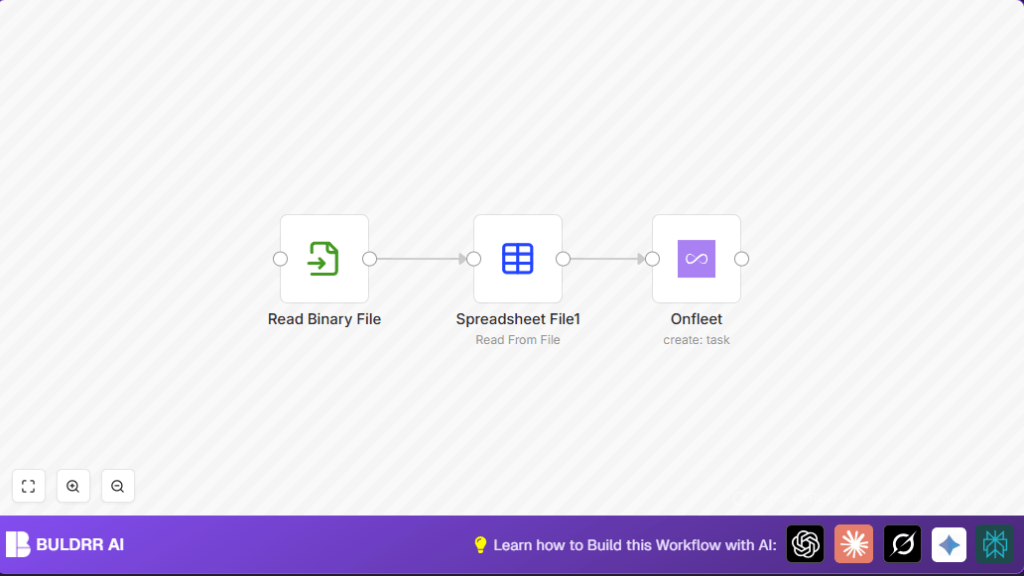

What this workflow does
This workflow reads an Excel file with delivery data and makes new delivery tasks in Onfleet automatically.
It stops the user from typing all details by hand and keeps delivery info accurate.
You get faster, fewer mistakes, and better deliveries.
The workflow takes a local .xlsx file, turns data into JSON, then uses that data to create Onfleet tasks with correct addresses, names, notes, and US phone numbers.
Tools and services used
- n8n: Workflow automation platform to connect nodes.
- Onfleet API: Lets the workflow add delivery tasks.
- Excel Spreadsheet (.xlsx): Contains delivery info you want to import.
- Local file storage: Place where Excel file is saved and n8n can read it.
Inputs → Processing → Output
Inputs
- Excel file stored in a set folder with columns for recipient name, phone, address, delivery notes.
- Onfleet API Key for permission to create tasks in the account.
Processing steps
- Read Binary File: Loads the Excel file as binary data.
- Spreadsheet File: Converts Excel binary data to JSON array, one item per row.
- Onfleet: Uses mapped fields from JSON to set destination address, recipient details, and notes.
- Phone number formatting: Adds +1 before recipient phone for US numbers.
Output
New delivery tasks created in Onfleet for each spreadsheet row with accuracy.
Who should use this workflow
People who have delivery data in Excel and want to add that data into Onfleet fast and with fewer errors.
Those who spend hours typing delivery info manually.
Anyone looking to save time and avoid mistakes by automating data import.
Beginner step-by-step: How to use this workflow in n8n
1. Import workflow
- Download the workflow file using the Download button on this page.
- Open the n8n editor where you want to use the workflow.
- Click on the menu and choose “Import from File”.
- Select the downloaded workflow file to import.
2. Configure credentials and settings
- Add your Onfleet API Key in the Credentials section.
- Modify the Read Binary File node’s filePath to point to your local Excel file location.
- If the workflow asks, update any field IDs or values for your use case.
3. Test and activate
- Run the workflow once to make sure it creates sample tasks correctly.
- After confirming success, activate the workflow by toggling the switch to make it live.
- Set it to run on demand or schedule it as needed.
Note: To make sure n8n can read local files, consider self-host n8n on your server or VPS.
Customization ideas
- Add more address details like building names or special instructions in the Onfleet node.
- Change phone number prefixes to support countries outside US by editing the expression that adds +1.
- Put a IF node before the Onfleet node to only create tasks if some conditions like delivery date or priority are met.
- Modify the Read Binary File node to read from cloud or network drive if possible.
Troubleshooting common issues
File not found in Read Binary File node:
Check your file path is correct and n8n has permission to access the location.
Onfleet API rejects phone number:
Make sure the phone number has a country code prefix like +1 for US numbers.
Pre-production checklist
- Verify Excel columns match the names used in the Onfleet node.
- Test the Read Binary File node alone to confirm it loads the file.
- Run Spreadsheet File node separately to check JSON output.
- Confirm Onfleet API Key is valid in n8n credentials.
- Test full workflow on small data before using big lists.
Deployment guide
Turn on the workflow in n8n using the activation switch.
Run it whenever or set a schedule matching delivery times.
Watch logs for errors and task successes.
Summary
✓ Saves time by stopping manual Excel data entry.
✓ Creates accurate delivery tasks in Onfleet from spreadsheet rows.
✓ Makes sure addresses, phone numbers, and notes are correct.
✓ Easy to test, customize, and run inside n8n.
→ Faster task creation
→ Fewer delivery mistakes
→ Higher customer satisfaction
