
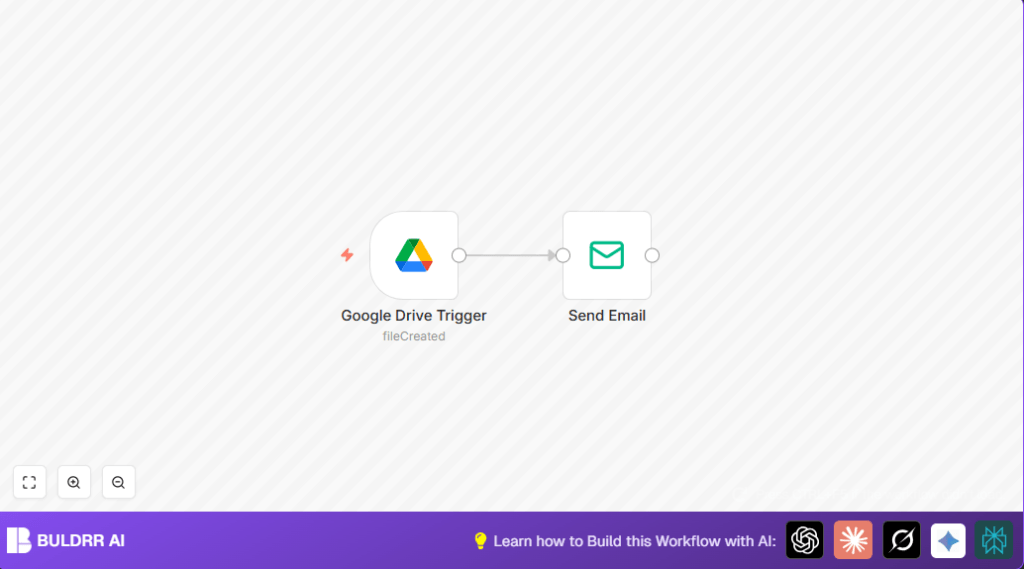

What this workflow does
This workflow sends an email alert every time a new file is added to a specific Google Drive folder.
It helps stop missing important new files and saves time spent manually checking the folder.
The result is instant email notifications with the new file name, keeping users informed without extra work.
Who should use this workflow
This workflow is good for people who share files in Google Drive folders and need quick alerts on new uploads.
It fits project managers, team leaders, or anyone who can’t check folder contents often but must stay updated.
Tools and services used
- Google Drive Trigger node: Watches a folder for new files.
- Send Email node: Sends email notifications through SMTP.
- Google Drive account: Needs folder access and OAuth2 credentials.
- SMTP Email account: Required to send notification emails.
Beginner step-by-step: How to use this workflow in n8n
Importing the workflow
- Download the workflow file using the Download button on this page.
- Open n8n editor and click on “Import from File” to upload the downloaded workflow.
Set credentials and configurations
- Add Google Drive OAuth2 credentials with access to the folder you want to watch.
- Add SMTP email credentials for sending notifications.
- Update the Google Drive folder ID to the folder you want to monitor if different from default.
- Change the recipient email address in the Send Email node to your preferred email.
Test and activate
- Upload a test file to the watched folder and check if the email notification is received.
- If email alerts work, save and activate the workflow to run continuously in production.
This activates automatic email alerts for new files in your Google Drive folder with minimal setup.
For those using self-host n8n, ensure the server is always running for real-time alerts. self-host n8n is a good resource.
Inputs and processing steps
Inputs: A Google Drive folder monitored for new files.
Processing steps:
- Google Drive Trigger listens for “fileCreated” events in the chosen folder.
- When a new file appears, its name and details flow to the Send Email node.
- Send Email node constructs and sends an alert email using SMTP.
Output: An email is sent instantly showing the new file name.
Common edge cases and how to fix
New files do not trigger emails: Folder ID might be wrong or OAuth2 credentials lack folder access.
No emails arriving: SMTP credentials might be invalid or email provider limits sending. Check credentials and email account restrictions.
Emails sent but missing file info: Make sure the expression for file name in email text uses correct syntax, like {{$json["name"]}}.
Customization ideas
- Send email to multiple recipients by adding more emails separated with commas.
- Add file download or view link to the email text using
{{$json["webViewLink"]}}for faster access. - Monitor several folders by duplicating Google Drive Trigger nodes and setting different folder IDs.
Summary of benefits and results
✓ Save daily time by stopping manual folder checks.
✓ Never miss new uploaded files in important Google Drive folders.
→ Receive instant email alerts with file names on new uploads.
→ Improve project communication and reduce delays from missed file updates.
