
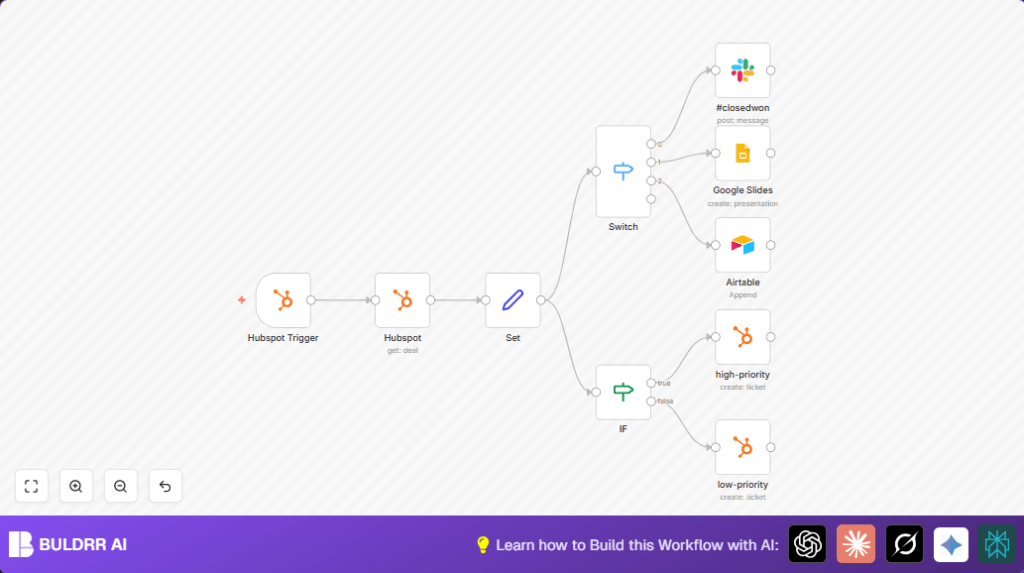

What this workflow does
This workflow runs automatically when a new deal is added in HubSpot.
It studies the deal’s details like name, value, type, stage, description, and close date.
Then it decides different actions based on the deal stage.
If the deal is closed won, it sends a Slack message to notify the sales team.
For deals with presentations scheduled, it makes Google Slides presentations automatically.
Deals that are closed lost get logged in Airtable for tracking.
Also, it creates HubSpot tickets with priority set by deal value and type to help the team handle important deals fast.
Who should use this workflow
This workflow fits sales teams using HubSpot and wanting to save time on manual follow-ups.
It helps managers avoid errors like missed tasks or wrong ticket priorities.
Non-technical users can use it to keep sales organized and improve customer service.
Tools and services used
- HubSpot CRM: To trigger the automation and get deal details.
- n8n platform: To run and coordinate the workflow.
- Slack: To send notifications on successful deals.
- Google Slides: To create presentation decks automatically.
- Airtable: To record lost deals for review.
Inputs, processing steps, and outputs
Inputs
- New deal creation event from HubSpot with deal ID.
- Detailed deal information pulled using deal ID.
Processing steps
- Retrieve full deal details: stage, amount, type, description, close date.
- Map deal properties into variables for workflow use.
- Use a switch to split process by deal stage: closed won, presentation scheduled, closed lost.
- Send Slack notification on closed won deals.
- Create Google Slides presentation for presentation scheduled deals.
- Add lost deals to Airtable table for tracking.
- Use IF node to check if deal is high value and new business, and assign ticket priority.
- Create HubSpot tickets with high or low priority accordingly.
Outputs
- Slack messages alert sales team on closed deals.
- Google Slides presentations are ready for scheduled meetings.
- Lost deals logged in Airtable for analysis.
- HubSpot tickets created with correct priority to guide sales follow-up.
Beginner step-by-step: How to use this workflow in n8n
Step 1: Import the workflow
- Download the workflow file using the Download button on this page.
- Open the n8n editor and select “Import from File”.
- Upload the downloaded workflow file.
Step 2: Add credentials and configure nodes
- Go through each node and add your API keys and credentials for HubSpot, Slack, Google Slides, and Airtable.
- Update any IDs such as Slack channel IDs, Airtable base IDs, and HubSpot owner IDs to match your accounts.
- Check that all node settings use dynamic expressions to pull deal info correctly.
Step 3: Test the workflow
- Create a test deal in HubSpot to trigger the workflow.
- Watch the workflow run in n8n to confirm all steps execute without errors.
- Verify Slack message, Google Slide creation, Airtable record, and HubSpot ticket creation as appropriate.
Step 4: Activate the workflow
- Once confirmed working, toggle the workflow to “ON” in n8n.
- Monitor workflow runs on the n8n dashboard for any issues.
If running your own instance, consider using self-host n8n for more control.
Common customization ideas
- Change the Slack channel to notify a different team.
- Set a different ticket owner ID for high-priority deals.
- Adjust the dollar value threshold in the IF node to change what counts as high value.
- Add more deal stages in the Switch node to cover extra business steps.
- Add an email notification using a Gmail node for more alert types.
Handling errors and troubleshooting
Issue: No data from HubSpot node
Usually caused by wrong deal ID or expired API credentials.
Check dynamic expressions in the node inputs and refresh credentials.
Issue: Slack message fails to send
Often due to invalid Slack API token or wrong channel name.
Verify credentials and channel spelling are correct.
Issue: Airtable API error when adding records
Wrong Airtable base ID or missing required fields usually cause this.
Confirm the Airtable credentials and map all required fields carefully.
Summary of benefits and outcomes
✓ Saves many hours weekly by automating deal tracking tasks.
✓ Reduces mistakes from manual data handling in HubSpot and related tools.
✓ Improves sales team awareness with timely Slack notifications.
✓ Keeps clean records of lost deals for business review.
✓ Helps prioritize tickets based on deal value and type for better workload handling.
