
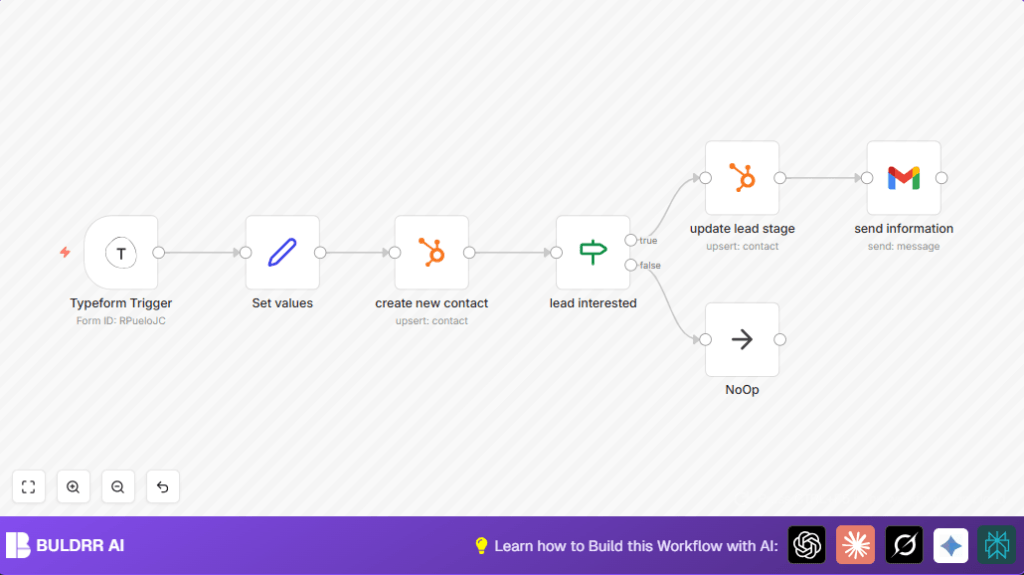

What this workflow does
This workflow automates lead management from a Typeform survey directly into HubSpot CRM and sends follow-up emails through Gmail.
It stops manual work of copying form data and emailing leads by itself.
Leads that want to grow visual content get their life cycle status updated in HubSpot and receive a personalized email invite.
Non-interested leads are recorded but don’t get follow-ups. This saves time and makes sure no lead gets missed.
Tools and services used
- Typeform: Captures lead information via a survey form.
- n8n: Automates trigger, data processing, condition checking, and connects other services.
- HubSpot CRM: Stores and updates contacts and their life cycle stage.
- Gmail: Sends personalized emails as follow-ups to interested leads.
Inputs, Processing Steps, and Output
Inputs
- New form submission on the Typeform lead capture survey.
Processing Steps
- Extract and clean lead data from form answers.
- Create new contact in HubSpot using extracted email, name, company, and department.
- Check if lead answered “yes” to interest in scaling visual content.
- If interested, update lead’s lifecycle stage to “opportunity” in HubSpot.
- Send personalized follow-up email via Gmail with scheduling link and resources.
- If not interested, end workflow with no further action.
Output
- New contact created in HubSpot CRM.
- Lifecycle stage updated for interested leads.
- Personalized email sent promptly to interested leads.
- Clean data tracking of uninterested leads without follow-ups.
Who should use this workflow
Marketing managers and sales teams who collect leads via Typeform and use HubSpot CRM to track contacts.
Anyone who needs to save time by automating contact creation, status updates, and follow-up emails.
Users wanting to avoid missing leads or sending late emails.
Beginner step-by-step: How to use this workflow in n8n
Import the Workflow
- Download the workflow file using the Download button on this page.
- Inside the n8n editor, click “Import from File” and choose the downloaded file.
Configure Credentials and Settings
- Add your Typeform API credentials in n8n Credentials.
- Add HubSpot API Key or OAuth credentials.
- Add Gmail OAuth2 credentials with permission to send email.
- Update the Form ID in the Typeform Trigger node to match your live Typeform survey.
- Make sure email addresses, department, and company mappings reflect your form’s question keys.
Test the Workflow
- Submit a test entry on your Typeform survey.
- Watch the Webhook node and downstream nodes for successful execution.
- Verify the contact is created or updated in HubSpot.
- Confirm the test email arrives in the specified Gmail inbox.
Activate the Workflow
- Turn the workflow ON in n8n to run automatically.
- Optionally, set up error notifications for failed runs.
- For better control and uptime, consider self-host n8n.
Customization ideas
- Add extra qualification questions to your Typeform, then expand the Set node to map those answers.
- Use a Switch node instead of If node to send different emails based on varied lead interests.
- Store dynamic scheduling links like Calendly in a Google Sheet and fetch it with an n8n Google Sheets node.
- Log all leads into a database such as MySQL or Airtable for reporting or backup.
Handling errors and common issues
HubSpot API authentication errors
Cause: Incorrect or expired HubSpot API key.
Fix: Update API key in n8n Credentials and test node again.
Gmail node fails to send emails
Cause: Gmail OAuth token expired or lacks send permission.
Fix: Reauthenticate Gmail in n8n and check permissions.
Typeform trigger not firing
Cause: Unpublished Typeform or wrong Form ID.
Fix: Publish the form and confirm Form ID matches in Typeform Trigger.
Summary of results
✓ Automates lead capture from Typeform to HubSpot.
✓ Updates lead status only for interested prospects.
✓ Sends personalized, fast Gmail follow-ups.
✓ Frees up hours of manual data entry weekly.
→ Helps prevent losing leads by guaranteeing quick contact.
→ Keeps lead data organized and clean.
