
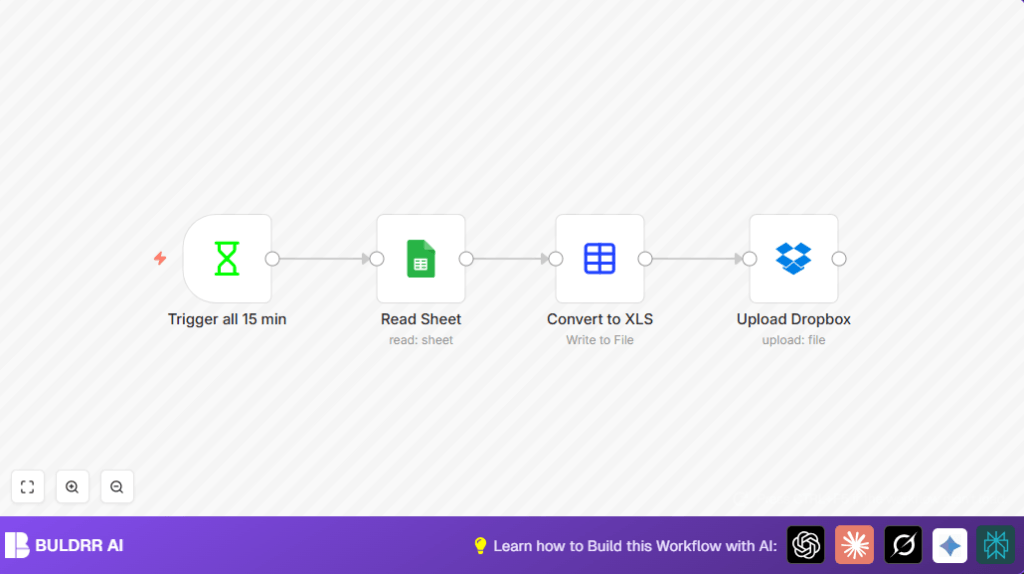

What this workflow does
This automation reads data from a Google Sheets spreadsheet every 15 minutes.
It changes the sheet data into an XLS file format.
It then uploads this XLS file to a set folder in Dropbox.
This process replaces the old file, so the Dropbox sheet is always up to date without any manual work.
Why use this workflow
Manually exporting Google Sheets and uploading to Dropbox takes time.
People may forget to upload the newest file or upload the wrong version.
This causes mistakes and slows down teams using the data.
This workflow solves these problems by automating the whole export and upload every 15 minutes.
Tools and services used
- Google Sheets: Where the source spreadsheet lives.
- Dropbox: Target folder where the XLS file is saved.
- n8n: Automation platform that connects Google Sheets to Dropbox and runs the workflow.
- Google API credentials: Needed for n8n to access the spreadsheet data.
- Dropbox API credentials: Needed for n8n to upload the XLS file.
Input → Process → Output
Inputs
- Google Sheets spreadsheet data identified by Sheet ID.
- Configured APIs authorizing access to Google Sheets and Dropbox.
Processing Steps
- Interval trigger starts the workflow every 15 minutes.
- Google Sheets node reads the live spreadsheet data.
- Spreadsheet File node converts JSON sheet data into binary XLS format.
- Dropbox node uploads the XLS file to the target Dropbox path, overwriting old files.
Output
- Updated XLS file appears in Dropbox folder
/my-sheets/prices.xlsevery 15 minutes. - Team members get immediate access to latest pricing without manual uploads.
Beginner step-by-step: How to use this workflow in n8n
Step 1: Import the workflow
- Download the workflow file from this page using the Download button.
- Open your n8n editor and select Import from File.
- Upload the downloaded workflow file.
Step 2: Configure credentials and settings
- Add your Google API credential in the Google Sheets node.
- Add your Dropbox API credential in the Dropbox node.
- Check or update the Google Sheet ID to point to your spreadsheet.
- Modify the Dropbox path if you want a different folder or file name.
Step 3: Test the workflow
- Run the workflow manually to make sure data is read and XLS uploaded.
- Check your Dropbox to confirm the
prices.xlsfile is created or updated.
Step 4: Activate for production
- Activate the workflow in n8n by toggling its activation switch.
- The workflow will now run every 15 minutes without any manual action.
Note: If hosting n8n yourself is preferred, see self-host n8n for help.
Customization ideas
- You can change the time trigger frequency in the Interval node to upload more or less often.
- You may change the Dropbox upload folder or file name by updating the path parameter.
- You can add extra nodes to notify your team via Slack or Email after each upload.
- Duplicate nodes to handle multiple sheets if needed.
Common errors and fixes
Workflow does not run on schedule
Usually caused by not activating the workflow or not saving the Interval node.
Fix by checking the Interval node’s settings and enabling workflow activation.
Dropbox upload fails
Check that Dropbox API credentials are correct and the file path exists.
Google Sheets data is empty or missing
Verify the Sheet ID is correct and Google API has permission to read the sheet.
Pre-production checklist
- Confirm Google Sheet ID and API credentials are valid.
- Make sure Dropbox credentials and folder are set up correctly.
- Test nodes one by one: Google Sheets read, convert to XLS, upload to Dropbox.
- Run full test and verify the XLS file appears and opens in Dropbox.
- Backup spreadsheet data before starting automation.
Summary
✓ Automatically exports Google Sheets data to XLS format every 15 minutes.
✓ Uploads the XLS file directly to a Dropbox folder, replacing old versions.
→ Saves time by removing manual export and upload tasks.
→ Keeps team data fresh and reduces errors from outdated files.
