
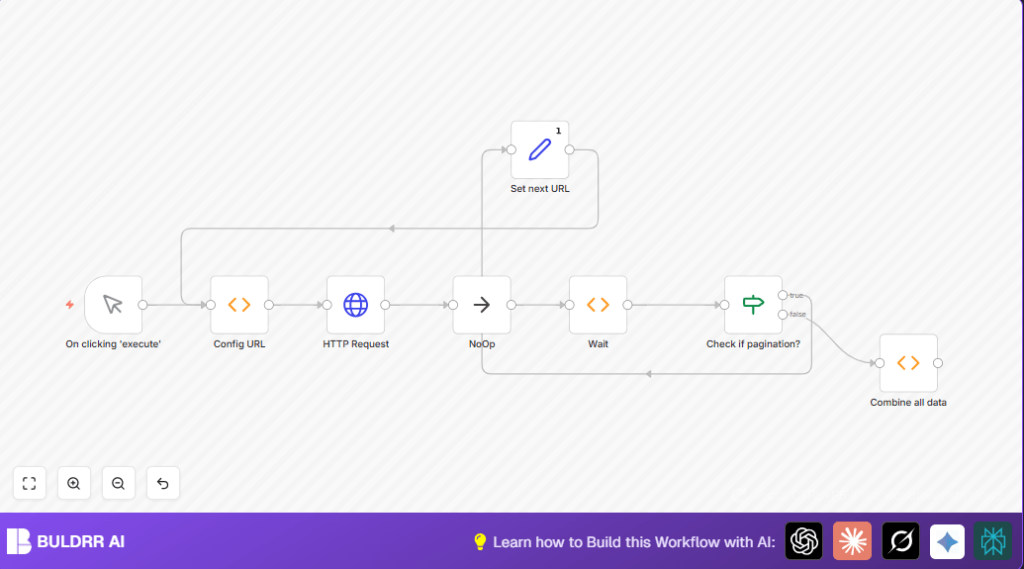

What this workflow does
This workflow fetches all contacts from HubSpot CRM automatically. It solves the problem of exporting contacts page by page manually. The result is one big list of contacts ready for use without missing or repeated data.
The workflow loops through pages, waits between requests to avoid API limits, and collects data until done.
Who should use this workflow
Users who want to save time by exporting HubSpot contacts automatically.
This is good if your contact list is large and manual exports take hours or cause errors.
Tools and services used
- n8n workflow automation platform to build and run the workflow.
- HubSpot CRM API for retrieving contact data in pages.
- HTTP Request node in n8n to get contact pages.
- Function node to set and manage API URLs with pagination.
- If node to check if more pages exist.
- Wait node to pause 5 seconds between requests to avoid rate limits.
- NoOp node to organize the flow.
Inputs, processing steps, and outputs
Inputs
- The main input is a manual trigger you press to start the workflow.
- Your HubSpot API key with permissions to read contacts.
Processing steps
- The workflow sets the initial API URL or picks the next page URL if it exists.
- Sends an HTTP GET request to this URL using the API key.
- Checks if the API response tells if there are more pages.
- If more pages, it sets the next URL from the response and waits 5 seconds, then repeats.
- If no more pages, it aggregates all contacts from all pages into one list.
Output
One combined list of all contacts from HubSpot, ready for exporting or further use.
Beginner step-by-step: How to run this in n8n
Step 1: Import the workflow
- Download the workflow file from this page.
- In the n8n editor, click “Import from File” and select the downloaded file.
Step 2: Add credentials and update settings
- In n8n, open the imported workflow.
- Add your HubSpot API key in the HTTP Request node’s query parameters (
hapikeyfield). - If needed, change any IDs, emails, or other items depending on your setup.
Step 3: Test and activate
- Run the workflow manually once using the Manual Trigger to make sure it works.
- Look at the combined data output to confirm all contacts are retrieved.
- Activate the workflow in n8n to use it anytime, or replace the trigger with a Cron node for scheduled runs.
If you use self-host n8n, ensure API keys and environment are secured.
Edge cases and common problems
If the workflow reports “HTTP 401 Unauthorized,” the API key may be wrong or missing. Check that the key is correct and has the right permissions.
If the workflow loops forever or never finishes, it may not find the next page URL properly. Verify the JSON path paging.next.link matches your API response exactly.
Customization ideas
- Change the contact fields retrieved by adding more query parameters in the HTTP Request URL.
- Adjust the
limitparameter to get fewer or more contacts per request. - Add an export node like Google Sheets to save contacts automatically.
- Use a Cron node instead of the manual trigger to schedule automatic runs.
Summary of results
✓ Saves hours of manual exporting by automating HubSpot contacts export.
✓ Handles API pagination and rate limits by waiting between requests.
✓ Combines all contacts into one dataset free of duplicates or omissions.
→ Gives easy access to complete HubSpot contact data ready for analysis or marketing.
