
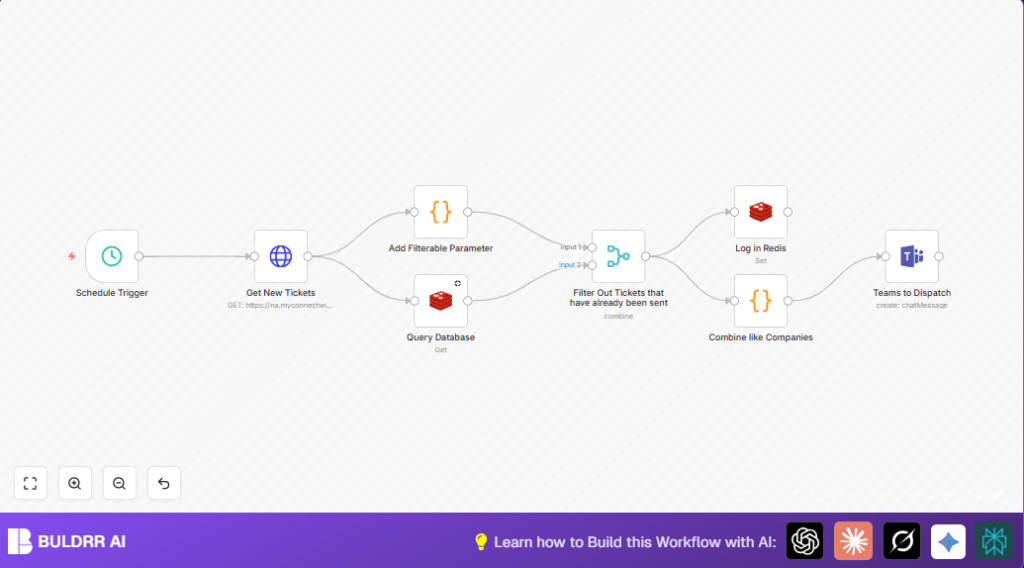

What This Workflow Does
This workflow automatically checks for new tickets from multiple ConnectWise boards during business hours and sends grouped alerts to a Microsoft Teams channel.
It avoids sending duplicate alerts by remembering ticket IDs in a Redis database.
It organizes tickets by company and site, making alerts easy to read and helping the team respond faster.
Who Should Use This Workflow
This workflow is for people managing many support tickets in ConnectWise and who manually notify dispatch teams in Microsoft Teams.
If manual monitoring causes delays or duplicate alerts, this workflow will save time and reduce errors.
Tools and Services Needed
- ConnectWise API: To fetch new support tickets.
- Microsoft Teams API: To send alert messages to a chat or channel.
- Redis Database: To store ticket IDs that already triggered alerts.
- n8n automation platform: To build, schedule, and run the workflow.
How This Workflow Works
Inputs
- Scheduled timer triggers every minute between 8 AM and 4 PM on weekdays.
- ConnectWise API returns new tickets from selected boards without parent tickets.
- Redis is queried to find which tickets were already notified.
Processing Steps
- Convert ticket IDs to strings and add a filter field.
- Use a merge node to filter out tickets already recorded in Redis.
- Group remaining tickets by company and site, combining ticket IDs and summaries into HTML format.
Output
- Send formatted HTML alerts to the Microsoft Teams dispatch channel.
- Store alerted ticket IDs into Redis to avoid future duplicate notifications.
Beginner Step-by-Step: How to Use This Workflow in n8n
Import and Configure
- Download the workflow file using the Download button on this page.
- Open the n8n editor and choose “Import from File” to load the workflow.
- Add required credentials for ConnectWise HTTP API and Redis in n8n credential settings.
- Update the Microsoft Teams node by entering the correct chatId and connecting OAuth2 credentials.
- Check if ticket board IDs or company fields need changes in the HTTP Request node and any code nodes.
Test and Activate
- Run the workflow manually once to verify new tickets are fetched and messages are sent to Teams.
- Review Teams chat to confirm the alert format and ticket grouping.
- Activate the workflow by turning on the Active switch inside n8n.
- Keep n8n running during business hours to ensure continuous alerts.
For self-host n8n setups, see self-host n8n resources to improve uptime and reliability.
Customization Ideas
- Change the schedule trigger cron to run the workflow less often, such as every 5 minutes, to reduce alert noise.
- Add more boards or ticket statuses in the API URL to watch other ticket types.
- Modify group-by logic to combine tickets by priority or other fields instead of company/site.
- Edit the Microsoft Teams message HTML to add colors, emojis, or brand styling.
- Switch the Teams chatId to notify different channels or users.
Common Issues and Fixes
HTTP Request returns no tickets or empty data
Possible cause: API URL or clientId is wrong or missing.
Fix: Check the ConnectWise API endpoint and add proper clientId headers. Test tokens separately with tools like Postman.
Redis node fails or returns wrong data
Possible cause: Incorrect Redis connection or wrong key format.
Fix: Verify credentials in n8n and make sure ticket IDs are strings when used as Redis keys.
Microsoft Teams node does not send messages
Possible cause: Wrong chatId or expired OAuth2 token.
Fix: Regenerate the OAuth credentials and confirm chatId points to a valid channel or user. Test sending messages manually via the Teams API.
Summary of Benefits
✓ Saves 10+ hours a week by automating ticket alerts.
✓ Avoids duplicate or missed alerts with Redis tracking.
✓ Groups tickets by company and site for clear communication.
✓ Sends easy-to-read HTML messages in Microsoft Teams.
✓ Runs only during business hours to reduce interruptions.
✓ Improves team response time and client satisfaction.
