

What This Workflow Does
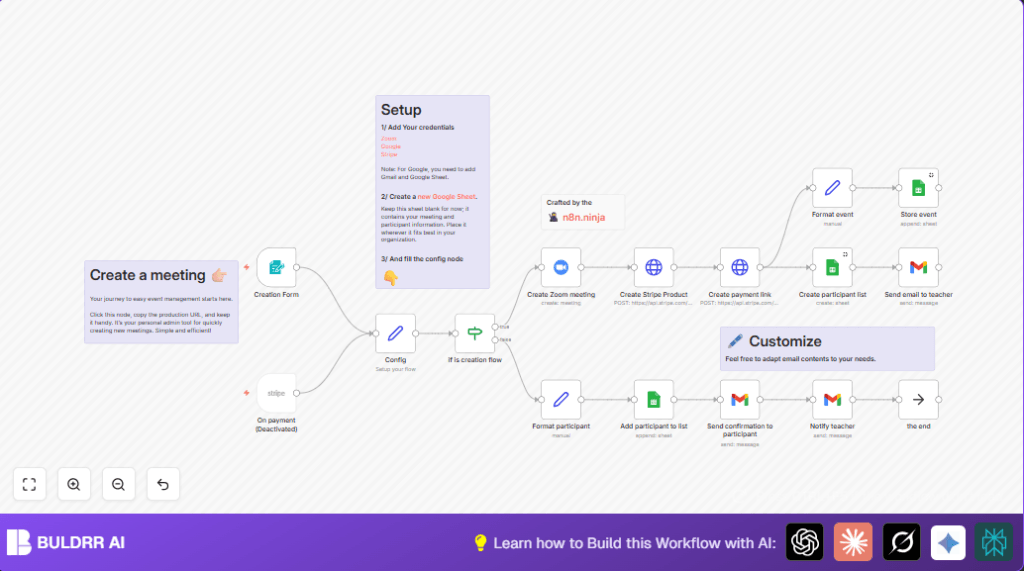
This workflow helps create Zoom meetings with passwords and makes Stripe payment links for those meetings automatically.
It also keeps track of who pays and sends emails with the needed info to both teacher and participant.
The main goal is to save time and avoid mistakes by automating all these steps in one process.
How the Workflow Works
Inputs: User fills out a form with event details like title, price, date, and time.
Processing steps: The workflow creates a Zoom meeting with a password.
It makes a Stripe product and payment link linked to the meeting.
The workflow adds event and participant info to Google Sheets.
Emails get sent automatically to teacher and participants.
Finally, it listens for Stripe payment events to update participant lists and send confirmations.
Outputs: Zoom URLs, Stripe payment links, updated Google Sheets tabs, and email notifications.
Tools and Services Used
- Zoom API: For creating meetings with passwords.
- Stripe API: To create products and payment links and track payments.
- Google Sheets API: To store event and participant info.
- Gmail API: To send emails to teacher and participants.
- n8n platform: To connect and automate all these steps without coding.
Who Should Use This Workflow
Teachers or event organizers who use Zoom and want to get paid with Stripe.
This tool is for people who want to save time, avoid mistakes, and have all info in one place.
No advanced technical skills are needed.
Beginner Step-by-Step: How to Use This Workflow in n8n
Step 1: Download and Import
- Download the workflow file using the Download button on this page.
- Open n8n editor and click “Import from File” to load the workflow.
Step 2: Add Credentials
- Go to the Credentials section in n8n.
- Add OAuth2 credentials for Zoom and Google (Sheets and Gmail).
- Add Stripe API keys in the HTTP Request node settings for Stripe.
Step 3: Update Configuration
- Open the Config node.
- Enter your preferred currency code.
- Paste your Google Sheet URL where data will be stored.
- Set the teacher’s email to receive notifications.
Step 4: Check IDs and Links
- Review that Google Sheets tabs and Stripe product IDs match your accounts.
- Verify emails and webhook URLs are correct.
Step 5: Test and Activate
- Run the Creation Form by submitting test data.
- Check that Zoom meeting is created and Stripe links are generated.
- Verify emails are received by teacher and participant.
- Submit a test Stripe payment and check participant info is added to Google Sheets.
- Activate the workflow to run automatically for real events.
For better control, users can consider self-host n8n on their own servers.
Input → Processing → Output
Input
- Event details entered through a webhook form, including title, price, and date/time.
Processing
- Zoom meeting is created with a random password.
- Stripe product and payment link are generated based on price and currency.
- Google Sheets tabs are created or updated to track event and participants.
- Confirmation emails are sent.
- The Stripe webhook listens for payment completion to add participants automatically.
Output
- Secure Zoom meeting details.
- Stripe payment URLs for participants.
- Participant data logged in Google Sheets.
- Emails sent to teacher and participants confirming event and payment.
Customization Ideas
- Change Zoom meeting password rules by editing JavaScript in the Create Zoom meeting node.
- Update Gmail email text to add more instructions or links.
- Switch currency codes by updating the Config node.
- Add participant email checks in Google Sheets to avoid duplicates.
- Remember to enable the Stripe trigger node to automate participant additions on payments.
Common Problems and Fixes
- Zoom OAuth2 errors: Reauthorize credentials in n8n if tokens expire or permissions fail.
- Stripe API 401 Unauthorized: Check and update Stripe API keys in the workflow credentials.
- Google Sheets quota errors: Reduce calls or ask Google for higher quota.
- Email not sending: Confirm Gmail credentials and check spam folders.
Summary of Workflow Benefits and Results
✓ Save hours of manual work making Zoom and Stripe setups.
✓ Avoid common errors like wrong payment links or missing Zoom info.
✓ Keep event and participant data organized in one Google Sheet.
✓ Automatically notify teacher and participants via email.
→ Result: A smooth event signup and payment process without extra manual steps.
→ You get time back and reduce stress managing online classes.
