

What This Automation Does
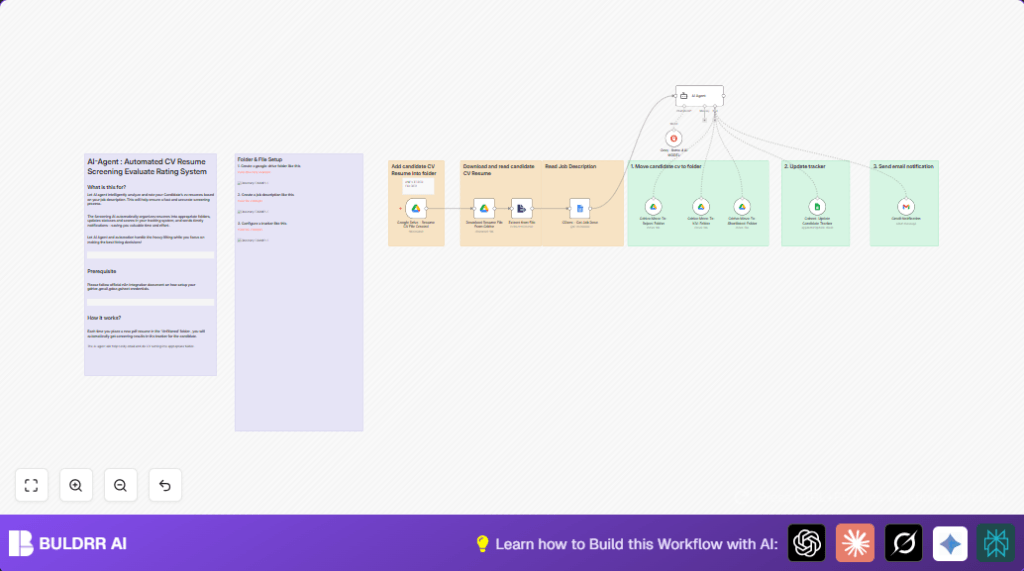
This workflow watches new resume PDFs added to a Google Drive folder.
It reads each resume and a job description, then an AI compares both.
The AI decides if a candidate is Rejected, Keep-In-View (KIV), or Shortlisted.
Resumes get moved to folders based on the AI decision.
Candidate data and AI scores are saved to Google Sheets.
Email notifications inform the HR team about decisions.
This saves time and stops manual mistakes when sorting resumes.
It makes hiring easier and faster.
Tools and Services Used
- Google Drive: Stores resumes and job description files.
- Google Docs: Contains the job description text.
- Google Sheets: Tracks candidate status and scores.
- Gmail: Sends email updates to HR.
- n8n automation platform: Runs the workflow, with AI integration.
- Langchain AI agent with Groq’s LLaMA 4 model: Analyzes and scores resumes.
Inputs, Processing, and Outputs
Inputs
- A new resume PDF file in “Unfiltered” folder on Google Drive.
- Job description text from a Google Docs document.
Processing Steps
- Google Drive trigger detects new resume.
- Download and extract resume text.
- Fetch job description text from Google Docs.
- AI agent compares resume and job description.
- AI returns decision, reason, and score.
- Move resume file based on decision.
- Update candidate info in Google Sheets.
- Send email notification of results.
Outputs
- Resumes sorted into Rejected, KIV, and Shortlisted folders.
- Candidate tracker in Google Sheets with AI data.
- Email alerts to HR about candidate screening.
Beginner Step-by-Step: How to Use This Workflow in n8n
Step 1: Import Workflow
- Download the workflow using the Download button on this page.
- Inside the n8n editor, select “Import from File”.
- Load the downloaded workflow file.
Step 2: Configure Credentials
- Add Google Drive, Google Docs, Google Sheets, and Gmail API credentials.
- Make sure all API Keys or OAuth2 tokens are valid.
Step 3: Update IDs and URLs
- Replace Google Drive folder IDs for Unfiltered, Rejected, KIV, and Shortlisted folders.
- Paste the Google Docs job description document URL in the GDocs – Get Job Desc node.
- Set Gmail recipient emails in the Gmail:Notification node.
Step 4: Test and Activate
- Upload a sample PDF resume in the “Unfiltered” folder.
- Run the workflow manually to check results.
- If all works, toggle the workflow to active for automatic runs.
For more control, consider self-host n8n on own server.
Prerequisites and Setup Details
- Create Google Drive folders named: Unfiltered, Rejected, KIV, and Shortlisted.
- Prepare a clear job description in Google Docs.
- Have a Google Sheets tracker sheet ready.
- Set up Gmail with valid OAuth2 credentials.
- Ensure n8n has LangchAIn AI and Groq’s LLaMA 4 integration configured.
Double-check all folder IDs and document URLs before running.
Edge Cases and Troubleshooting
- If Extract from File node fails, check if PDF is corrupted or of unknown format.
- When AI agent sends unclear output, verify prompt format and input texts.
- If resumes do not move, confirm Google Drive folder permissions and folder IDs.
Try converting unsupported files to PDF if needed.
Customization Ideas
- Change AI prompt text in AI Agent node to update decision criteria.
- Add columns such as interview notes in Gsheet:Update Candidate Tracker.
- Extend file extraction support to DOCX or TXT formats.
- Modify Gmail:Notification node’s recipients for specific HR members.
- Adjust trigger polling intervals in Google Drive – Resume CV File Created for faster or slower checks.
Summary and Benefits
✓ Save several hours each week by automating resume screening.
✓ Reduce human errors in candidate evaluation.
✓ Keep candidate data organized in Google Sheets.
✓ Get immediate email updates on hiring decisions.
✓ Focus HR time on the most promising candidates.
