
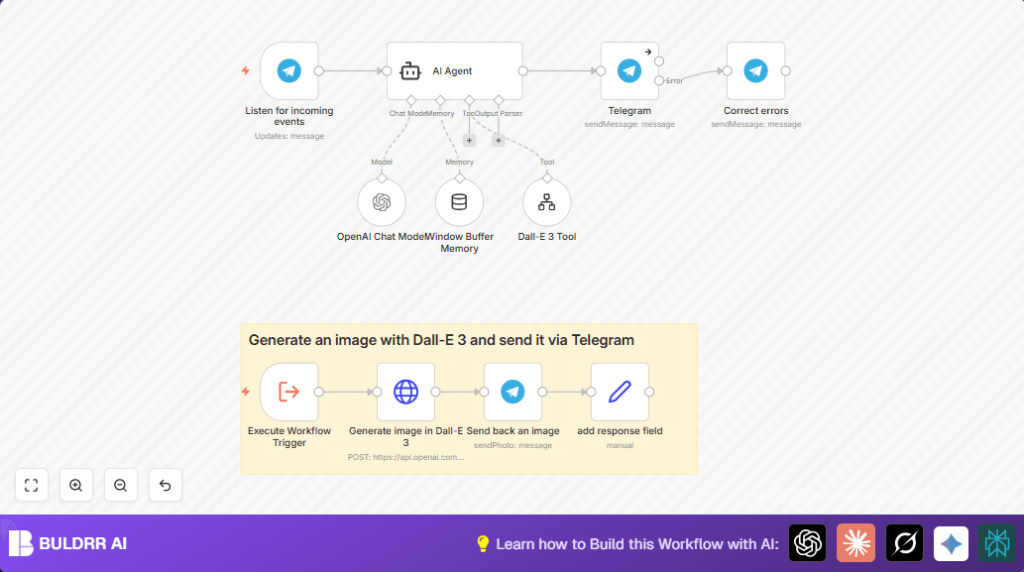

What This Automation Does
Most Telegram groups die because no one has time to answer the same
questions over and over. This n8n workflow fixes that permanently.
It connects your Telegram bot to OpenAI GPT-4 via LangChain — so when
someone sends a message, the bot reads it, thinks about it using GPT-4,
and replies intelligently within seconds. Ask it a question, it answers.
Ask it to generate an image, it uses DALL-E 3 to create one and sends
it back inside the chat.
What makes this different from a basic chatbot: it remembers. The
Window Buffer Memory node stores the last 10 messages per user, so
conversations feel natural — not like talking to a broken FAQ bot.
The full node stack: Telegram Trigger → AI Agent (LangChain) →
GPT-4 Chat Model + DALL-E 3 Tool → Telegram reply. Every message
handled automatically, 24/7, with zero manual input from you.
What This Production-Ready Telegram AI Bot Can Do
This is not a basic chatbot. It’s a fully featured AI bot
built on LangChain + GPT-4 — ready to deploy in real
Telegram groups and chats from day one.
Here’s exactly what it does:
Conversation Memory
Remembers the last 10 messages per chat using Window Buffer
Memory. Each Telegram chat gets its own isolated history —
no cross-talk between users or groups.
Custom Tool Use (LangChain Agent)
The AI doesn’t just reply — it decides which tool to use
based on the message. Ask a question → GPT-4 answers.
Ask for an image → DALL-E 3 generates it automatically.
AI Image Generation
Send any image prompt to the bot and DALL-E 3 creates and
delivers the image directly inside Telegram. No extra steps,
no external links.
Real-Time Telegram Replies
Fires the moment a message arrives via Telegram Trigger.
Processes, generates, and replies — all within seconds.
Error Handling Built In
Special character escaping node ensures AI replies always
render correctly in Telegram’s HTML mode — no broken
formatting, no display errors.
One workflow. Five production-grade features.
No server hosting required — n8n handles everything.
Production-Ready vs a Basic Telegram Bot — What’s the Difference?
Most Telegram bot tutorials show a bot that echoes messages
or sends a fixed reply. This workflow is built differently.
| Feature | Basic Hobby Bot | This Workflow |
|---|---|---|
| Understands context | ✗ | ✓ (GPT-4) |
| Remembers past messages | ✗ | ✓ (per-chat memory) |
| Generates images | ✗ | ✓ (DALL·E 3) |
| Uses tools intelligently | ✗ | ✓ (LangChain Agent) |
| Handles special characters | ✗ | ✓ (error node built-in) |
| Scales to multiple chats | ✗ | ✓ (isolated sessions) |
| No server hosting needed | Varies | ✓ (runs on n8n) |
A hobby bot answers one type of message in one fixed way.
This workflow handles whatever your users throw at it —
questions, image requests, follow-ups, multi-turn conversations
— and responds intelligently every time.
Who Should Use This Workflow
Telegram community managers: You run a group of 500+ members and
the same 10 questions get asked daily. This bot answers them all
instantly, every time, without you typing a word.
Course creators and coaches: You have a student support group on
Telegram. This bot handles common questions about curriculum,
deadlines, and resources — so you only step in for complex ones.
SaaS founders and indie hackers: You want to add an AI support
layer to your product’s Telegram community without hiring a
support agent. This workflow costs pennies per message vs.
hundreds per month for a human.
Content creators: Your audience asks for images, ideas, and
explanations. The DALL-E 3 integration means your bot can generate
custom images on request, right inside the Telegram chat.
No coding skills required — just an n8n instance, a Telegram Bot
token, and an OpenAI API key.
Tools and Services Used
- Telegram Bot API: Receives user messages.
- n8n Automation Platform: Runs the workflow and connects the tools.
- Langchain Nodes: Link the workflow with OpenAI models and memory.
- OpenAI GPT-4 (gpt-4-1106-preview): Understands and replies to text messages.
- OpenAI Dall-E 3 API: Generates images from text prompts.
Beginner Step-by-Step: How to Use This Workflow in n8n
Step 1: Create your Telegram Bot
1. Open Telegram and search for @BotFather.
2. Send /newbot and follow the prompts to name your bot.
3. BotFather gives you a Bot Token — copy it. It looks like:
7123456789:AAFxyz-abcdefghijklmnop
4. To use the bot in a group, add it as an admin and disable
privacy mode via BotFather (/setprivacy → Disable).
Step 2: Get your OpenAI API Key
5. Go to platform.openai.com → API Keys → Create new secret key.
6. Copy it immediately — you can’t see it again after closing
the page.
7. Make sure your OpenAI account has GPT-4 and DALL-E 3 access
(requires a paid plan).
Step 3: Import the workflow into n8n
8. Click the Download button on this page.
9. In n8n: top menu → Import → Import from File → select the .json.
10. All 8 nodes will load: Telegram Trigger, AI Agent, OpenAI Chat
Model, Window Buffer Memory, DALL-E Tool, HTTP Request,
Telegram (send), Set (error correction).
Step 4: Add credentials
11. Click the Telegram Trigger node → Credentials → Add New →
paste your Bot Token.
12. Click the OpenAI Chat Model node → Credentials → Add New →
paste your OpenAI API Key.
13. Use the same OpenAI credential for the DALL-E HTTP Request node.
Step 5: Set the session key for memory
14. Click the Window Buffer Memory node.
15. Set the Session Key field to this expression:
=chat_with_{{ $(‘Listen for incoming events’).first().json.message.chat.id }}
16. This makes sure each Telegram chat gets its own conversation
memory — different users won’t mix histories.
Step 6: Test before going live
17. Click “Execute Workflow” in n8n.
18. Send a text message to your Telegram bot — it should reply
with a GPT-4 generated answer.
19. Send “generate an image of a sunset” — it should reply with
a DALL-E 3 image in the chat.
20. If both work, toggle the workflow to Active.
Inputs, Processing Steps, and Outputs
Inputs
- New text messages or commands from Telegram group chats.
Processing Steps
- Telegram Trigger catches incoming messages.
- AI Agent reads message and decides if reply or image needed.
- OpenAI Chat Model (GPT-4) generates text answer when needed.
- Window Buffer Memory keeps last 10 messages to remember conversation.
- Dall-E 3 Tool detects image requests and triggers image creation.
- Generate Image in Dall-E 3 HTTP Request calls OpenAI image API.
- Telegram node sends text or photo responses back.
- Correct errors node cleans special characters for Telegram display.
Outputs
- AI-generated text replies to user questions or chats.
- AI-created images based on user prompts delivered inside Telegram.
Common Edge Cases and Failures
- If the Telegram bot does not receive messages, verify webhook URL is set and bot privacy settings allow message access.
- If AI replies are empty or off-topic, check that session keys in Window Buffer Memory use dynamic chat IDs.
- Invalid OpenAI API keys cause message generation failures—renew or correct keys immediately.
- Image generation may fail if Dall-E API quota is reached or prompt is empty.
Customization Ideas
- Change text model parameters inside OpenAI Chat Model node to adjust creativity or response style.
- Modify Window Buffer Memory‘s number of stored messages to keep longer or shorter conversation history.
- Add tools such as Wikipedia search or weather lookup nodes to widen user support.
- Change Telegram message parsing mode from HTML to Markdown for different text formatting.
- Translate system and human prompts inside AI Agent node to support multiple languages.
Sample Prompt in AI Agent Node
The following prompt directs AI response and when to create images.
System: You are a helpful assistant. Reply to users or generate images if asked.
Human: {{$json.message.text}}
Adjust this prompt inside the AI Agent node under parameters for message processing.
Sample Expression for Window Buffer Memory session key
Use this to separate conversations per chat in memory node:
=chat_with_{{ $('Listen for incoming events').first().json.message.chat.id }}
This prevents mixing histories from different Telegram chats.
Special Character Escaping in Telegram Messages
Use this expression to fix AI reply message so Telegram shows it right in HTML mode:
{{ $('AI Agent').item.json.output.replace(/&/g, "&").replace(/>/g, ">").replace(/</g, "<").replace(/"/g, """) }}Real-World Example: A Course Creator’s Support Bot
Rahul runs an online n8n automation course with 800 students in a
Telegram group. Before this workflow, he spent 90 minutes daily
answering the same questions: “How do I connect Gmail?”,
“Where is the webhook URL?”, “Can n8n generate images?”
After setting up this workflow with a custom system prompt trained
on his course FAQ, the bot now handles 85% of student questions
automatically — including generating example workflow diagrams
on request via DALL-E 3.
Setup time: 35 minutes.
Daily time saved: 90 minutes.
Student response time: dropped from hours to under 5 seconds.
Summary of Results
✓ Full AI Telegram bot — text replies + image generation in one workflow
✓ GPT-4 powered — understands context, nuance, and complex questions
✓ DALL-E 3 integration — generates images on request inside Telegram
✓ Conversation memory — remembers last 10 messages per user
✓ Works in private chats and group chats
✓ No coding needed — set up in under 35 minutes
✓ Fully customizable — change model, memory size, system prompt, language
✓ Free to download — only pay for OpenAI API usage
