
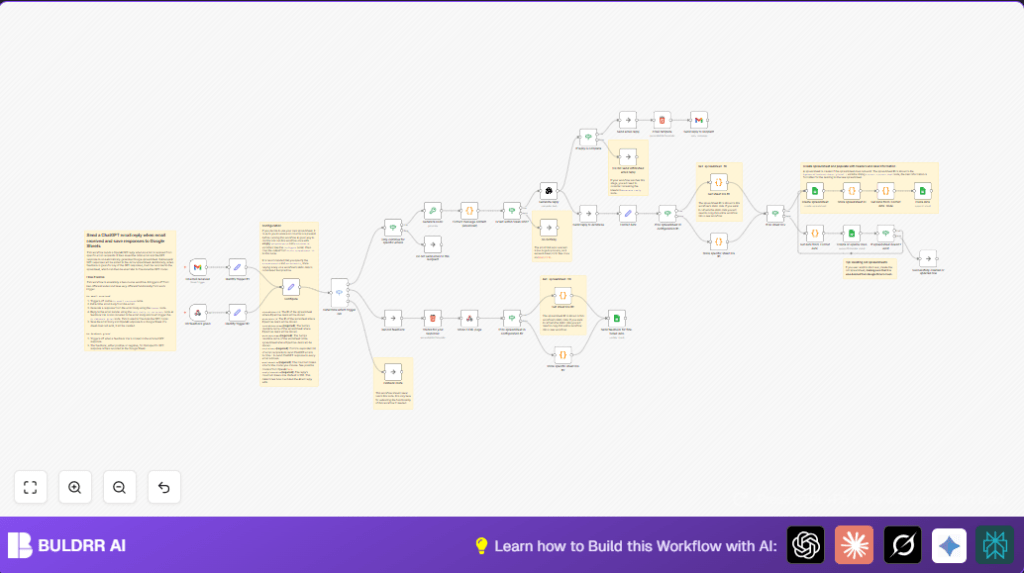

What this workflow does
This workflow reads new emails from certain senders in Gmail, makes a smart reply using OpenAI’s chatbot, sends that reply back, and saves the conversation info in Google Sheets. It also collects feedback from recipients with simple Yes/No links and updates the sheet for tracking. The main problem it solves is saving time by automatically replying to complex emails and keeping a record of all exchanges and feedback.
The result is faster replies, fewer mistakes, and a way to improve answers over time using real user feedback.
Who should use this workflow
Anyone who gets many detailed emails needing careful replies and wants to automate those answers without losing track of conversations. It fits well for customer support managers, small teams, or solopreneurs using Gmail and Google Sheets who want structured follow-up and feedback tracking.
No heavy coding skills are needed but some basics with n8n and API keys help.
Tools and services used
- Gmail: Reads incoming emails and sends replies.
- OpenAI (ChatGPT): Creates thoughtful and clear email replies.
- Google Sheets: Stores email conversations and feedback.
- n8n: Connects all steps and runs the workflow automatically.
- Optional self-hosting: Running n8n on own server for more control, see self-host n8n.
Beginner step-by-step: How to use this workflow in n8n
Importing the workflow
- Download the workflow JSON file using the Download button on this page.
- Open your n8n editor where you want the workflow.
- Click on “Import from File” and select the downloaded workflow file.
Configuring credentials and settings
- Add your Gmail OAuth2 credentials in the Gmail Trigger and Gmail send nodes.
- Insert your OpenAI API Key in the OpenAi node.
- Check and update the recipient emails list in the Configure node.
- Update Google Sheets info like spreadsheet and worksheet IDs or names if needed.
Testing and activating the workflow
- Send a test email from one of the allowed sender addresses to your Gmail account.
- Run the workflow manually or wait for the trigger to activate and verify the reply arrives with feedback links.
- Check Google Sheets to confirm the data is recorded correctly.
- Activate the workflow to run automatically for production use.
Inputs → Processing steps → Output
Inputs
- New email received in Gmail from pre-approved senders.
- Recipient clicking Yes/No feedback links in reply emails.
Processing Steps
- Trigger opens when Gmail receives new mail from allowed senders.
- Filter selects only intended emails to auto-reply.
- Generate a unique ID per conversation for tracking.
- Extract clean, fresh message content from emails, ignoring quoted past replies.
- Check if message size fits OpenAI limit; block if too long.
- Use OpenAI’s GPT model to draft a clear, context-aware reply.
- Format data for storage: initial message, AI reply, feedback field.
- Create or update Google Sheet with conversation data for record keeping.
- Send reply with Gmail node, including clickable feedback links with unique IDs.
- Webhook captures feedback clicks, update corresponding Google Sheet rows.
- Respond to feedback submission with a thank-you HTML page.
Output
- Automated, personalized email replies sent to original sender.
- Conversation details and AI replies saved in Google Sheets.
- Collected Yes/No feedback linked to each reply in the spreadsheet.
Edge cases and common failures
- Emails from unauthorized senders do not trigger the workflow, ensuring no unwanted replies.
- If the email message is too long, OpenAI might reject it. The workflow stops processing such cases to avoid errors.
- Expired Gmail OAuth2 credentials cause triggers or sends to fail; re-authentication is needed.
- Deleted Google Sheets spreadsheet or missing IDs break storage; workflow requires fixing or recreating sheet.
- Webhook links with wrong path or parameters cause feedback not to update properly.
Customization ideas
- Change reply length by updating the
replyTokenSizein the Configure node. - Add or remove allowed sender emails in the
recipientslist inside the Configure node. - Rename spreadsheet or worksheet to organize data by changing
spreadsheetNameandworksheetName. - Edit the HTML email template to reflect company branding or make feedback links more visible.
- Extend filtering criteria by adding subject line keywords or content checks in the If node.
Summary and Results
→ Automatic replies save hours of writing.
→ Conversation data is stored clearly for easy tracking.
→ Feedback from recipients helps improve AI replies over time.
→ Ensures fast, consistent, and personalized customer support emails.
→ Easy to configure and use even for beginners in n8n.
