
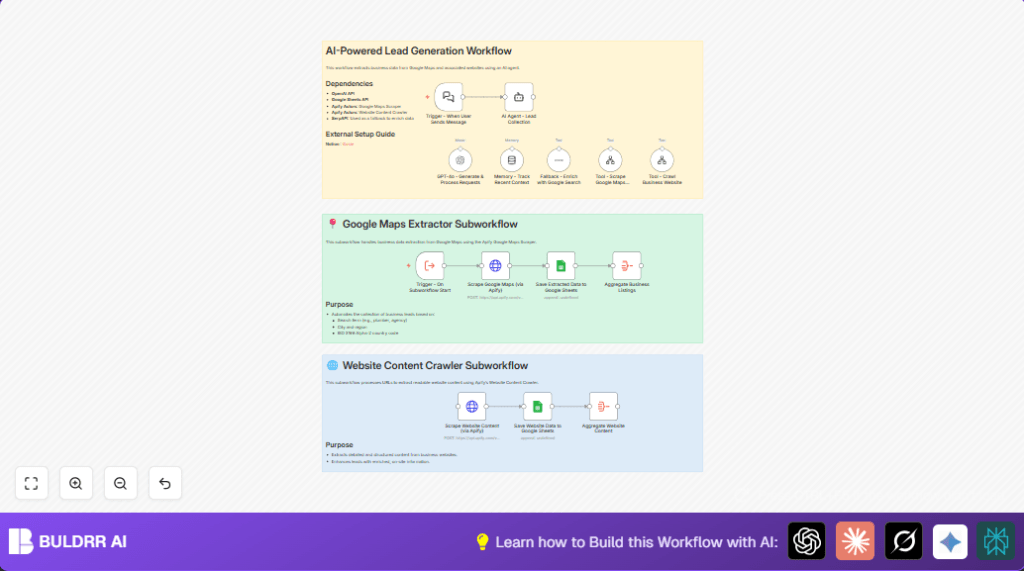

Type in any business type and city, and it pulls 100+ verified leads from Google Maps directly into a Google Sheet. Each lead includes the business name, phone number, website, and address — ready for outreach without any manual search.
No spreadsheet work. No copy-pasting. Just a clean list of leads every time you run it.
What this workflow does
This workflow collects business leads by searching Google Maps and company websites automatically.
It fixes slow, error-prone manual work by organizing lead data and saving it to Google Sheets.
The main purpose is to save time and avoid mistakes in lead gathering.
The result is faster, more accurate lead lists ready for sales outreach.
Key tools and services
- n8n automation platform: Runs the workflow and connects nodes.
- OpenAI: Uses GPT-4o AI for understanding requests and data processing.
- Google Sheets API: Stores and updates lead data records.
- Apify API: Scrapes Google Maps and website content.
- SerpAPI: Performs fallback Google searches when scraping is incomplete.
Inputs, Processing, and Outputs
Inputs
- User message containing search terms, city, state, and country code.
- Google Maps business listings via Apify API.
- Website URLs to extract detailed content.
Processing steps
- The Webhook node receives user messages and starts the workflow.
- AI Agent – Lead Collection interprets input with ethical and format rules.
- GPT-4o – Generate & Process Requests plans requests and data flow.
- Memory – Track Recent Context maintains conversation history to keep answers consistent.
- Scrape Google Maps (via Apify) gathers business data filtered by user criteria.
- Save Extracted Data to Google Sheets appends results to a spreadsheet.
- Aggregate Business Listings consolidates data for easier review.
- Tool – Crawl Business Website launches subworkflow to get website details.
- Scrape Website Content (via Apify) extracts content from websites for lead enrichment.
- Save Website Data to Google Sheets stores enriched info in another sheet.
- Aggregate Website Content combines website details for AI use.
- Fallback – Enrich with Google Search uses SerpAPI when other data is missing.
Output
- A clean spreadsheet with detailed, checked business leads for outreach.
- Improved lead quality by avoiding duplicates and adding website info.
- More efficient workflow enabling faster sales contact.
Beginner step-by-step: How to build this in n8n
Download and Import
- Download the workflow file using the Download button on this page.
- Go into the n8n editor where you want the workflow to run.
- Use “Import from File” option to upload the workflow JSON.
Configure Credentials
- Open each node requiring keys: OpenAI, Apify, Google Sheets, SerpAPI.
- Add valid API Keys exactly as given by each service.
- Update Google Sheets Document IDs and sheet names where data should be saved.
- Check any email addresses, URLs, or folder names and adjust to your setup.
Test and Activate
- Send a test message like “Find carpenters in San Francisco, US” to the workflow webhook.
- Watch the workflow run and check spreadsheet for results.
- Fix any API or ID errors if data does not appear correctly.
- Once tested, activate the workflow using the toggle switch for live use.
Extra Notes
- For better performance, consider self-host n8n.
- Make sure API limits for OpenAI and Apify are enough for expected usage.
Customization ideas
- Increase or decrease the max number of places scraped by editing
maxCrawledPlacesPerSearchin the Google Maps scrape node JSON.
- Increase or decrease the max number of places scraped by editing
- Change the target Google Sheets Document ID and sheet names in related nodes to store data in preferred files.
- Edit the AI Agent system prompt to focus on specific business types or add filters.
- Add new search parameters like
skipClosedPlacesor business categories by expanding the JSON body sent to the Apify API.
- Add new search parameters like
Handling errors and failures
No data from Google Maps Scraper API
Check that the country code is lowercased, like “us” not “US”.
Verify the city name is correct and spelled right.
Authorization or API key errors
Make sure API keys for Apify, OpenAI, Google Sheets, and SerpAPI are valid and not expired.
Re-enter keys in node credential sections.
JSON formatting problems
Use the n8n JSON editor to avoid syntax mistakes.
Test JSON in online validators before saving to prevent errors.
Summary of results
What You Get From This Workflow
✓ 100+ business leads per search — pulled automatically from Google Maps
✓ Each lead includes name, phone, website, and address
✓ Leads saved directly to Google Sheets — no manual data entry
✓ Duplicate leads filtered out automatically by the AI agent
✓ Website data enriched via Apify for deeper contact details
✓ Fallback Google Search via SerpAPI fills gaps when Maps data is incomplete
✓ Saves 8+ hours weekly on manual lead research
Download the free workflow and run your first search in under 10 minutes.
