
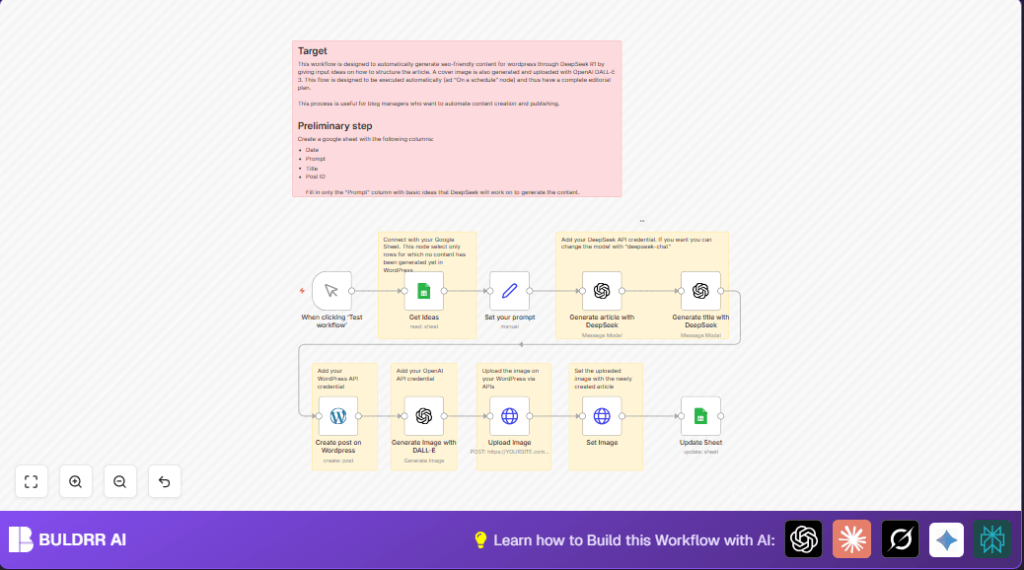

What This Workflow Does
This workflow reads article ideas from Google Sheets and uses AI models to create full blog posts in WordPress with images. It saves time by making SEO-friendly drafts and posting cover photos automatically.
The main problem solved is creating blog content faster and without missing steps like images or formatting. The result is a draft post on WordPress with a title, article, and featured image ready for review.
Inputs, Processing Steps, and Outputs
Inputs
- Google Sheets rows: contains article prompts that need content.
- API credentials: for Google Sheets, WordPress, and OpenAI (DeepSeek and DALL-E).
Processing Steps
- Fetch prompts from Google Sheets where no article or post exists.
- Prepare prompt text for AI.
- Generate SEO-optimized, HTML-formatted article using DeepSeek Reasoner.
- Create a short, catchy title for the article with DeepSeek.
- Post the article to WordPress as a draft.
- Generate a cover photo using DALL-E 3 based on the new title.
- Upload the image to WordPress media and attach it as the featured image.
- Update the original Google Sheet row with the article title, post ID, and date.
Outputs
- WordPress draft post: SEO-ready article with title and content.
- Featured image: realistic photo attached to the post.
- Google Sheet update: tracking details filled in.
Who Should Use This Workflow
This is for blog managers or content creators who want to save time writing and posting on WordPress.
No coding needed, but some familiarity with n8n or workflow software is helpful.
The workflow works well if there are many article ideas to process regularly.
Tools and Services Used
- Google Sheets: Stores article prompts and tracks output data.
- OpenAI DeepSeek Reasoner: Creates detailed, structured articles.
- OpenAI DeepSeek (LangChain): Generates SEO-friendly article titles.
- OpenAI DALL-E 3: Produces high-resolution cover images.
- WordPress REST API: Manages blog post creation and media upload.
- n8n automation platform: Orchestrates the entire workflow.
Beginner Step-by-Step: How to Use This Workflow in n8n
1. Import the Workflow
- Download the workflow file using the Download button on this page.
- Open your n8n editor.
- Use the Import from File option and select the downloaded file.
2. Configure API Credentials
- Open the credentials section in n8n.
- Add your Google Sheets OAuth2 credentials.
- Add the WordPress API credentials with permission to create posts and upload media.
- Add OpenAI API keys with access to the DeepSeek models and DALL-E 3.
3. Update IDs and Parameters
- Update Google Sheet Document ID in the Get Ideas node.
- Update sheet name or tab if different from default.
- Check and update any email, channel, or table identifiers if present.
- Verify model IDs in OpenAI nodes match configured plans.
4. Test the Workflow
- Run the workflow manually to check it pulls prompts and produces drafts.
- Inspect output for the WordPress post, title, and image upload success.
5. Activate for Production
- Switch the workflow from inactive to active in n8n.
- You can use a manual trigger or schedule it with a trigger node.
Note: For those hosting or running this on a server, consider self-host n8n for better control.
Customization Ideas
- Change article length, tone, or HTML style by editing the prompt instructions in the Generate article with DeepSeek node.
- Replace DeepSeek models in OpenAI nodes to use other OpenAI-supported models.
- Change the DALL-E image prompt in the Generate Image with DALL-E node to fit different blog themes.
- Add an extra node to publish the draft instead of leaving it as draft when ready.
- Set a schedule trigger node to run automatically instead of manual triggers.
Common Problems and Fixes
- Empty Google Sheets Data: Make sure the sheet ID and name are correct and there are prompts without article titles or post IDs.
- Unauthorized WordPress API: Check WordPress API credentials and renew if expired.
- OpenAI Token Limit Errors: Reduce prompt complexity or increase max tokens.
- Image Upload Errors: Verify upload headers and that image is linked to the correct post ID.
Pre-Production Checklist
- Confirm Google Sheet setup with correct columns and sample prompts.
- Validate all API keys and credentials are active.
- Test nodes individually to catch errors early.
- Backup Google Sheet data before mass updates.
- Ensure WordPress REST API permissions include post creation and media upload.
Summary of Benefits and Outcomes
✓ Saves hours of manual blog writing and posting.
✓ Produces SEO-ready, formatted articles with images automatically.
✓ Reduces errors from missing images or formatting.
✓ Tracks published content clearly in Google Sheets.
✓ Can be run manually or scheduled for automatic content creation.
