

What this workflow does
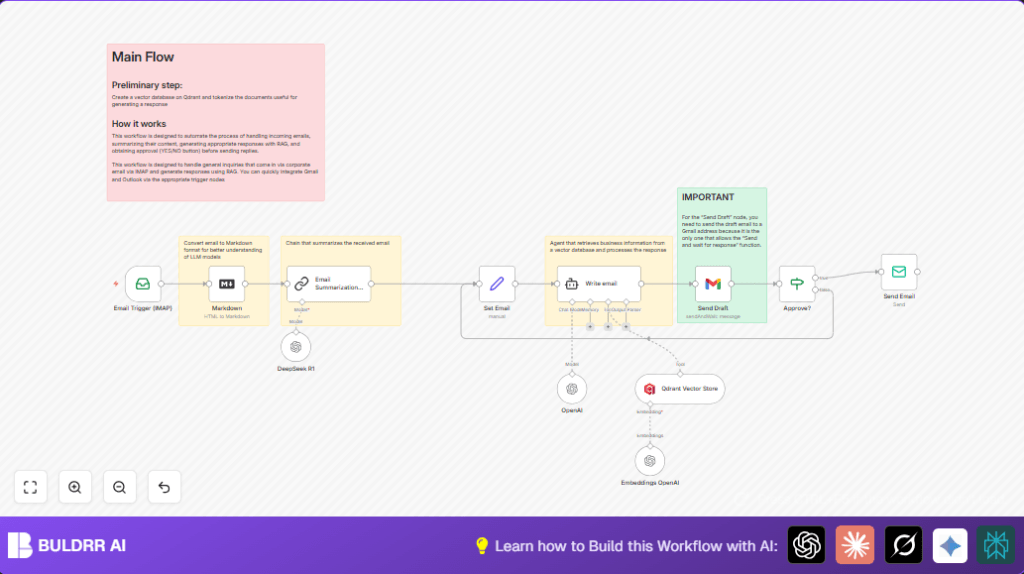
This workflow reads new emails from a company inbox using IMAP.
It turns the email content into markdown to make the text easier to handle.
Then it uses AI to write a short summary of the email.
The summary is used to find related information from a company knowledge database called Qdrant.
Based on the summary and knowledge retrieved, AI creates a draft reply email in HTML.
The draft is sent to a Gmail account for manual approval, where the manager can accept or reject it.
After approval, the final reply is sent automatically to the original sender’s email address.
This helps save time and keeps replies clear and approved.
Who should use this workflow
This workflow is for customer service managers or teams who get many email questions every day.
They need to reply quickly but also want answers checked before sending.
If users want to reduce manual work and avoid reply mistakes, this workflow fits.
Tools and services used
- IMAP email access: To read company emails.
- OpenAI API: For AI language tasks like summarizing and writing replies.
- Qdrant Vector Database: To search company knowledge by embeddings.
- Gmail: Receives drafts and allows manual approval.
- n8n platform: Runs and connects all automation steps.
How the workflow works (Input → Process → Output)
Input
New emails arrive in the corporate inbox configured for IMAP access.
Processing steps
- Convert email HTML body to markdown for easier AI reading.
- Summarize the email into 100 words or less using an AI summarization chain.
- Generate vector embeddings from summary for semantic search.
- Query Qdrant knowledge base collection using embeddings to find related info.
- Use AI to write an HTML email reply draft combining summary and retrieved knowledge.
- Send draft email to a specified Gmail account with Yes/No approval buttons.
- Wait for manual approval decision from the Gmail response.
- If approved, send the final reply email to the original sender via SMTP.
Output
Professional, concise reply email sent to the original customer only after approval.
Beginner step-by-step: How to use this workflow in n8n
1. Import the workflow
- Download the workflow file using the Download button on this page.
- Open your n8n editor.
- Click ‘Import from File’ and select the downloaded workflow file.
2. Configure credentials
- Add your corporate IMAP email credentials in the Email Trigger (IMAP) node.
- Enter your OpenAI API key in the nodes that require it (embedding and AI tasks).
- Add Qdrant API key and configure the knowledge base collection ID.
- Set the Gmail account credentials in the Send Draft node for draft approvals.
- Provide SMTP details for the Send Email node to send final replies.
- Update any email addresses, collection names, or IDs needed for your company.
3. Test and activate
- Trigger a test email to the corporate inbox.
- Watch the workflow run and verify each step’s output.
- Check that the draft email reaches the Gmail approval account with buttons.
- Approve or reject the draft from Gmail and see if the final email sends when approved.
- After testing, toggle the workflow to ‘Active’ to run continuously.
If using self-host n8n, refer to self-host n8n for setup options.
Common input problems and failures
- No emails trigger: Check that IMAP credentials and server settings are correct.
- AI fails to summarize: Confirm OpenAI API key is valid and input data matches expected fields.
- No knowledge returned from Qdrant: Make sure collection exists and embeddings are properly generated.
- Approval buttons missing in Gmail: The approval feature works only using the Gmail node with OAuth2.
- Email not sent: Verify SMTP details and that the final recipient email is correct.
Customization options
- Change the AI model used for summarizing and writing replies by editing model name in OpenAI nodes.
- Modify summary length in the AI chain prompt for shorter or longer summaries.
- Add more documents to Qdrant to cover more company info and improve reply accuracy.
- Switch the draft approval step to a different Gmail or integrate other approval methods such as Slack.
Summary of workflow result
→ Emails are read and understood quickly without manual reading.
→ Replies are drafted professionally with AI and company data.
→ Approval step stops errors and unwanted replies before sending.
→ Saves hours of manual work daily.
→ Maintains consistent, clear, and approved communication.
