
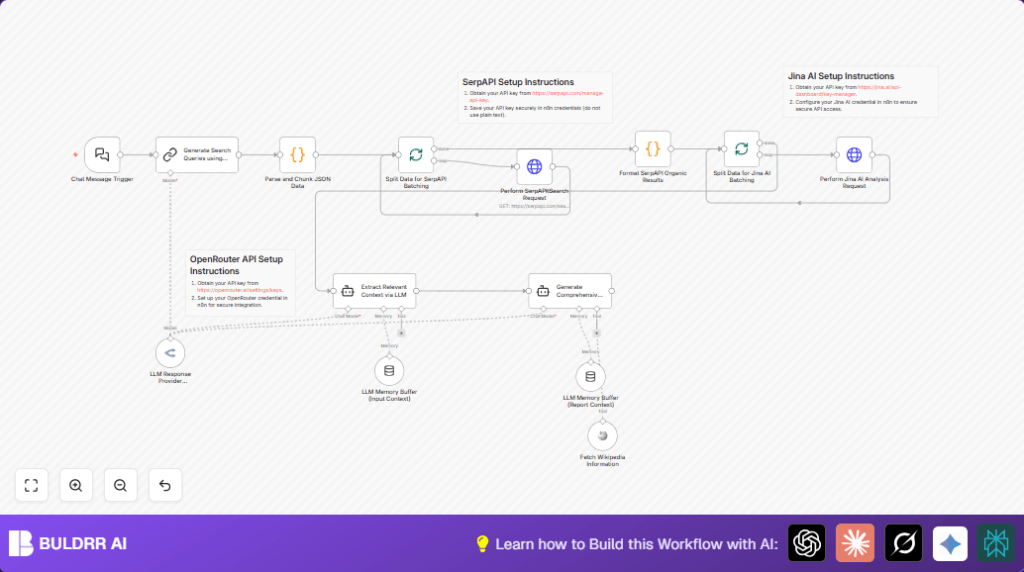

1. What this workflow does
This workflow turns one question into a full research report fast.
It solves the problem of spending many hours searching through many articles manually.
Users get a clear, detailed report from multiple web sources plus Wikipedia.
The process uses AI and search APIs to do the work automatically.
You give the workflow a question.
It makes several precise search queries from that question.
Then it searches Google using SerpAPI for each query.
Important information is extracted and analyzed using Jina AI.
The workflow also adds Wikipedia facts.
Finally, it creates a structured report in Markdown.
This saves time and effort for researchers and students.
2. Tools and services used
- Langchain LLM (via OpenRouter API): Generates search queries and processes content.
- SerpAPI: Runs batch Google searches.
- Jina AI: Extracts and analyzes key web page content.
- Wikipedia tool in Langchain: Gets encyclopedia info.
- n8n: Connects all nodes and automates the workflow.
These tools work together to handle input, processing, and output.
Each API requires an API Key to function within n8n securely.
3. Inputs, processing, and outputs explained
Inputs
- User submits a single research question via Chat Message Trigger.
- OpenRouter API key to generate multiple detailed queries.
- SerpAPI key to run Google searches.
- Jina AI API key for content analysis.
Processing steps
- The original question is expanded into 4 distinct search queries by Langchain LLM.
- Queries are parsed and split into batches for API limits.
- SerpAPI runs Google searches for each query batch and returns results.
- Search results are cleaned and formatted.
- Formatted data is batched for Jina AI to analyze and extract relevant text.
- Extracted content plus Wikipedia data are fed into LLM agents to pull focused context.
- A final LLM agent composes a Markdown report summarizing all findings.
- Memory buffers preserve context between steps for continuity.
Outputs
- A structured Markdown research report with headings, clear insights, and references.
- Optionally, export or download the report from n8n.
4. Beginner step-by-step: How to use this workflow in n8n
Downloading and importing the workflow
- Download the workflow file using the Download button on this page.
- Open the n8n editor and choose “Import from File.”
- Select the downloaded workflow file to load it.
Configuring the workflow
- Add your required API Keys in the Credentials section: OpenRouter, SerpAPI, and Jina AI.
- Update any IDs, emails, channels, or folders if your workflow has specific integrations.
- Check prompt text or code in Prompt or Code nodes; copy and paste any expressions if needed.
Testing and activating
- Run the workflow manually by sending a test research question to the Chat Message Trigger webhook URL.
- Check outputs at each node to ensure API calls return data.
- If all looks good, activate the workflow to run automatically.
For more control, consider self-host n8n on a server.
This helps when scaling or for security reasons.
5. Common mistakes and how to fix them
- Invalid JSON from query generation: Fix prompt instructions in Generate Search Queries using LLM node to return clean JSON only.
- Empty or missing SerpAPI results: Check SerpAPI API key, query parameters correctness, and test API calls outside n8n.
- Jina AI authentication errors: Confirm Jina AI API key validity and update credentials in n8n.
- Workflow not triggering: Ensure the Chat Message Trigger node is activated and connected downstream.
6. Customization ideas
- Change number of search queries generated by editing prompt in the Generate Search Queries using LLM node.
- Try different LLM models in the LLM Response Provider (OpenRouter) node for better speed or detail.
- Modify the Markdown format in the final report node to add new sections like Recommendations.
- Add new API calls to include data from other sources into the analysis.
- Increase context memory buffer sizes to handle longer multi-question sessions.
7. Outputs and results you get
✓ A detailed research report with web and Wikipedia insights.
✓ Fast information collection from multiple queries batched automatically.
✓ Time saved from manual searching and note-taking.
✓ Clear, structured Markdown document easy to review.
✓ Memory buffers keep context for multi-turn research.
8. Summary
This workflow automates research by transforming one question into many queries.
It searches Google, extracts key content, adds Wikipedia facts, and writes a report.
All happens inside n8n using APIs and Langchain AI.
Non-technical users import the workflow, add API keys, test, and activate it.
Customizations let users control depth and sources.
It saves hours and gives structured knowledge fast.
