

Opening Problem Statement
Meet Max, a product manager at a fast-growing SaaS company. Max’s team relies heavily on Notion for organizing all their company knowledge, FAQs, and internal documentation. However, different projects and teams create their Notion databases with slightly different schemas — unique property names, types, and structures. Whenever Max wants to build an AI chatbot assistant to help staff query a specific Notion knowledge base, he faces a tedious, error-prone task: manually adjusting or rebuilding the automation workflow to fit that exact database’s schema.
Max often wastes hours trying to modify workflows that only work with a single Notion database schema. This inefficiency slows down project delivery and frustrates the team who want quick answers from the AI assistant. Additionally, if Max doesn’t perfectly map the schema details, the AI might return irrelevant or incomplete answers.
This is a real struggle not just for Max but for anyone looking to use AI chatbots tied directly to any given Notion database without repetitive customization.
What This Automation Does ⚙️
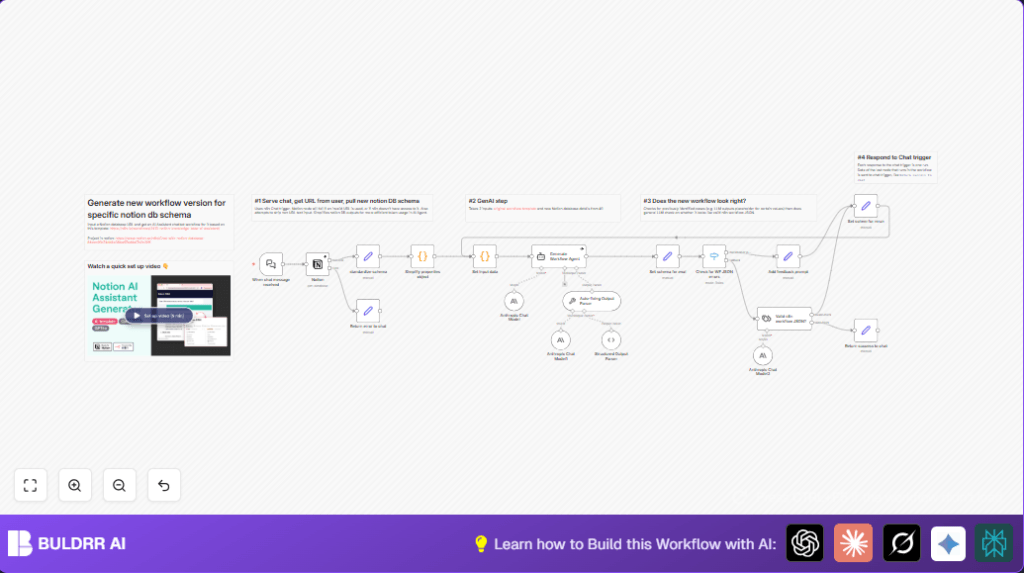
This unique n8n workflow automates the process of generating a brand new n8n chatbot workflow customized precisely for any given Notion database schema. When you provide a Notion database URL via a chat interface, the workflow:
- Extracts and standardizes the database’s schema details from Notion via the API.
- Simplifies the schema properties for token-efficient AI processing.
- Feeds these details, along with a reference AI assistant workflow template, into an AI agent powered by Anthropic & OpenAI models to generate a tailored new chatbot workflow JSON.
- Performs multi-step validation, error checking, and automated fixes on the generated workflow JSON.
- Returns the valid new n8n workflow JSON formatted for direct import into your n8n instance.
- Handles invalid URLs or permission errors by sending helpful error messages back to chat.
Thanks to this automation, you save several hours or even days of manual workflow configuration and testing for each new Notion database.
Prerequisites ⚙️
- n8n cloud or self-hosted account to run workflows (https://buldrr.com/hostinger for self-hosting options) 🔑
- Anthropic API account (for the Anthropic Chat Model nodes) 🔐
- OpenAI API account (used for generating parts of the workflow) 🔐
- Valid Notion account with API access for your Notion databases 📁
- Notion API credentials imported and configured in n8n 🔑
- Basic familiarity with n8n workflow editor to import and run the generated JSON workflow ⏱️
Step-by-Step Guide ✏️
1. Trigger Chat Input with Notion Database URL
Navigate to your n8n editor and locate the “When chat message received” node. This node listens on a public webhook where users can input a Notion database URL via chat.
Type example: https://www.notion.so/n8n/34f67a14195344fda645691c63dc3901
Outcome: The workflow is triggered and captures the Notion DB URL from the chat input.
Common mistake: Inputting a non-URL string or a URL for a Notion page instead of a database — the workflow handles invalid URLs with an error node but double-check your input.
2. Fetch Database Details from Notion API
The Notion node connects to Notion’s API using provided credentials, extracting the database schema using the URL from the chat input.
Navigate: Click the Notion node → Select resource “database” → Use expression to dynamically extract databaseId from the URL.
Outcome: n8n retrieves full schema details, including properties, types, and titles.
Common mistake: Ensure your n8n Notion credentials have permission to access the database linked.
3. Standardize the Schema Format
Use the Set node named “standardize schema” to normalize the incoming JSON from Notion API to consistent fields like id, name, and properties.
This makes downstream processing easier and consistent.
4. Simplify Properties Object Using Code Node
The Code node named “Simplify properties object” reduces complex property structures, extracting only relevant attributes — id, name, type, and options for select/multi-select types.
Example snippet inside code node:
// Loop through each incoming item
return items.map(item => {
const inputDatabase = item.json["inputDatabase"];
const simplifiedProperties = Object.fromEntries(Object.entries(inputDatabase.properties).map(([key, value]) => {
const simplifiedValue = {
id: value.id,
name: value.name,
type: value.type
};
if (value.type === 'multi_select' || value.type === 'select') {
simplifiedValue.options = value.multi_select?.options?.map(option => option.name) || [];
}
return [key, simplifiedValue];
}));
item.json.inputDatabase.properties = simplifiedProperties;
return item;
});
Outcome: Token usage with AI models is optimized, and data is cleaner for workflow generation.
5. Prepare Input for AI Workflow Generation Agent
The “Set input data” Code node packages the simplified schema and a reference workflow template to send as input to the AI agent.
The template workflow is a pre-built example that supports querying Notion knowledge bases with an AI assistant.
6. Generate New AI Workflow Using LangChain Agent
The “Generate Workflow Agent” node takes the schema and template and runs an AI model pipeline backed by Anthropic & OpenAI to generate a new workflow JSON tailored specifically to the provided Notion schema.
The prompt instructs the agent to output properly formatted, valid n8n workflow JSON with adaptations for the specific database.
7. Validate and Auto-fix AI Output
The output passes through several nodes:
- Check for WF JSON errors (Switch node) to detect placeholder JSON errors in the generated workflow.
- Add feedback prompt to ask the AI to retry fixing errors if detected.
- Auto-fixing Output Parser and Structured Output Parser nodes to parse and correct JSON structure.
- Valid n8n workflow JSON? text classifier node to confirm the output is valid JSON for n8n.
This rigorous validation loop ensures the final output is something you can immediately import into your n8n instance.
8. Return Final Workflow JSON to Chat
The “Return success to chat” Set node sends the final valid workflow JSON back as a chat message. The user can copy and paste it directly into the n8n editor.
Outcome: You get a ready-to-use n8n workflow JSON for an AI assistant that works perfectly with your Notion database.
Customizations ✏️
- Change AI Model Temperature: In the “Anthropic Chat Model” and “Anthropic Chat Model1” nodes, adjust the temperature parameter to control creativity versus precision.
- Modify Workflow Template: In the “Set input data” code node, replace the embedded JSON template with your own custom n8n workflow template to generate different AI assistants.
- Adjust Validation Rules: Update the Switch node “Check for WF JSON errors” to catch other potential errors based on your specific schema or usage.
- Enhance Error Messaging: Customize the “Return error to chat” node to give more detailed guidance or link to support resources when invalid Notion URLs are entered.
- Add Additional Memory: Currently uses “Window Buffer Memory” node for limited context memory, you can add more complex memory nodes if needed.
Troubleshooting 🔧
Problem: “Notion node returns permission error or no data”
Cause: n8n Notion credentials lack access to the provided database.
Solution: Check and update Notion API integration permissions to include the database or workspace.
Problem: “AI agent outputs invalid or incomplete JSON”
Cause: AI model struggles with very complex schemas or too large payloads.
Solution: Simplify schema further in the Code node or reduce token length by adjusting AI model parameters. Use the auto-fixing parsers to retry.
Problem: “Chat trigger does not respond or webhooks timeout”
Cause: Public webhook URL not correctly set or slow response time.
Solution: Verify webhook URL in the “When chat message received” node; ensure n8n is reachable externally.
Pre-Production Checklist ✅
- Test the Chat Trigger with a Valid Notion Database URL
- Verify Notion API Credentials Have Correct Access Rights
- Confirm Generated JSON Imports Successfully into n8n Workflow Editor
- Run Validation Nodes Without Errors on Sample Inputs
- Back Up All Workflow Data Before Major Changes
Deployment Guide
Activate the workflow by enabling it in your n8n instance. Share the public chat webhook URL with your team or users who want to generate AI assistants for Notion databases on the fly.
Monitor workflow execution logs inside n8n to track errors or unexpected behavior. Since this workflow generates other workflows, make sure your environment has sufficient API quotas for Notion, Anthropic, and OpenAI.
FAQs
- Can I use a different AI model instead of Anthropic? Yes, you can swap out the Anthropic nodes for other compatible AI models in n8n, such as GPT-4 or your own hosted models, as long as the prompt and output parsing are adjusted accordingly.
- Does this consume lots of API credits? The complexity of your Notion schema impacts the usage, but the multiple retries for JSON validation mean it might use more tokens; consider API limits when scaling.
- Is my Notion data secure during this process? Yes, all requests go through your credentials managed by n8n without sharing data externally outside your integrations.
- Can this handle large Notion databases? It handles reasonably sized schemas, but very large or highly nested properties may require additional optimization or chunking.
Conclusion
By following this comprehensive guide, you’ve learned how to automatically generate a fully customized AI assistant workflow for any Notion database using n8n, Anthropic, and OpenAI APIs. This eliminates hours of manual schema mapping and workflow tweaking, allowing you to deploy dynamic Notion knowledge base chatbots fast.
Imagine saving 5+ hours per new project setup and drastically reducing human errors in automation logic. You can take this further by automating chatbot deployment or integrating with messaging platforms like Slack or Microsoft Teams.
Keep exploring AI-assisted workflows to empower your teams and enhance productivity seamlessly!