

What This Workflow Does
This workflow takes a wildlife video and makes a talk script for it.
The script matches the style of a famous nature storyteller.
It also makes a voice audio from the script and saves the audio online.
This saves many hours of writing and recording.
The user will get an audio narration file that fits the video without doing the writing or voice recording themselves.
Inputs, Processing Steps, and Output
Inputs
- Video file downloaded from an online URL.
- OpenAI API access for generating script and voice.
- Google Drive credentials for saving audio.
Processing Steps
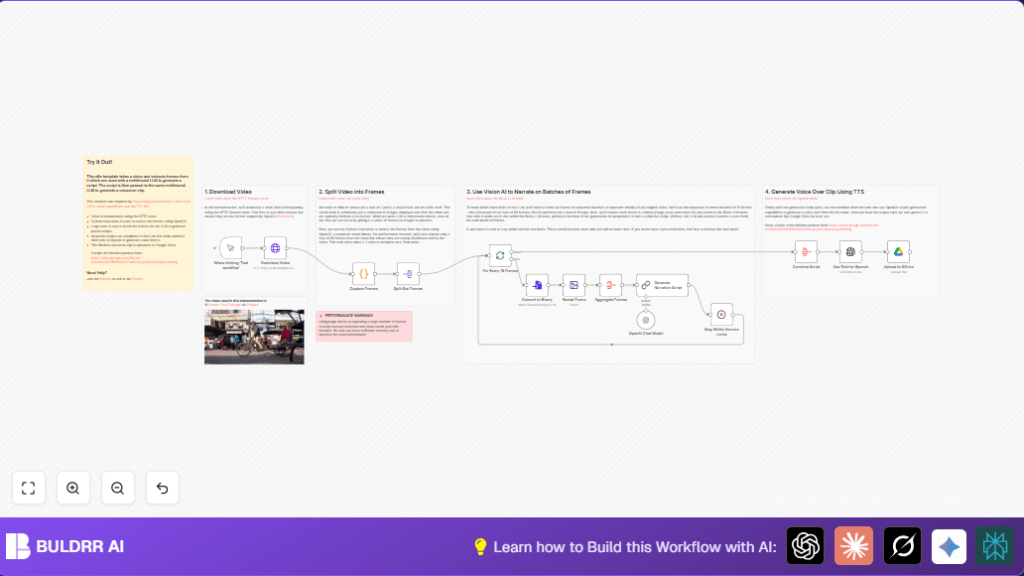
- Download video via Download Video node.
- Extract 90 or fewer frames evenly spaced using Python and OpenCV in Capture Frames node.
- Split frames one by one with Split Out Frames node.
- Batch frames into groups of 15 using For Every 15 Frames (SplitInBatches) node.
- Convert Base64 strings of frames to binary files in Convert to Binary node.
- Resize frames to 768×768 JPEG for the AI model using Resize Frame node.
- Aggregate each batch of 15 images with Aggregate Frames node.
- Call OpenAI GPT-4o-2024-08-06 model in Generate Narration Script node to make partial scripts from each image batch.
- Wait briefly between calls with Stay Within Service Limits node to avoid API limits.
- Combine the partial scripts into one full narration using Combine Script node.
- Convert the full script text to MP3 audio with Use Text-to-Speech OpenAI audio node.
- Upload final MP3 file to Google Drive folder with Upload to GDrive node.
Output
A voiceover narration MP3 that matches the video and is stored in Google Drive for easy use.
Who Should Use This Workflow
This workflow is for people who make wildlife videos and need fast, good narration talk scripts.
It is good for those who do not want to spend hours writing and recording voiceovers.
It helps creators who want consistent narration style and faster content production.
Tools and Services Used
- n8n: Automates the sequence of tasks.
- Python with OpenCV: Extracts and processes frames from video.
- OpenAI GPT-4o-2024-08-06 model: Generates narration script from images.
- OpenAI Text-to-Speech endpoint: Converts script text into MP3 audio.
- Google Drive API: Uploads and stores the generated audio file.
Beginner Step-by-Step: How to Use This Workflow in n8n
Step 1: Get the Workflow
- Download the workflow file by clicking the Download button on this page.
- Open your n8n editor where you want to run the workflow.
- Import the workflow using the Import from File option.
Step 2: Set Up Credentials
- Add your OpenAI API Key for the AI nodes.
- Connect your Google Drive account with OAuth2 for file uploading.
Step 3: Check and Update Settings
- Make sure the video URL in the Download Video node is a valid link.
- If needed, update the Google Drive folder ID in Upload to GDrive node.
- Review any prompts or code snippets in Generate Narration Script or Capture Frames and adjust if wanted.
Step 4: Test the Workflow
- Click the manual trigger Webhook node or Manual Trigger to start.
- Watch the workflow logs and confirm the script and audio file are generated and saved.
Step 5: Activate for Production
- Turn on the workflow by enabling it.
- Hook it to a trigger you want, like a webhook or schedule.
For better performance, consider running on a server with enough CPU and memory. See self-host n8n options.
Customization Ideas
- Change the video URL in the Download Video node to your own sample.
- Adjust
max_framesin the Python script to choose how many frames to extract. - Edit narration style in the prompt text inside Generate Narration Script node to narrate in a different tone.
- Modify or remove the wait node Stay Within Service Limits if you have higher API limits.
- Change Google Drive folder ID in the Upload to GDrive node to store files elsewhere.
Common Issues and Solutions
Problem: “Failed to decode video or no frames extracted”
Cause: The video format is not supported or the video file is corrupt.
Solution: Use MP4 video format from a working URL. Recheck video file quality.
Problem: “OpenAI API rate limit exceeded”
Cause: Too many requests sent quickly.
Solution: Increase the delay in the Stay Within Service Limits node or upgrade the API plan.
Problem: “Memory crash during frame extraction”
Cause: Video is too large or too many frames extracted.
Solution: Reduce max_frames in the Python code or shrink the video size before processing.
Pre-Production Checklist
- Check the video URL is valid in the download node.
- Test frame extraction on small videos first.
- Verify OpenAI API key and usage limits.
- Make sure Google Drive connection has upload permission.
- Run multiple test workflows to confirm consistent results.
Deployment Guide
After import and setup, enable the workflow and link to a trigger node.
Run manual tests to check all steps finish without errors.
For heavy video jobs, use a system with enough CPU and memory and consider self-host n8n.
Summary of Benefits
✓ Saves hours of manual narration writing
✓ Produces consistent wildlife-style script
✓ Automatically creates voiceover audio
✓ Uploads audio for easy access
✓ Requires minimal user work beyond setup
→ Outcome: A ready-to-use narrated video audio clip without manual scripting or recording.
