

1. Opening Problem Statement
Meet Emma, an HR manager at Acme Inc., who faces the constant challenge of sifting through hundreds of emailed resumes every week. Reviewing PDFs one-by-one to manually collect candidate details wastes Emma countless hours — over 15 hours a week — leading to delayed candidate follow-ups and occasional data entry errors. This slows down their hiring process and frustrates applicants who want a smoother experience.
Emma’s problem is a common one: managing job applications efficiently and accurately, especially when candidates submit resumes in different formats and quality. Acme Inc. wanted a solution to automatically intake CVs in PDF format, validate that what applicants submit are actual CVs, extract relevant information modulated by the open role, and pre-fill application forms to minimize repetitive manual input.
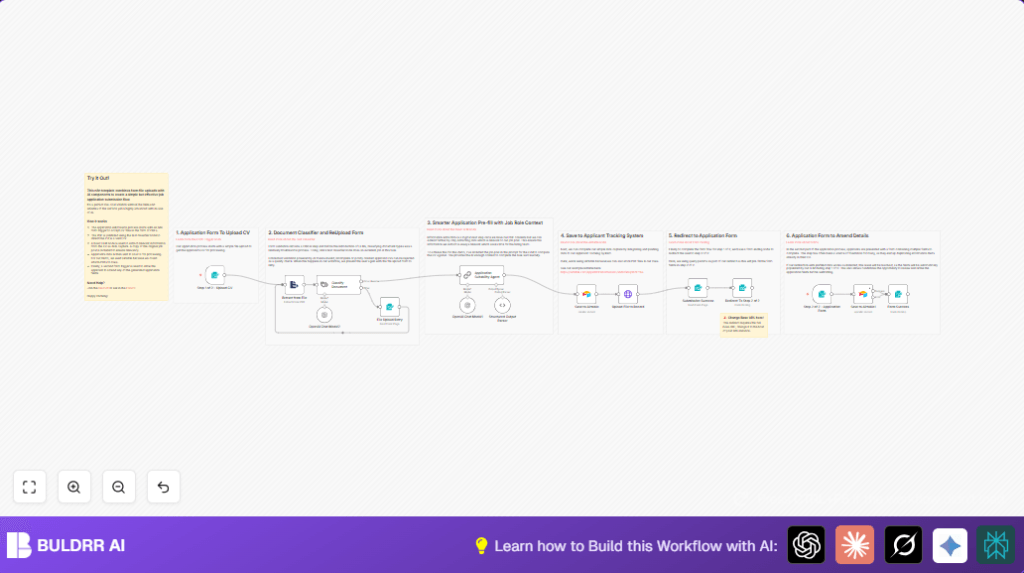
2. What This Automation Does
When Emma’s new n8n workflow runs, it automates the entire job application submission process from start to finish. Here’s what it accomplishes specifically:
- Step 1 File Upload: Candidates submit CVs as password-free PDF files via an online form trigger.
- Document Validation: AI classifies each uploaded file to confirm it is a valid CV or resume, rejecting irrelevant documents instantly.
- Relevant Data Extraction: An OpenAI language model extracts candidate details focusing only on information relevant to the job post, such as name, contact info, education, skills, experience, and a tailored cover letter.
- Applicant Tracking System (ATS) Storage: Extracted data and the original CV PDF are automatically saved into Airtable, acting as a centralized ATS with PDF attachment capabilities.
- Pre-filled Application Form: Applicants get redirected to a second form filled with the extracted data, allowing them to review and amend details before final submission.
- Final Data Update: The amended details get updated in Airtable, completing the application process with accuracy and ease.
By automating these steps, the workflow saves Emma and her team hours of tedious manual data entry each week and improves candidate experience by speeding up application processing.
3. Prerequisites ⚙️
- 📁 n8n account (cloud or self-hosted). For self-hosting, you can explore solutions like Hostinger for scalable hosting.
- 🔐 OpenAI API credentials for AI document classification and data extraction.
- 🔐 Airtable Personal Access Token connected to the specific base and table used as the Applicant Tracking System.
- 📧 A website or platform to host the n8n workflow’s form triggers (or use the n8n cloud forms).
4. Step-by-Step Guide
Step 1: Configure the Job Application CV Upload Form
Navigate to the Step 1 of 2 – Upload CV form trigger node in n8n.
- Click to edit the form settings.
- Set the form path to
job-application-step1of2. - Add three fields: Name (text, required), File Upload (PDF only, required), and a terms & conditions acknowledgment (dropdown with multiselect and required).
- You should see the form confirmation and webhook ready to accept CV uploads.
- Common mistake: Forgetting to set
acceptFileTypestopdfcan result in unwanted file formats accepted.
Step 2: Extract Text from Uploaded PDF
Follow the Extract from File node that processes the uploaded file’s binary property named File_Upload with operation set to pdf.
- This extracts the text content from the PDF to pass downstream for classification.
- Visual confirmation of successful extraction appears as text output in the node preview.
- Common mistake: Uploading password-protected PDFs will cause extraction failure.
Step 3: Classify Document Type Using AI
The workflow checks if the extracted text qualifies as a CV using the Classify Document (Langchain textClassifier) node.
- Pass the extracted text into this node.
- The node checks against categories, here just “CV or Resume” with a fallback to “other”.
- If the document is classified as “other,” the workflow triggers the File Upload Retry form node, instructing applicants to upload the correct CV file again.
- Common mistake: Failing to configure category labels or fallback properly leads to all files accepted or rejected incorrectly.
Step 4: Process Valid CVs with AI for Relevant Data
Valid CVs pass to the Application Suitability Agent (Langchain chainLlm node) which uses OpenAI chat completion to extract relevant information linked explicitly to the job post context.
- The prompt includes the job post description and instructs the AI to extract fields like Name, Address, Email, Telephone, Education, Skills & Technologies, Years of Experience, and a Cover Letter.
- An important step is the use of the Structured Output Parser to ensure the AI output matches a defined JSON schema, making the data easy to handle programmatically.
- Common mistake: Missing or improperly formatted JSON schema causes parsing errors.
Step 5: Save Extracted Data and CV to Airtable
The Save to Airtable node saves the applicant data fields to Airtable’s predefined base and table representing the ATS.
- After creation, the Upload File to Record node uploads the PDF file as an attachment linked to the Airtable record via HTTP POST requests to Airtable’s API.
- API tokens must be linked correctly in credentials to avoid authorization failures.
Step 6: Display Submission Success and Redirect to Step 2 Form
Once the CV upload is successful, the applicant sees a confirmation form Submission Success containing a consent acknowledgment dropdown.
- The form’s submit button leads to an automatic redirect (Redirect To Step 2 of 2 form node) that includes extracted data as query parameters to pre-fill the next form.
- Common mistake: Forgetting to update the redirect URL to your host domain can cause broken links.
Step 7: Applicants Review and Complete Application Form
The Step 2 of 2 – Application Form form trigger loads with pre-filled applicant data for the user to amend or confirm before submitting.
- Fields include Name, Address, Email, Telephone, Education, Skills & Technologies, Years of Experience, and Cover Letter, all required.
- The Save to Airtable1 node updates the applicant’s record with any changes made.
Step 8: Final Confirmation
The Form Success node displays a thank you message to finalize the application process.
5. Customizations ✏️
- Modify Job Post Context: In the Application Suitability Agent node, update the prompt text to reflect different job descriptions to tailor extracted candidate info.
- Change ATS Software: Swap Airtable nodes with Google Sheets or a dedicated ATS API node by adapting column mappings and API calls similarly.
- Add More Validation Categories: Enhance the Classify Document node to include other categories like Cover Letters to filter documents separately.
- File Type Support: Extend the Extract from File node config to accept DOCX or TXT for broader applicant flexibility, updating validations accordingly.
- Customize Form Fields: Update form trigger nodes to add/remove field inputs or enable multi-file uploads if needed.
6. Troubleshooting 🔧
- Problem: “Extract from File” node fails with password-protected PDFs.
Cause: PDF cannot be read by the extractor.
Solution: Ensure applicants submit password-free PDFs only. Use form instructions clearly and reject uploads otherwise. - Problem: Classify Document node misclassifies CVs.
Cause: Inadequate or ambiguous training categories.
Solution: Refine the categories and use more sample inputs in the AI prompt to improve accuracy. - Problem: Airtable API upload fails.
Cause: Incorrect API key or permissions.
Solution: Verify Airtable token credentials and ensure base/table access permissions.
7. Pre-Production Checklist ✅
- Test CV uploads with various PDF samples, including edge cases like large files and noisy scans.
- Validate fallback steps for incorrect document types trigger the retry upload form correctly.
- Confirm structured output parser schema matches AI output format exactly.
- Check Airtable records save correctly, including PDF file attachments.
- Verify the redirect URL in the submission success form matches your live host domain.
8. Deployment Guide
- Activate the workflow and expose the forms publicly through your website or n8n cloud instance.
- Monitor workflow execution logs in n8n to catch errors or workflow failures.
- Setup alerts for Airtable API limits to avoid hitting quota during bulk application periods.
- Regularly update your OpenAI API credentials before expiry.
9. FAQs
- Can I use another AI service instead of OpenAI?
Yes, if the AI service supports text classification and completion APIs, you can adapt the Langchain nodes accordingly. - Does this consume OpenAI credits rapidly?
The workflow uses AI calls mainly for validation and extraction, so costs depend on application volume but can be optimized by batching or caching. - Is applicant data secure?
Data is handled securely according to n8n and Airtable security protocols. Use HTTPS endpoints and secure API tokens. - Can this scale to hundreds of applications per day?
With proper n8n instance scaling and Airtable API limitations in mind, yes. Consider upgrading plans as needed.
10. Conclusion
By following this detailed tutorial, Emma and HR teams like hers can completely automate their job application intake and processing with n8n’s powerful integration and AI capabilities. The workflow reduces manual data entry by more than 80%, prevents errors, and provides candidates a smoother, faster application experience.
Next, consider adding automated interview scheduling, candidate status notifications via email, or AI-powered candidate ranking to further elevate your recruitment process.
Happy automating!