
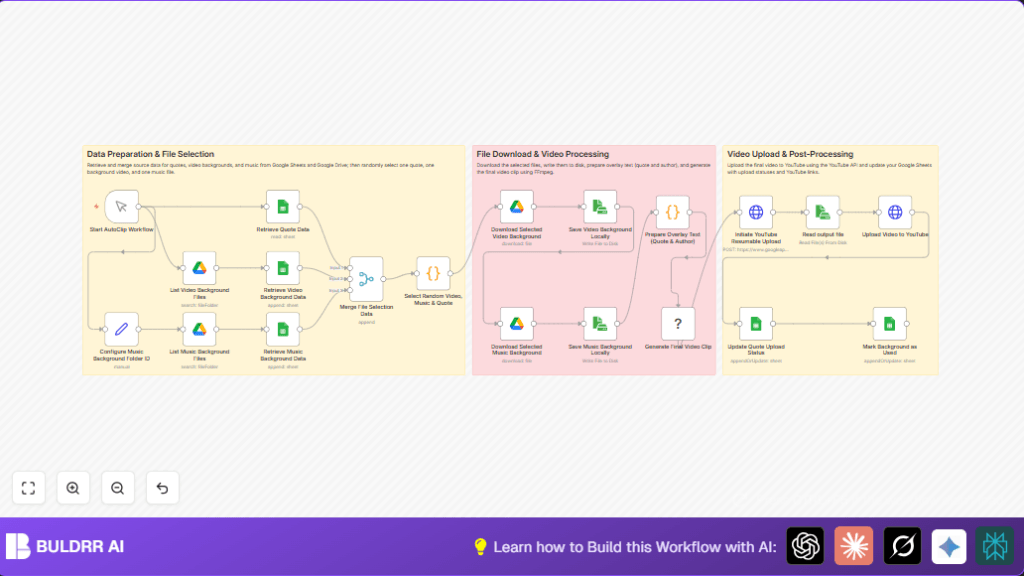

What This Workflow Does
This workflow helps you make short videos with quotes, backgrounds, and music automatically. It solves the problem of spending many hours doing video editing and uploading by hand. The outcome is a ready-to-upload video on YouTube with the quote text over a video and music, all combined without manual work.
The system picks one quote, one background video, and one music file randomly from Google Sheets and Google Drive. It downloads these files, writes the quote text on the video, adds music, then uploads the final video to YouTube. It also updates your Google Sheets to mark used items.
Who Should Use This Workflow
People who create content with quotes and want to save time editing videos. Users with multiple social channels who need fast video generation without mistakes. Also good for non-technical users who want automation without coding.
Tools and Services Used
- n8n: For workflow automation with nodes.
- Google Sheets API: Stores quotes and tracks usage.
- Google Drive API: Holds background videos and music files.
- FFmpeg: Combines video, text overlay, and music into final clip.
- YouTube Data API: For video upload and metadata setting.
- OAuth2 Credentials: To access Google APIs securely.
Beginner Step-by-Step: How to Use This Workflow in n8n
1. Import Workflow into n8n Editor
- Download the workflow JSON file using the Download button on this page.
- Open n8n editor, click “Import from File”, then select the downloaded file.
2. Configure Credentials and IDs
- Add Google Sheets credentials to nodes reading and writing quotes and status.
- Set Google Drive credentials in nodes listing video and music files, plus the nodes that download these files.
- Update Google Drive folder IDs for video backgrounds and music folders in the proper nodes like Configure Music Background Folder ID and List Video Background Files.
- Insert YouTube OAuth2 credentials in the HTTP Request nodes handling uploads.
- Check and update any email addresses, channel IDs, or sheet IDs as needed in the node parameters.
3. Test the Workflow
- Click on the Start AutoClip Workflow manual trigger node.
- Run the workflow once and watch for errors.
- Check that the output video is created and uploaded and your Google Sheets update correctly.
4. Activate Workflow for Production Use
- Switch the workflow from draft to active in n8n editor main panel.
- Run manually or replace the manual trigger with a Cron node to schedule automatic runs.
- Monitor workflow executions often for failures or errors.
Using this method, even beginners can quickly put this workflow into their production environment without building from scratch.
Inputs, Processing Steps, and Outputs
Inputs
- Google Sheets quote list with quotes, authors, and status.
- Google Drive folders holding several background video clips.
- Google Drive folders holding music files for background audio.
- YouTube OAuth2 credentials for upload access.
Processing Steps
- Retrieve non-used quotes from Google Sheets.
- Fetch video and music file metadata from Google Drive folders.
- Merge all data and run a random selection of one quote, one video, and one music file.
- Download selected files locally using Google Drive nodes and save them on file system.
- Create overlay text for the quote and author using JavaScript code node generating FFmpeg drawtext filters.
- Run FFmpeg command to scale, crop, and put text over video, merge with background music, create a vertical 9:16 ratio clip.
- Start a resumable video upload session to YouTube using an HTTP Request node.
- Upload the video file binary to YouTube upload URL.
- Update Google Sheets rows marking quote and background as ‘DONE’ and save YouTube video link.
Output
- A polished vertical video clip with quote overlay and music.
- Uploaded video hosted on YouTube.
- Google Sheets updated to keep track of used items and uploaded video links.
Edge Cases and Failures to Watch For
- If any input list (quotes, videos, or music) is empty, workflow will fail on random selection. Verify data existence before run.
- FFmpeg must be installed and accessible where n8n runs. Missing FFmpeg causes no output video.
- Incorrect Google Drive folder IDs or missing permissions lead to file listing or download errors.
- YouTube upload fails if OAuth2 credentials expired or lack video upload scopes.
- Local file system must have write permissions for saving temporary video and music files.
Customization Ideas
- Change fonts and sizes inside the JavaScript in the Prepare Overlay Text (Quote & Author) node to use different text styles or languages.
- Edit the FFmpeg command in the Generate Final Video Clip node to change video size or aspect ratio, like 16:9 for different platforms.
- Switch Google Drive folder IDs to new folders for fresh video or music libraries without rebuilding the workflow.
- Replace the manual trigger node with a Cron node to automate running at chosen times.
- Add extra metadata fields or tags in YouTube upload nodes for better video categorization.
Additional Notes on Hosting and Security
Running n8n on a secure server or VPS gives more control and privacy over video processing. Consider self-host n8n to avoid third-party cloud limitations.
All data uses OAuth2 flows for secure API connections. Video processing happens locally with FFmpeg to avoid cloud-based errors or privacy risks.
Summary of Benefits and Results
✓ Saves over 8 hours weekly in video editing and uploading.
✓ Avoids mistakes like missing music or wrong video sizes.
✓ Produces consistent, polished videos ready for YouTube Shorts.
✓ Simplifies managing quotes and backgrounds with Google Sheets.
✓ Scalable to add scheduling and different video styles later.
→ Automates video creation from content to upload with little user effort.
→ Keeps usage tracked and data organized.
