
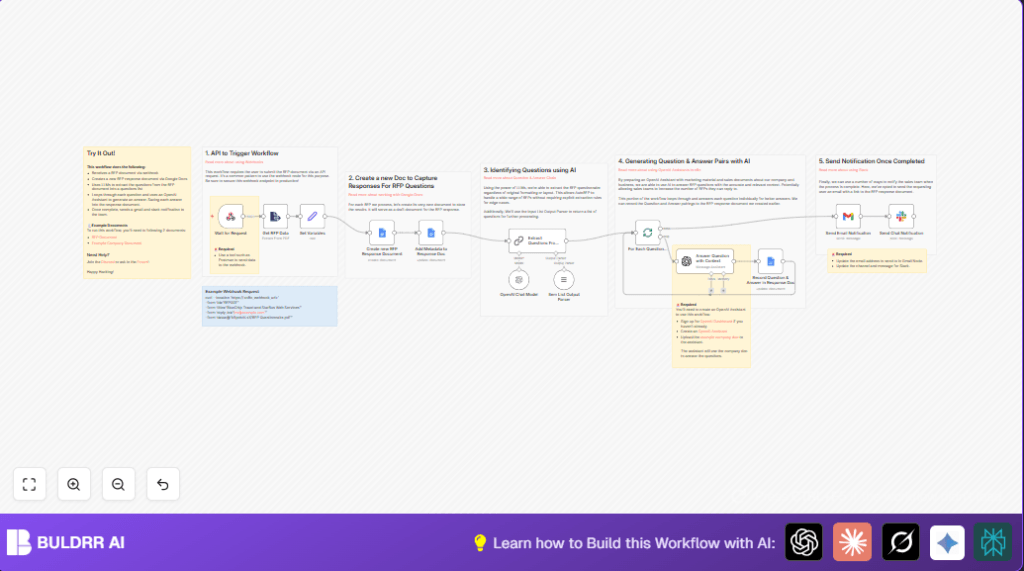

What This Automation Does
This n8n workflow takes a PDF Request for Proposal (RFP), finds every question inside it, and writes answers automatically.
It makes answering RFPs much faster and less error-prone.
The result is a complete, neat Google Docs file with questions and relevant company answers.
Workflow Inputs
- Webhook receives RFP PDF: A secure URL gets the file and details like ID, title, reply-to email.
- Extract from File node: Pulls clean text from the PDF to read.
Workflow Processing Steps
- Parsing and setting variables: Defines doc title, filename, and email from webhook data.
- Google Docs creation: Starts a new document using the naming info.
- Inserting metadata: Adds title, generation date, requester email, and workflow link in the doc.
- AI extraction of questions: Uses OpenAI to find exact questions in the text.
- Question loop: Splits questions, sends each to AI for a context-aware answer.
- Appending Q&A: Adds question and answer pairs one by one into the Google Doc.
- Notification dispatch: Sends emails and Slack messages when all answers are done.
Workflow Outputs
- New Google Docs document: Contains the full RFP questions and AI-generated company answers organized and timestamped.
- Email notification: Alerts the requester that the response document is ready.
- Slack alert: Tells the sales team that the RFP answer process finished properly.
Who Should Use This Automation
Any sales or proposal team that gets PDF RFPs and needs to answer many supplier questions.
Good for teams who want to reduce manual work and missed replies.
Also useful for companies wanting consistent, fast RFP responses with embedded company knowledge.
Tools and Services Used in This Workflow
- n8n: Workflow automation platform running all nodes.
- Webhook node: Receives POST requests with RFP PDFs.
- Extract from File node: Extracts text from PDF files.
- OpenAI API and Assistant: AI model extracts questions and generates answers with company context.
- Google Docs node: Creates and updates response document.
- Gmail node: Sends notification emails.
- Slack node: Sends messages to the sales channel.
Beginner Step-by-Step: How to Use This Workflow in n8n
Step 1: Import the Workflow
- Click the Download button on this page to get the workflow JSON file.
- Open the n8n editor where you want to use the workflow.
- Choose “Import from File” and select the downloaded JSON.
Step 2: Configure Credentials and IDs
- Add your OpenAI API key to the OpenAI nodes.
- Connect Google Docs and Gmail nodes with your Google OAuth2 credentials.
- Enter your Slack API token in the Slack node.
- Update folder IDs, email addresses, Slack channels, or any other placeholders to match your setup.
Step 3: Test the Workflow
- Send a PDF RFP with proper fields to the webhook URL (id, title, reply_to, data).
- Check outputs step-by-step to verify text extraction, question extraction, and Google Docs creation.
- Look for questions being answered and appended properly.
- Confirm notification emails and Slack messages are sent.
Step 4: Activate for Production
- Once happy with testing, activate the workflow in n8n.
- Provide the webhook URL to the team submitting RFPs.
- Monitor workflow runs and logs regularly.
If self hosting n8n, consider reviewing self-host n8n to keep your environment secure and reliable.
Customization Ideas
- Change Slack channel in the Slack node to match your team communication.
- Add or update company documents in the OpenAI Assistant for better answer accuracy.
- Set Google Docs folder ID to organize RFP responses better.
- Enhance webhook security by adding authentication or IP filtering.
- Refine AI prompt in the question extraction node to handle your industry terms.
Common Problems and Fixes
- Webhook not receiving files or empty data: Check that the POST request uses multipart/form-data with correct fields.
- Google Docs node fails to create or update documents: Renew OAuth tokens and ensure proper Drive permissions.
- AI extracts wrong or incomplete questions: Improve PDF text quality and make AI prompt more specific.
Pre-Production Checklist
- Make sure webhook URL is secure and works.
- Confirm text extraction from PDFs is clean.
- Test AI Assistant with example questions.
- Verify Google Docs can be created and updated.
- Check Gmail and Slack notifications send properly.
- Run full tests with real RFP PDFs.
Summary of Benefits
→ Cuts RFP response time from days to under an hour.
✓ Reduces manual work and human mistakes.
✓ Produces complete question-answer documents with company info.
✓ Sends automatic alerts to sales and requesters.
✓ Helps sales teams focus on closing deals, not paperwork.
