

Automate Pinterest Analysis and AI Content Suggestions with n8n

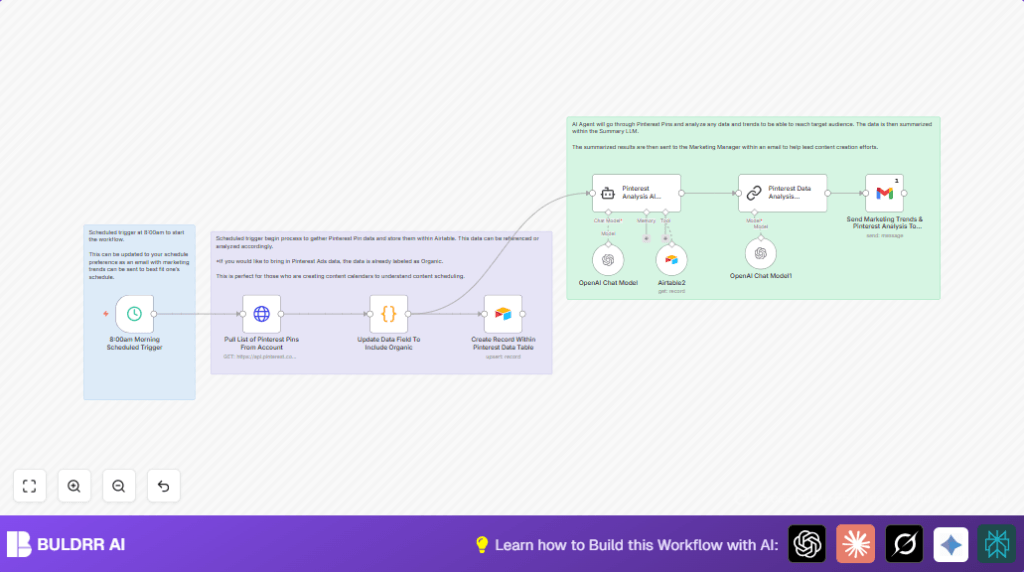
Save hours daily by automating Pinterest data extraction and AI-driven content ideas using n8n. This workflow pulls Pinterest pins, analyzes trends with AI, and emails precise marketing suggestions to boost engagement.
scheduleTrigger
httpRequest
airtableTool
+6
Workflow Identifier: 1255
NODES in Use: scheduleTrigger, httpRequest, code, airtableTool, airtable, lmChatOpenAi, agent, chainSummarization, gmail

Press CTRL+F5 if the workflow didn't load.

Learn how to Build this Workflow with AI:

Visit through Desktop for Best experience

Opening Problem Statement

Meet John Foster, a marketing manager who spends countless hours each week manually gathering data from Pinterest about his brand’s pins. He struggles to keep track of organic content performance, identify trending topics, and generate fresh ideas for new pins that resonate with his target audience. Despite John’s efforts, his content calendar remains stale, and he wastes valuable time piecing together insights from disconnected sources, which often leads to missed opportunities and inefficient marketing strategies.

John’s manual process can take 5+ hours weekly, with risks of human error during data copying and slow reaction times to marketing trends. He needs an automated way to collect, analyze, and receive actionable Pinterest content insights effortlessly.

What This Automation Does

This unique n8n workflow automates Pinterest content analysis combined with AI-powered content suggestions, saving John hours of tedious work while boosting marketing effectiveness. Here’s what happens when the workflow runs:

  • Automated Pinterest Pin Extraction: Every week at 8:00 AM, the workflow triggers and pulls the latest organic pins from John’s Pinterest account via the Pinterest API.
  • Data Processing and Storage: Extracted pin data, including titles, descriptions, creation dates, and URLs, are transformed and stored in Airtable within a dedicated table for easy reference and tracking.
  • AI-Driven Pinterest Trend Analysis: An AI agent reviews the aggregated pin data, identifying patterns and trends to inform content strategy.
  • Concise AI Summary Generation: The AI produces a brief, actionable summary of Pinterest trends and content suggestions, distilling complex data into digestible insights.
  • Automated Email Delivery: The generated summary is emailed directly to John as an easy-to-read report, empowering his marketing team with immediate, data-backed content ideas.
  • Upsert Data Handling: Previously collected data is updated within Airtable to maintain continuity and accuracy of Pinterest content records over time.

By automating these steps, this workflow can save John around 5 hours weekly and reduce content planning errors, providing a continuous pulse on Pinterest marketing performance.

Prerequisites 

  • n8n Account: A working n8n environment to run and schedule the workflow.
  • Pinterest API Access: An authorized Pinterest developer API token to pull pin data.
  • Airtable Account: An Airtable base configured with a table for Pinterest data storage.
  • OpenAI API Credentials: Access to OpenAI API for GPT model usage to perform AI analysis and summaries.
  • Gmail Account: OAuth authenticated Gmail account set up for sending emails.

If you prefer self-hosting the n8n workflow engine, check out Hostinger’s guide for setup options.

Step-by-Step Guide

Step 1: Schedule the Weekly Trigger

Open n8n, click the + node button and add the Schedule Trigger node.

Configure the Schedule Trigger to run every 7 days at 8:00 AM by setting:

  • Rule → Interval → Every 7 days
  • Trigger at hour: 8

This ensures the workflow kicks off and collects data weekly. You should see a countdown clock indicator confirming the schedule.

Common mistake: Forgetting to set the days interval to 7 for weekly execution.

Step 2: Pull Pinterest Pins List via HTTP Request Node

Add the HTTP Request node and connect it to the Schedule Trigger.

Set the HTTP method to GET and URL to https://api.pinterest.com/v5/pins.

Under header parameters, add an Authorization header with value Bearer YOUR_ACCESS_TOKEN (replace YOUR_ACCESS_TOKEN with your Pinterest API token).

This node fetches all organic pins from the Pinterest account.

Common mistake: Using expired or incorrect API tokens which will cause authentication failures.

Step 3: Process Pin Data Using Code Node

Add the Code node linked from the HTTP Request node.

Enter the following JavaScript code to extract relevant fields and tag each pin as “Organic”:

// Initialize an array to hold the output formatted for Airtable
const outputItems = [];

for (const item of $input.all()) {
 if (item.json.items && Array.isArray(item.json.items)) {
 for (const subItem of item.json.items) {
 // Construct an object with only the required fields for Airtable
 outputItems.push({
 id: subItem.id || null,
 created_at: subItem.created_at || null,
 title: subItem.title || null,
 description: subItem.description || null,
 link: subItem.link || null,
 type: "Organic" // Assign the value "Organic" to the 'Type' field
 });
 }
 }
}

// Return the structured output
return outputItems;

This extracts and structures the data for Airtable, preparing it for upsert.

Common mistake: Forgetting to handle cases where no items exist will cause empty outputs.

Step 4: Create or Upsert Records in Airtable

Add the Airtable node, connected from the Code node.

Configure it to use your Airtable base and table for Pinterest Organic Data.

Map fields exactly as follows:

  • link => {{$json.link}}
  • type => {{$json.type}}
  • title => {{$json.title}}
  • pin_id => {{$json.id}}
  • created_at => {{$json.created_at}}
  • description => {{$json.description}}

Set operation to Upsert with matching column id so existing records update, and new ones insert.

Common mistake: Not enabling Upsert will cause duplicate records over time.

Step 5: Run AI Agent for Pinterest Data Analysis

Add the Langchain Agent (AI Agent) node linked from Airtable data node.

Configure the prompt like this:

You are a data analysis expert. You will pull data from the table and provide any information in regards to trends in the data.

Your output should be suggestions of new pins that we can post to reach the target audiences.

Analyze the data and just summary of the pin suggestions that the team should build.

This node uses GPT-4o-mini to analyze marketing trends in the Pinterest data.

Common mistake: Forgetting to use the correct AI model or forgetting API credentials will cause failures.

Step 6: Generate Concise Summary with LLM Summarization Node

Add the Langchain Chain Summarization node connected from AI Agent output.

In the node prompt, enter:

=Write a concise summary of the following:


"{{ $json.output }}"


CONCISE SUMMARY:

This refines the AI analysis output into a clear, brief summary.

Common mistake: Not including the right JSON field in the prompt can lead to incomplete summaries.

Step 7: Send Email with Gmail Node

Add the Gmail node linked from the summarization node.

Set the email recipient (e.g., [email protected]) and subject line to “Pinterest Trends & Suggestions”.

Use the message field capturing the LLM summary text output, e.g., {{$json.response.text}}.

Ensure your Gmail account uses OAuth2 credentials for sending.

Common mistake: Setting incorrect recipient or forgetting OAuth will cause send errors.

Customizations 

  • Include Pinterest Ads Data: Modify the Code node to also tag pins with “Ads” if you want to include paid content alongside “Organic”.
  • Change Reporting Frequency: In the Schedule Trigger node, adjust the interval to daily or monthly to fit your team’s needs.
  • Use Different AI Models: Swap the GPT-4o-mini model in the OpenAI nodes for other GPT-4 or GPT-3.5 models based on cost or performance preferences.
  • Add Slack Notifications: Include a Slack node after the email to notify marketing channels instantly.
  • Expand Data Fields: Customize Airtable base and node to capture additional Pinterest engagement metrics like impressions or saves.

Troubleshooting 

  • Problem: “HTTP Request returns 401 Unauthorized error.”

    Cause: Pinterest API token expired or incorrectly set.
    Solution: Check the API token in the HTTP Request node header, refresh or renew your Pinterest API token in developer console, and re-enter.
  • Problem: “AI Agent node fails with authentication error.”

    Cause: Invalid or missing OpenAI API key.
    Solution: Verify your OpenAI credentials are correctly linked in the node, and the API key is active and valid.
  • Problem: “Airtable upsert causing duplicate entries.”

    Cause: Matching column not properly set for upsert.
    Solution: Ensure the Airtable node’s Upsert operation is enabled, and the matching column is correctly set to the unique id field.

Pre-Production Checklist ✅

  • Verify Pinterest API access and token validity.
  • Confirm Airtable base and tables are properly set up and accessible.
  • Test OpenAI API key functionality within n8n.
  • Confirm Gmail OAuth credentials and send test email.
  • Run the entire workflow manually to check data flow and output.
  • Backup Airtable data to prevent data loss before first runs.

Deployment Guide

Activate the workflow by enabling it in n8n once all nodes are configured and tested.

Monitor the weekly schedule trigger to ensure timely execution.

Check logs on the Airtable and Gmail nodes for successful data inserting and email delivery.

Adjust scheduling and API rate limits as needed based on data volume.

FAQs

  • Q: Can I use Google Sheets instead of Airtable?
    A: Yes, but you would need to replace the Airtable nodes with Google Sheets nodes and adjust data mapping accordingly.
  • Q: Does this workflow consume OpenAI API credits heavily?
    A: This workflow uses GPT-4o-mini which is a lighter model, but frequent runs will increase usage — monitor your OpenAI usage dashboard.
  • Q: Is my Pinterest data secure?
    A: Yes, all API requests are authenticated, and data resides only within your Airtable base and n8n instance.
  • Q: Can this handle large Pinterest accounts with thousands of pins?
    A: Yes, but consider pagination or batch processing in your HTTP requests if needed.

Conclusion

By setting up this Pinterest automation workflow in n8n, you’ve empowered John (or yourself) to automatically collect, analyze, and receive insightful content suggestions based on your Pinterest organic pins.

This saves roughly 5+ hours weekly, eliminates manual errors, and supports smarter marketing decisions through AI-driven analysis and concise reporting.

Next, consider expanding the workflow to integrate Pinterest Ads data, automate social media posting of new pin suggestions, or connect to Slack for team collaboration notifications.

With this detailed guide and step-by-step implementation, even beginners can confidently automate their Pinterest marketing intelligence from start to finish.

Promoted by BULDRR AI

Related Workflows

Automate Viral UGC Video Creation Using n8n + Degaus (Beginner-Friendly Guide)

Learn how to automate viral UGC video creation using n8n, AI prompts, and Degaus. This beginner-friendly guide shows how to import, configure, and run the workflow without technical complexity.
Form Trigger
Google Sheets
Gmail
+37
Free

AI SEO Blog Writer Automation in n8n

A complete beginner guide to building an AI-powered SEO blog writer automation using n8n.
AI Agent
Google Sheets
httpRequest
+5
Free

Automate CrowdStrike Alerts with VirusTotal, Jira & Slack

This workflow automates processing of CrowdStrike detections by enriching threat data via VirusTotal, creating Jira tickets for incident tracking, and notifying teams on Slack for quick response. Save hours daily by transforming complex threat data into actionable alerts effortlessly.
scheduleTrigger
httpRequest
jira
+5
Free

Automate Telegram Invoices to Notion with AI Summaries & Reports

Save hours on financial tracking by automating invoice extraction from Telegram photos to Notion using Google Gemini AI. This workflow extracts data, records transactions, and generates detailed spending reports with charts sent on schedule via Telegram.
lmChatGoogleGemini
telegramTrigger
notion
+9
Free

Automate Email Replies with n8n and AI-Powered Summarization

Save hours managing your inbox with this n8n workflow that uses IMAP email triggers, AI summarization, and vector search to draft concise replies requiring minimal review. Automate business email processing efficiently with AI guidance and Gmail integration.
emailReadImap
vectorStoreQdrant
emailSend
+12
Free

Automate Email Campaigns Using n8n with Gmail & Google Sheets

This n8n workflow automates personalized email outreach campaigns by integrating Gmail and Google Sheets, saving hours of manual follow-up work and reducing errors in email sequences. It ensures timely follow-ups based on previous email interactions, optimizing communication efficiency.
googleSheets
gmail
code
+5
Free