

Automate Customer Onboarding with HubSpot and Google Calendar in n8n

Streamline customer onboarding by automating welcome emails, calendar invites, and CRM updates using HubSpot, Google Calendar, and n8n. Save hours and avoid manual errors with this specialized workflow.
webhook
googleCalendarTool
hubspot
+11
Workflow Identifier: 1239
NODES in Use: Webhook, Sticky Note, Set, googleCalendarTool, executeWorkflowTrigger, lmChatOpenAi, toolWorkflow, outputParserStructured, httpRequest, splitOut, filter, hubspotTrigger, hubspot, gmail

Press CTRL+F5 if the workflow didn't load.

Learn how to Build this Workflow with AI:

Visit through Desktop for Best experience

1. Opening Problem Statement

Meet Thomas Vié, a Customer Success Manager at Pollup Data Services. Every time a new customer signs up through HubSpot, Thomas struggles with manually sending personalized welcome emails, scheduling welcome calls, and assigning Customer Success Managers (CSMs) in their CRM. This manual process is time-consuming and prone to error, often causing delays that frustrate new clients and create internal inefficiencies. Thomas estimates that for every 10 new customers, he spends over 3 hours just coordinating these onboarding tasks manually.

This workflow addresses exactly Thomas’s pain by automating the entire onboarding journey from triggering on new customer creation in HubSpot, through sending welcome emails, to scheduling meetings using Google Calendar—all without human intervention, ensuring consistency and speed.

2. What This Automation Does

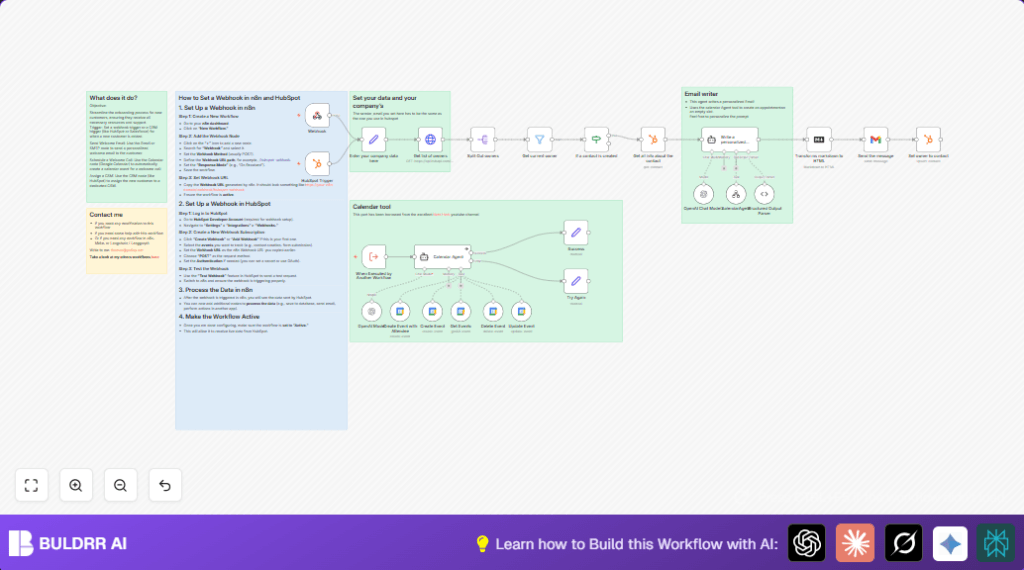
This n8n workflow fully automates the customer onboarding process triggered by a new contact creation in HubSpot. When run, it:

  • Receives new customer data via a Webhook triggered by HubSpot events.
  • Fetches detailed contact information from HubSpot using the HubSpot node.
  • Uses an AI-powered Langchain agent to compose a personalized welcome email that also schedules a welcome call on the sender’s Google Calendar.
  • Leverages multiple Google Calendar nodes to create, update, fetch, or delete events, dynamically managing the calendar availability and attendees.
  • Sends the generated email through the Gmail node, including automated BCC to an internal monitoring address.
  • Assigns the appropriate CSM to the contact in HubSpot by dynamically determining the owner via HubSpot owners API and setting them with the HubSpot node.

Overall, it saves Thomas approximately 3+ hours per 10 customers and removes the risk of missed or mistimed outreach, increasing client satisfaction from day one.

3. Prerequisites ⚙️

  • n8n account (self-hosted or cloud-based)
  • HubSpot Developer Account with OAuth credentials to setup webhook trigger on new contact creation 📧🔑
  • Google Calendar account configured with OAuth access for event management ⏱️🔑
  • Gmail account configured with OAuth to send personalized emails 📧🔑
  • OpenAI API access for the Langchain agent to generate email content and calendar scheduling prompts 🔌

Optionally, you can self-host your n8n instance with services like Hostinger for better control and security.

4. Step-by-Step Guide

Step 1: Create a New Workflow in n8n

Go to your n8n dashboard and click “New Workflow” to get started.

You will see an empty canvas ready for node additions.

Step 2: Add and Configure the HubSpot Trigger Node

Click the “+” to add a node, search for HubSpot Trigger, and add it.

Set it up to listen for contact creation events. Connect your HubSpot Developer account with OAuth credentials.

This node listens for new contacts in HubSpot and kicks off the workflow.

Common mistake: Not setting the correct event type will prevent triggering on new contacts.

Step 3: Add ‘Enter your company data here’ Set Node

Add a Set node to store your company info like sender_name, sender_email, and company_name with actual values (e.g., “Thomas Vié”, “[email protected]”, “Pollup Data Services”).

This is used downstream for personalized messages.

Step 4: Fetch List of HubSpot Owners and Identify Current Owner

Add an HTTP Request node named Get list of owners calling HubSpot owners API (https://api.hubapi.com/crm/v3/owners) with OAuth.

Split the results using a Split Out node on the results array.

Filter to find the owner whose email matches your sender email using a Filter node configured with the condition email === sender_email.

Step 5: Filter Only Contact Creation Events

Place an If node after the owner filter to check if $json.body[0].subscriptionType === "contact.creation".

This prevents processing events other than new contacts.

Step 6: Get Detailed Contact Information from HubSpot

Add a HubSpot node and use the contact ID from the webhook payload ($json.body[0].objectId) to fetch detailed contact properties like first name, last name, and email.

Step 7: Generate a Personalized Email with AI Langchain Agent

Add a Langchain Agent node configured as an email writer. It uses the contact details, company info, and calendar agent tool to compose a welcome email that also schedules a call with the new customer.

The prompt instructs the agent to use tools to create calendar events automatically for the meeting.

Step 8: Convert AI Output from Markdown to HTML

Use a Markdown node to transform the AI-generated Markdown email body into HTML before sending.

Step 9: Send the Email via Gmail

Add a Gmail node, configured with your Gmail OAuth credentials, to send the message to the new contact’s email. Use the subject and body generated from the Langchain agent.

Add BCC to internal email, e.g., [email protected], to keep track of all outbound communications.

Step 10: Assign the Contact Owner in HubSpot

Add another HubSpot node to assign the contact owner dynamically using the owner ID fetched earlier, updating the contact record.

Step 11: Handling Success and Failure

Use Set nodes named Success and Try Again to manage workflow outcomes and send appropriate responses for monitoring or retries.

Step 12: Activate Your Workflow

Make sure to activate your workflow to allow it to receive live webhook data from HubSpot for new contacts.

5. Customizations ✏️

  • Change Calendar Account: In all Google Calendar nodes, update the calendar OAuth credentials to use a different Google account for scheduling.
  • Personalize Email Content: Modify the Langchain agent prompt inside the “Write a personalized message” node to change the email tone, add FAQs, or other onboarding instructions.
  • Extend to Other CRM Events: Add more conditions in the If node to handle contact updates or form submissions by extending the webhook event triggers.
  • Add SMS Notifications: Integrate an SMS node after the email send node to notify the customer via text message on welcome or appointment reminders.

6. Troubleshooting 🔧

Problem: HubSpot trigger not firing

Cause: Incorrect event subscriptions or OAuth credentials errors.

Solution: Double-check event type in HubSpot trigger node, ensure OAuth tokens are valid, and test webhook setup with sample data.

Problem: Google Calendar event not created

Cause: Invalid calendar ID, missing OAuth permissions, or AI agent scheduling syntax errors.

Solution: Verify calendar OAuth credentials, confirm calendar ID is correct, and check AI agent logs for specific errors.

Problem: Emails not sent from Gmail node

Cause: OAuth token expiration, incorrect message parameters.

Solution: Re-authenticate Gmail node, verify the “sendTo” and “subject” fields are correctly assigned, and check Gmail API usage limits.

7. Pre-Production Checklist ✅

  • Test HubSpot webhook with sample new contact creation to ensure workflow trigger fires.
  • Verify HubSpot OAuth credentials for both trigger and API nodes are valid.
  • Confirm Google Calendar OAuth connection and test event creation manually.
  • Test OpenAI API access by running the AI message generation stand-alone.
  • Do a full end-to-end test by triggering a new contact and verifying email and calendar invite receipt.
  • Backup current workflow and HubSpot contact data before going live.

8. Deployment Guide

Once everything is tested and verified, enable your workflow by clicking the Activate toggle in n8n.

Monitor execution history and logs within n8n to track successful runs or errors.

Set up notifications on failed runs if desired to intervene quickly.

This workflow can scale with your HubSpot contact volume and Google Calendar limits.

9. FAQs (Optional)

  • Can I use a different CRM instead of HubSpot? Yes, but you will need to modify the webhook and contact retrieval nodes accordingly.
  • Does this consume many OpenAI API credits? The Langchain agent is used judiciously and outputs only what is needed, so consumption is moderate.
  • Is my data secure? All credentials are stored securely in n8n, which follows best security practices.
  • Can I add more meeting types? Yes, extend the AI prompt and calendar nodes to accommodate other event types.

10. Conclusion

By deploying this workflow, you have automated the entire onboarding process for new customers sourced via HubSpot—sending personalized welcome emails, dynamically scheduling welcome calls, and assigning dedicated Customer Success Managers.

This saves Thomas and his team hours of manual work weekly and ensures no customer slips through the cracks during crucial first interactions.

As next steps, consider integrating SMS notifications, expanding to other CRM events, or adding feedback surveys post-meeting to enhance your onboarding experience further.

Automation like this not only boosts efficiency but builds trust and satisfaction from day one.

Promoted by BULDRR AI

Related Workflows

Automate Viral UGC Video Creation Using n8n + Degaus (Beginner-Friendly Guide)

Learn how to automate viral UGC video creation using n8n, AI prompts, and Degaus. This beginner-friendly guide shows how to import, configure, and run the workflow without technical complexity.
Form Trigger
Google Sheets
Gmail
+37
Free

AI SEO Blog Writer Automation in n8n

A complete beginner guide to building an AI-powered SEO blog writer automation using n8n.
AI Agent
Google Sheets
httpRequest
+5
Free

Automate CrowdStrike Alerts with VirusTotal, Jira & Slack

This workflow automates processing of CrowdStrike detections by enriching threat data via VirusTotal, creating Jira tickets for incident tracking, and notifying teams on Slack for quick response. Save hours daily by transforming complex threat data into actionable alerts effortlessly.
scheduleTrigger
httpRequest
jira
+5
Free

Automate Telegram Invoices to Notion with AI Summaries & Reports

Save hours on financial tracking by automating invoice extraction from Telegram photos to Notion using Google Gemini AI. This workflow extracts data, records transactions, and generates detailed spending reports with charts sent on schedule via Telegram.
lmChatGoogleGemini
telegramTrigger
notion
+9
Free

Automate Email Replies with n8n and AI-Powered Summarization

Save hours managing your inbox with this n8n workflow that uses IMAP email triggers, AI summarization, and vector search to draft concise replies requiring minimal review. Automate business email processing efficiently with AI guidance and Gmail integration.
emailReadImap
vectorStoreQdrant
emailSend
+12
Free

Automate Email Campaigns Using n8n with Gmail & Google Sheets

This n8n workflow automates personalized email outreach campaigns by integrating Gmail and Google Sheets, saving hours of manual follow-up work and reducing errors in email sequences. It ensures timely follow-ups based on previous email interactions, optimizing communication efficiency.
googleSheets
gmail
code
+5
Free