

What This Automation Does
This n8n workflow helps automate Instagram content creation.
It solves the problem of spending many hours manually making posts and captions.
The workflow creates unique Instagram posts with AI images and captions, then publishes automatically.
You get fresh, brand-friendly posts with less work and fewer mistakes.
How the Workflow Works: Inputs, Processing, Outputs
Inputs
- Post ideas from Google Sheets with columns: Topic, Audience, Voice, Platform, Status (0 means ready).
- Google Gemini AI to create text concepts and captions.
- Replicate Flux AI to make Instagram-style images.
- Instagram Business account connected via Facebook Graph API.
Processing Steps
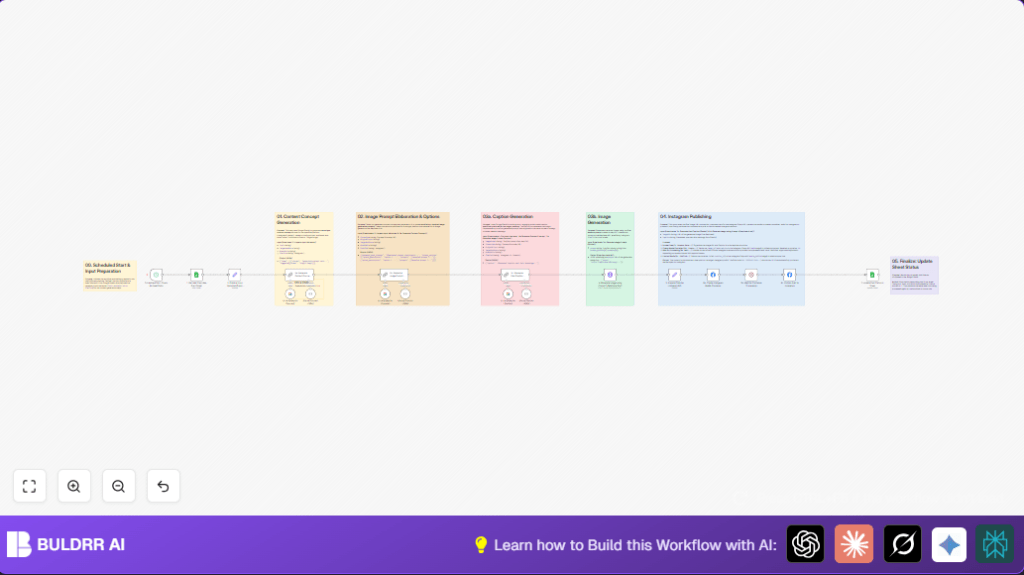
- The workflow checks Google Sheets for the next post idea (Status = 0).
- Extracts important info (Topic, Audience, Brand Voice, Platform).
- Uses Google Gemini AI to create one unique content concept for Instagram focusing on a single image post.
- Generates two detailed options for AI image prompts to get different visual styles.
- Creates a concise Instagram caption with hashtags based on concept and audience.
- Sends the chosen image prompt to Replicate Flux API to generate the image.
- Uploads the created image and caption using Instagram’s Graph API.
- Waits briefly to allow Instagram to process the upload.
- Publishes the post on Instagram.
- Marks the original Google Sheets row as completed (Status = 1) to avoid reposts.
Outputs
- A new Instagram photo post with AI-generated image and caption matching the brand voice.
- Google Sheets updated to show post was published.
Who Should Use This Workflow
This workflow fits social media managers and small marketing teams.
Users who want to save time creating branded Instagram content will benefit.
It helps avoid missed post deadlines and keeps messaging steady.
This also works for people with little design skills because AI generates images.
Tools and Services Used
- n8n automation platform: Runs the workflow and connects services.
- Google Sheets API: Stores and tracks post ideas and status.
- Google Gemini AI: Writes unique content concepts and captions.
- Replicate Flux AI model: Generates Instagram-style images from prompts.
- Facebook Graph API: Uploads and publishes posts to Instagram Business accounts.
Beginner Step-By-Step: How to Use This Workflow in n8n
Step 1: Import the Workflow
- Click the Download button on this page to get the workflow file.
- Open the n8n editor where you want to run the workflow.
- Use the top menu, select Import from File, and choose the downloaded workflow file.
Step 2: Set Up Credentials and IDs
- Add required API Keys and OAuth2 credentials for Google Sheets, Google Gemini, Replicate, and Facebook Graph API.
- Update any spreadsheet IDs, sheet names, or Instagram Business account IDs if different from defaults.
- Make sure your Google Sheet has columns: Topic, Audience, Voice, Platform, and Status.
- Check the workflow nodes that use Code or Prompts to ensure they contain the exact text or expressions provided.
Step 3: Test the Workflow
- Run the workflow manually once inside n8n to check it works without errors.
- Verify a post is created on Instagram and the Google Sheet updates the Status column.
Step 4: Activate for Production
- Turn on the workflow to run on the schedule set in the Schedule Trigger node.
- Monitor executions in n8n to catch any errors early.
- Optionally, visit self-host n8n if full control or scalability is needed.
Customizations and Tips
- Change the Platform column in Google Sheets to switch between Instagram and LinkedIn.
- Use the second image prompt option by updating the HTTP Request node to try different image styles.
- Adjust the schedule trigger interval to post more or less often.
- Change the caption style by editing the prompt text in the Chain LLM caption generation node.
- Add support for more platforms by extending the workflow and API calls.
Common Issues and How to Fix Them
Google Sheets node returns no rows: Check that your filter for Status = 0 matches your sheet data exactly. Make sure your OAuth2 credentials have access and the sheet is shared properly.
Replicate API call fails: Verify the API Key is correctly set in headers. Avoid sending many requests quickly. Confirm prompt text is valid JSON.
Instagram media upload or post not showing: Confirm Facebook Graph API version matches with your Instagram Business account setup. Verify all permissions for media publishing are granted.
Pre-Production Checklist
- Google Sheet has post ideas marked as Status = 0.
- Tested Google Sheets nodes can read and change rows.
- Google Gemini API keys work and generate content and captions.
- Replicate API creates images correctly from sample prompts.
- Facebook Graph API connected to Instagram Business account.
- Workflow tested manually without errors.
- Google Sheet backed up regularly.
Summary of Results
✓ Saves several hours per Instagram post creation.
✓ Reduces manual errors and missed posts.
✓ Creates unique AI-generated images and captions matching your brand voice.
✓ Publishes directly to Instagram Business without extra steps.
✓ Keeps Google Sheets updated to track published content.
