
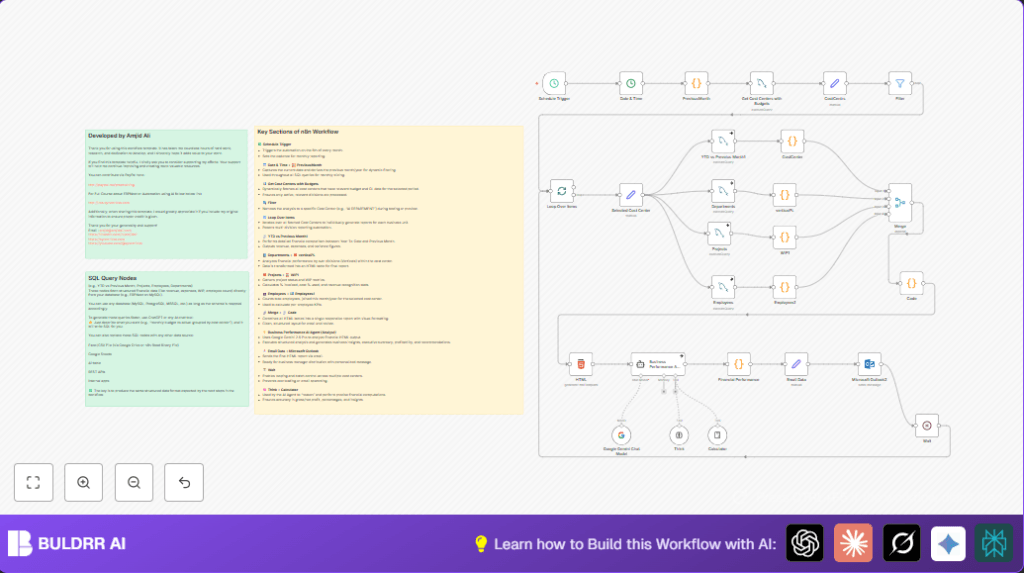

What this workflow does
This workflow automates monthly financial reports based on company data.
It solves the problem of manual, slow, and error-prone financial report preparation.
The result is fast, accurate reports with deep analysis sent by email automatically every month.
The workflow fetches, processes and analyzes cost centers, budgets, projects, and employee financial data.
It then uses AI to write summaries and sends a full report to managers.
Who should use this workflow
This workflow is useful for finance managers and accountants with lots of financial data to report monthly.
It helps any company using MySQL with financial tables wanting to save time and improve accuracy.
Anyone who wants to get AI-generated analysis and automated email reports will find it very helpful.
Tools and services used
- n8n: for workflow automation and connecting all parts.
- MySQL Database: storing ERPNext or similar financial data.
- Google Gemini AI: to generate text analysis from financial data.
- Microsoft Outlook: for sending automated email reports.
Beginner step-by-step: How to build this in n8n
Step 1: Download and import the workflow
- Download the workflow file using the Download button on this page.
- Go to the n8n editor already open in your browser.
- Use the menu option “Import from File” and select the downloaded workflow.
Step 2: Configure credentials and settings
- Add your MySQL database credentials in the MySQL nodes.
- Connect your Microsoft Outlook account in the Microsoft Outlook node.
- Set up your Google Gemini AI API key in the AI node.
- Update cost center IDs, email addresses, or SQL table names if your setup differs.
Step 3: Test and activate
- Run the workflow manually once to check if all nodes work without errors.
- Check the email inbox to confirm report receipt.
- Fix any errors using debug logs shown by n8n.
- Switch ON the Schedule Trigger node to run automatically every 5th day monthly.
Workflow Inputs, Processing Steps, and Outputs
Inputs
- Monthly trigger date (5th of each month).
- Financial data from MySQL ERPNext tables: cost centers, budgets, GL entries, projects, employees.
- Credentials for MySQL, Outlook, and Google Gemini AI.
Processing Steps
- Calculate previous month and year dynamically for reporting.
- Fetch active cost centers with budgets for the period.
- Loop through each cost center to gather YTD and previous month budget vs actual data.
- Retrieve vertical department profit and loss data for deeper breakdown.
- Query project data to calculate WIP, contract, invoice percentages.
- Get employee counts and new hire info.
- Use Code nodes to format all data into HTML tables.
- Merge all formatted tables into one stream.
- Generate a styled, structured full HTML report with headings and CSS.
- Send HTML content to Google Gemini AI chat node for analysis and executive summary.
- Clean AI output, prepare email content and subject.
- Send the email report with Microsoft Outlook node.
- Add wait/delay between processing for scalability.
Outputs
- The final output is a detailed, AI-analyzed, and formatted HTML financial report.
- Managers receive the report by email automatically every month.
Edge cases and failure handling
If MySQL queries fail with unknown column errors, check SQL table and column names.
Make sure schema matches what the workflow expects.
Authentication errors in Outlook require verifying credentials and permissions.
Update multi-factor authentication or app passwords.
AI node may return incomplete or broken HTML if input data is malformed.
Use debug mode to verify input HTML; clean HTML before sending to AI.
Customization ideas
- Switch from a single cost center to multiple by changing the Filter node.
- Adjust email recipients or add multiple addresses in the Outlook node.
- Add more financial metrics by editing SQL queries for more detail.
- Change the report HTML style or add branding logos in the final Code node.
- Change the Schedule Trigger timing to match different reporting deadlines.
Deployment guide
Turn ON the Schedule Trigger node to activate monthly runs.
Monitor workflow logs for errors after the first few runs.
Adjust wait times if processing many cost centers to avoid overload.
Use stable hosting or consider self-host n8n for better control.
Summary
✓ Saves over 10 hours monthly by automating recurring financial reports.
✓ Eliminates manual SQL queries and reduces errors.
✓ Provides clear, easy-to-understand HTML reports with AI-generated analysis.
✓ Sends reliable reports automatically to key business managers by email.
✓ Scales easily to any number of cost centers or departments.
