

LinkedIn Job Scraper to Google Sheets with n8n & Bright Data

This automation solves the problem of manually searching and collecting fresh LinkedIn job posts by scraping live data via the Bright Data API and automatically sending cleaned listings to Google Sheets for fast access and analysis. It helps job seekers and sales professionals save hours daily by delivering filtered, up-to-date job information in an automated workflow.
formTrigger
httpRequest
wait
+5
Workflow Identifier: 1226
NODES in Use: formTrigger, httpRequest, wait, if, code, googleSheets, set, stickyNote
Automate LinkedIn job scraping with n8n and GoogleSheets

Press CTRL+F5 if the workflow didn't load.

Learn how to Build this Workflow with AI:

What this workflow does

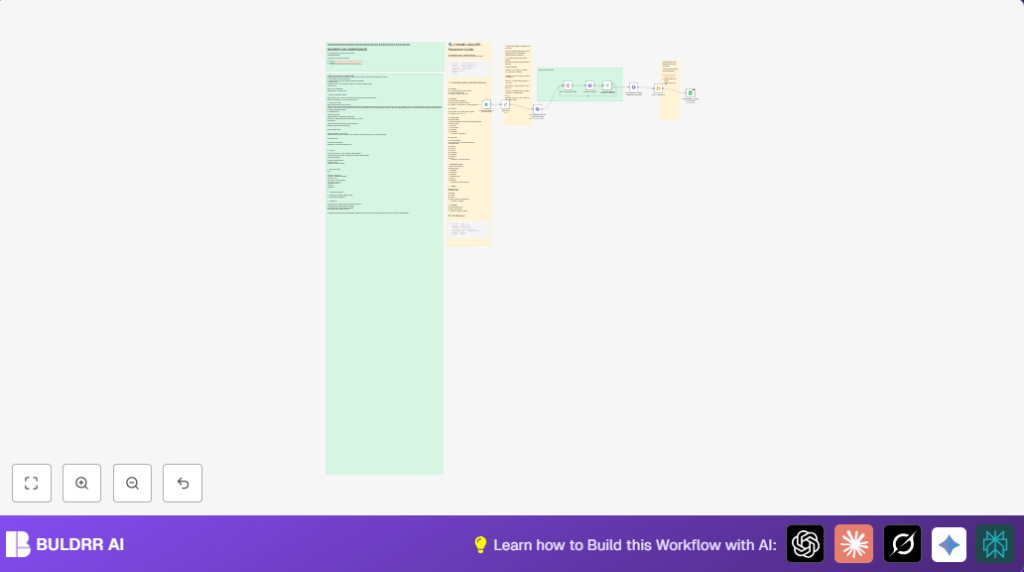
This workflow automates finding new job posts on LinkedIn. It takes your job search terms and location, then scrapes live data using the Bright Data Dataset API. It cleans the job information and adds it into a Google Sheets file automatically. The workflow saves time by avoiding manual searching, data copying, and filtering.

The user gets fresh, filtered job listings organized in a Google Sheet for easy use.


Who should use this workflow

This is good for job hunters wanting quick, targeted LinkedIn jobs without manual work. It also helps sales or recruiting teams who want to find companies hiring now. Users who spend too much time checking LinkedIn posts or making spreadsheets will find this very useful.


Tools and services used

  • n8n: Workflow automation platform orchestrating all steps.
  • Bright Data Dataset API: Scrapes LinkedIn job listings based on search details.
  • Google Sheets: Stores cleaned job listings for review and tracking.

Inputs, processing and output

Inputs

  • User provides job search parameters: job location, keyword, and country via a Form Trigger node.

Processing steps

  • Set node prepares or adjusts input data for the API.
  • HTTP Request node triggers the Bright Data API to start the LinkedIn scraping using these parameters.
  • Wait node pauses workflow to allow scraping time.
  • Another HTTP Request node checks if the data snapshot is ready.
  • If node decides if scraping needs more time or can continue.
  • When ready, HTTP Request node fetches the full job data snapshot.
  • Code node processes the data by flattening nested objects and removing HTML to get clean text.

Output

  • Google Sheets node appends the cleaned job posts as rows into a spreadsheet tab for easy viewing.

Beginner step-by-step: How to use the workflow in n8n

Importing and setup

  1. Download the workflow file using the Download button on this page.
  2. In the n8n editor, click “Import from File” and select the downloaded workflow file.
  3. After import, add your Bright Data API key in the HTTP Request node headers as: Authorization: Bearer YOUR_API_KEY.
  4. Link your Google Sheets account via OAuth2 credentials in the Google Sheets node.
  5. Update the Google Sheets document ID and sheet tab name if needed to match your spreadsheet.

Testing and activation

  1. Test the workflow by submitting sample job parameters in the Form Trigger node.
  2. Check outputs in Google Sheets to make sure jobs are added correctly.
  3. When satisfied, activate the workflow in n8n to run on demand.

If using a private setup, consider self-host n8n for full control and security.


Common problems and solutions

  • 401 error or authorization issues: Check your Bright Data API key is correct and included in Authorization header with “Bearer” prefix.
  • Snapshot never finishes or data is missing: Increase Wait node delay to at least 1 minute. Verify snapshot ID is used correctly in requests.
  • Google Sheets data looks wrong or append fails: Confirm column mapping matches your sheet headers and the right sheet tab is selected.

Customization ideas

  • Change filters like experience level or remote job in the Bright Data API POST request under HTTP Request node.
  • Adjust polling time in the Wait node for faster or slower data checks.
  • Add scoring or ranking logic for jobs in the Code node to prioritize results.
  • Send top job results to Slack, email, or CRM by adding output nodes after data clean up.
  • Accept multiple locations and keywords in the form to run several parallel searches.

Summary of what you get

✓ Fresh LinkedIn job posts filtered with your search terms.

✓ Clean, readable job data ready to use or share.

Automated data entry into Google Sheets for easy tracking.

✓ Less time spent manual job hunting or researching prospects.

Automate LinkedIn job scraping with n8n and GoogleSheets

Visit through Desktop to Interact with the Workflow.

Frequently Asked Questions

The workflow will get a 401 unauthorized error. The user should check the API key in the HTTP Request node has the correct “Bearer” prefix and key value.
The workflow checks the snapshot status via an HTTP Request node. If the status is “running,” it waits then checks again until the snapshot is complete.
Yes, after importing the workflow, update the Google Sheets node with your document ID and sheet tab name, and connect with your Google account credentials.
The current form input accepts single location values. To search multiple locations, adjust the form and HTTP Request to handle lists and run queries in parallel.

Promoted by BULDRR AI

Related Workflows

Automate Twist Channel Creation and Messaging with n8n

This workflow automates creating and updating a channel in Twist and sending a personalized message to specific users. It eliminates manual setup errors and saves time managing Twist communications.

Automate Ideogram Image Generation with Google Sheets & Gmail

This workflow automates graphic design image generation via Ideogram AI, storing image data in Google Sheets and Google Drive, with email alerts via Gmail. It saves designers hours by automating image creation, remixing, review, and record-keeping.

Automate IT Support with Slack and OpenAI in n8n

Streamline IT support by automating Slack message handling using n8n and OpenAI. This workflow handles Slack DMs, filters bots, queries a Confluence knowledge base, and delivers AI-generated responses, improving support efficiency and response time.

Automate Crypto Analysis with CoinMarketCap & n8n AI Agent

Discover how this unique n8n workflow leverages CoinMarketCap’s multi-agent AI to deliver precise, real-time cryptocurrency insights directly via Telegram. Manage crypto data analysis efficiently with automated multi-source API integration.

Automate Gumroad to Beehiiv Subscriber Sync with n8n

Learn how to automatically add new Gumroad sales customers as Beehiiv newsletter subscribers using n8n automation. This workflow saves time by syncing sales data to Google Sheets CRM and notifying your Telegram channel instantly.

Generate On-Brand Blog Articles Using n8n and OpenAI

This workflow automates the creation of on-brand blog articles by analyzing existing company content using n8n and OpenAI. It extracts article structures and brand voice to produce consistent draft articles, saving significant content creation time.
1:1 Free Strategy Session
Your competitors are already automating. Are you still paying for it manually?

Do you want to adopt AI Automation?

Every hour your team does repetitive work, you're burning real money.
While you wait, faster businesses are cutting costs and moving quicker.
AI and automations aren't the future anymore — they're the present.

Book a live 1-on-1 session where we show you exactly which of your daily tasks can be automated — and what it’s costing you not to.