

1. Opening Problem Statement
Meet Julia, a seasoned project manager at a busy software development company. Julia is overwhelmed by the number of unassigned JIRA issues piling up in her team’s backlog. Many issues stay unassigned for over a week, causing delays in resolutions and frustrating team members. This not only wastes dozens of hours that could be spent on actual problem-solving but also increases the risk of critical issues falling through the cracks, impacting customer satisfaction and project timelines.
Julia wishes for a smarter way to automatically assign these stale issues to the best-suited team members based on their past work and current availability. Manually sifting through issues, searching for context, and balancing workloads is error-prone and time-consuming. This is exactly the problem this n8n workflow solves.
2. What This Automation Does ⚙️
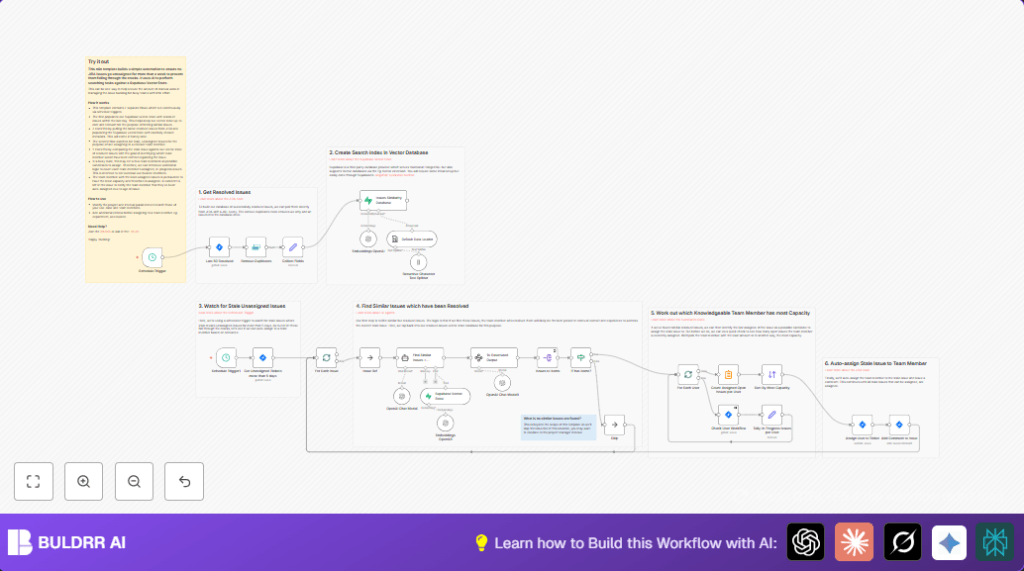
When this n8n workflow runs, it intelligently manages stale, unassigned JIRA issues by leveraging AI and a vector database of past resolved issues. Specifically, it:
- Automatically detects JIRA issues unassigned for more than 5 days.
- Queries a vector database populated daily with metadata and embeddings from recently resolved issues.
- Finds similar resolved issues to understand the context and identifies which team members resolved them.
- Checks each potential assignee’s current workload by counting their open “In Progress” JIRA issues.
- Assigns the stale issue to the team member with the closest relevant experience and the most capacity (least open issues).
- Leaves a comment on the JIRA issue noting the auto-assignment for transparency.
This workflow saves Julia’s team hours of manual review and reduces the chance of issues being neglected, helping projects stay on track and team members focused.
3. Prerequisites ⚙️
- Jira Software Cloud Account with API access configured 📧
- Supabase account set up with vector database (Pg-Vector extension) to store and query embeddings 📊
- OpenAI account with API access for text embeddings and AI-powered chat models 🔐
- n8n Automation Platform account (cloud or self-hosted). For self-hosting, you can use reliable providers like Hostinger 🔌
4. Step-by-Step Guide to Build the Workflow
Step 1: Schedule Daily Sync of Resolved Issues from JIRA
Navigate to the n8n editor and drag a Schedule Trigger node. Configure it with an interval of one day to automate daily runs.
Expected: This node will initiate the workflow daily to refresh your vector database.
Common mistake: Forgetting to set the correct interval or time zone.
Step 2: Retrieve Last 50 Resolved JIRA Issues
Add a Jira node. Set the operation to getAll and use the JQL:
project = "My Kanban Project" AND status = "Done" AND assignee IS NOT EMPTY AND created >= -1d
This fetches issues completed in the last day assigned to users.
Expected: You’ll receive an array of resolved issues for processing.
Common mistake: Using incorrect JQL syntax or an unavailable project key.
Step 3: Remove Duplicate Issues
Insert a Remove Duplicates node using the issue key field to ensure each resolved issue is processed only once.
Expected: Cleaned list, preventing multiple entries of the same JIRA issue.
Step 4: Collect and Transform Necessary Fields
Use a Set node to extract fields like project key, issue key, issue type, creation/resolution dates, assignee ID/name, title, and description. This ensures consistent metadata for the vector database.
Example: Set key project_key to {{$json.fields.project.key}}.
Step 5: Load Data into Default Data Loader Node
This Default Data Loader from Langchain formats the issue into text data with metadata for downstream embedding processing.
The node uses expressions like:
jsonData: # {{$json.title}}
- created {{$json.created_date}}
- resolved {{$json.resolved_at}}
## description
{{$json.description}}
Step 6: Generate Embeddings with OpenAI
Add the Embeddings OpenAI node with your OpenAI credentials. This converts your formatted issue data into vector embeddings.
Expected: A vector representation of each resolved issue.
Step 7: Insert Embeddings into Supabase Vector Store
Connect the embeddings node to a Vector Store Supabase node configured to insert mode, pointing to your “documents” table.
This updates your vector database with searchable issue embeddings and metadata.
Step 8: Schedule Trigger to Monitor Unassigned Issues
Create another Schedule Trigger node to run periodically (e.g., daily or more frequent) to look for stale unassigned issues.
Step 9: Query for Unassigned Tickets Older Than 5 Days
Insert a Jira node with JQL:
project = "My Kanban Project" AND status = "To Do" AND assignee IS EMPTY AND assignee CHANGED BEFORE -5d
This isolates stale issues needing assignment.
Step 10: Process Each Unassigned Issue
Use a SplitInBatches node to iterate through each stale issue.
Step 11: Find Similar Resolved Issues with AI Agent
For each stale issue, use the Find Similar Issues + Assignees Langchain Agent node.
The agent’s system message instructs it to find similarly resolved issues and identify their assignees, ensuring relevant matches.
Step 12: Extract Structured Data From AI Response
Pass the AI output through the Information Extractor node configured to map issue keys and assignee details into structured JSON.
Step 13: Handle No Matches Scenario
Use an If node to check if similar issues were found. If none, use a NoOp node to skip assignment (you might prefer escalating to a manager).
Step 14: Count Open Issues per Potential Assignee
Split the matching assignees out and use a Jira node to count their “In Progress” issues using JQL:
status = "In Progress" AND assignee = "{{assignee_id}}"Use a Summarize node to aggregate the count per user.
Step 15: Sort Users by Most Capacity
Sort users so that the one with the fewest “In Progress” issues (most capacity) comes first.
Step 16: Assign the User and Add a Comment
Use the Jira node to update the issue with the chosen assignee and add a comment explaining the auto-assignment, e.g.,
Auto-assigned to {{assignee_name}} due to no assignee within past 5 days.This completes your automated management of stale JIRA tickets.
5. Customizations ✏️
- Adjust Project Scope: Change the JQL in the “Get Unassigned Tickets” node to target a specific project or multiple projects by modifying the
projectfield. - Customization by Issue Type: Filter by issue types to assign only bugs or tasks, by adding conditions for
issuetypein your JQL. - Use Different AI Models: Switch from “gpt-4o-mini” to another OpenAI model in the Langchain chatbot nodes for cost/performance balance.
- Escalation Flow: Expand the “no similar issues found” path to notify project managers automatically instead of skipping.
- Workload Thresholds: Set a maximum number of issues per assignee to avoid overload by adding conditional logic before assignment.
6. Troubleshooting 🔧
- Problem: “No results found for JQL query”
Cause: Incorrect JQL syntax or permissions.
Solution: Double-check JQL formatting, ensure your Jira credentials have access to the project. - Problem: OpenAI API rate limits or errors.
Cause: Too many requests or invalid API keys.
Solution: Verify API key validity, add throttling, or upgrade your OpenAI plan. - Problem: Supabase insert failures.
Cause: Improper table configuration or missing Pg-Vector extension.
Solution: Follow Supabase Langchain vector store quickstart guides and confirm table schema. - Problem: Issues not assigned despite matches.
Cause: User sorting or assignment steps misconfigured.
Solution: Check data flow through sorting nodes and ensure assignee IDs are correctly mapped.
7. Pre-Production Checklist ✅
- Verify API credentials for Jira, OpenAI, and Supabase are correctly set and tested.
- Test scheduled triggers with manual runs to observe each step’s output.
- Confirm JQL queries return expected issues.
- Ensure vector database updates correctly with new resolved issue embeddings.
- Simulate stale tickets and validate correct assignee is identified and assigned.
- Create backup of your n8n workflow before deployment to revert if needed.
8. Deployment Guide 🔌
Activate both schedule trigger nodes to enable continuous operation. Monitor workflow executions via n8n’s execution logs for errors. Optionally set up alerting on failed runs to stay proactive. Since this workflow interacts with your Jira production environment, test thoroughly in a staging environment first.
9. FAQs
- Can I use a different vector database? Yes, n8n supports other vector databases but you must adjust the vector store node configuration accordingly.
- Does this workflow consume many API credits? It depends on the number of issues processed and embedding calls. You can batch calls to optimize usage.
- Is my data secure? Yes, all data is processed securely within your configured cloud environments and n8n platform.
- Can this handle large teams? Yes, but performance depends on API rate limits of Jira and OpenAI. Consider running at lower frequency or batch sizes if needed.
10. Conclusion
By following this guide, you have built a powerful n8n automation that intelligently assigns stale JIRA issues using AI and vector search. Julia no longer faces backlog chaos, saving her team hours of manual work every week and ensuring faster issue resolution. This reduces delays and boosts team productivity.
Next steps could include expanding the workflow to escalate unassigned issues after multiple tries or integrating with notification systems like Slack. You might also explore automatic prioritization based on issue impact.
Let’s keep automating smarter project management!