
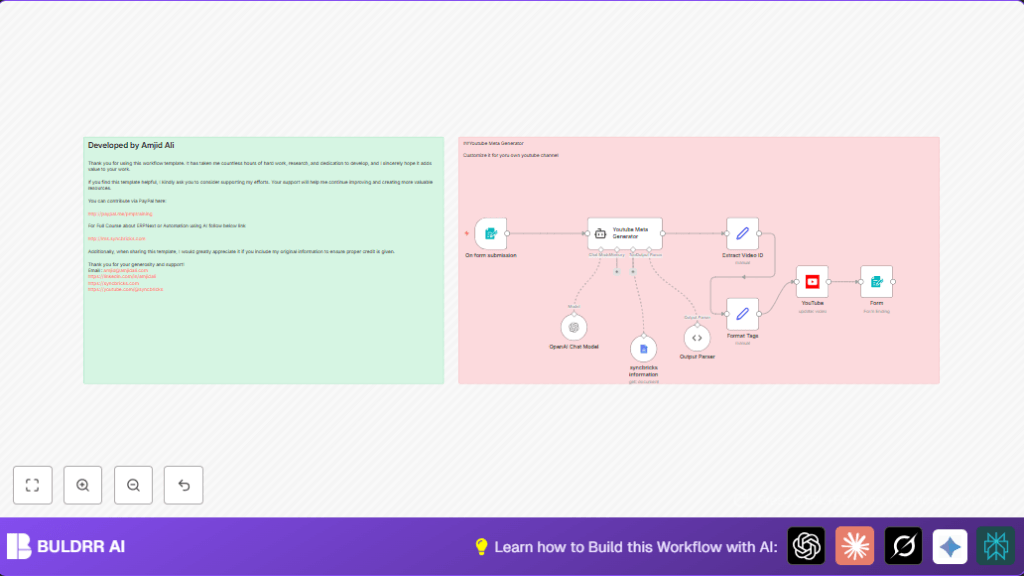

What This Automation Does
This n8n workflow takes a YouTube video link and transcript as input.
It creates SEO-friendly title, description, tags, and hashtags automatically.
The metadata includes affiliate and promo links from Google Docs.
Finally, it updates the video on YouTube via API.
This saves hours of manual work and helps videos get found easier.
Who Should Use This Workflow
Content creators uploading YouTube videos with transcripts.
Anyone wanting fast, error-free metadata generation.
Good for creators with affiliate or promo links to add.
Users needing improved video SEO without manual research.
Tools and Services Used
- n8n: For automation orchestration.
- OpenAI GPT-4 Mini: To generate metadata text.
- Google Docs: To fetch affiliate and promotional links.
- YouTube API: To update video metadata.
Inputs, Processing, and Outputs
Inputs
- YouTube Video Link
- Video Transcript text
- Optional focus keywords
Processing Steps
- Extract video ID from the input link.
- Get affiliate and promo links from Google Docs document.
- Send transcript, keywords, and links to GPT-4 Mini to generate JSON metadata.
- Parse AI JSON output for video title, description, tags, and hashtags.
- Format tags as comma-separated string suitable for YouTube.
- Update YouTube video via API with generated metadata.
- Show confirmation message with updated title and link.
Outputs
- SEO optimized video title
- Rich video description including affiliate links
- Relevant tags and hashtags
- YouTube video metadata updated automatically
- Friendly confirmation displayed
Beginner Step-by-Step: How to Build This in n8n
Importing the Workflow
- Download the ready workflow using the Download button on this page.
- Open your n8n editor where workflows are managed.
- Use the “Import from File” option and select the downloaded workflow file.
Configuring Credentials and Settings
- Add or update Google Docs API credentials.
- Add OpenAI API Key with GPT-4 Mini access.
- Provide YouTube API Key to enable video metadata updates.
- Check the syncbricks information node to ensure the Google Docs document URL is correct.
- If needed, update YouTube channel IDs or other static values.
Testing and Activation
- Test the workflow by submitting the form with a sample YouTube video link and transcript.
- Watch the workflow logs to confirm all nodes run successfully.
- Once confirmed, activate the workflow to run automatically on actual form submissions.
Consider checking out resources on self-host n8n if planning to run the workflow on your own server.
Customization Ideas
- Change
categoryIdin the YouTube node to better match video content. - Adjust keyword length or count in the AI prompt within the Youtube Meta Generator.
- Add more affiliate links by updating the Google Docs document and its URL.
- Modify call to action phrases in the AI prompt to suit your audience goals.
Common Issues and Fixes
Webhook not triggering on form submission
Make sure the webhook URL is correctly copied and active in the Webhook node.
Use n8n’s webhook test feature to check if data reaches the workflow.
Invalid YouTube video ID error
Check that the video link is the short YouTube format like “https://youtu.be/abc123”.
Update the Extract Video ID node’s replace expression if a different URL style is used.
Pre-Production Checklist
- Submit form with real sample YouTube links and transcripts to test.
- Verify access to Google Docs document with affiliate info.
- Confirm OpenAI API key and GPT-4 Mini availability in the workflow.
- Test YouTube API credentials for metadata editing permission.
- Run full workflow once to check outputs and node responses.
Workflow Summary
✓ Automates YouTube metadata creation from transcripts.
✓ Saves creators multiple hours per video upload.
✓ Includes affiliate and promo links dynamically.
✓ Updates YouTube metadata automatically via API.
✓ Improves SEO and viewer engagement with optimized tags and descriptions.
✓ Simple upload and form use with confirmation feedback.
