

What This Automation Does
This workflow automatically turns an image URL into a captioned picture. It solves the problem of spending hours writing captions that might not match the image well. You get a finished image with text captions directly on it, ready to publish fast.
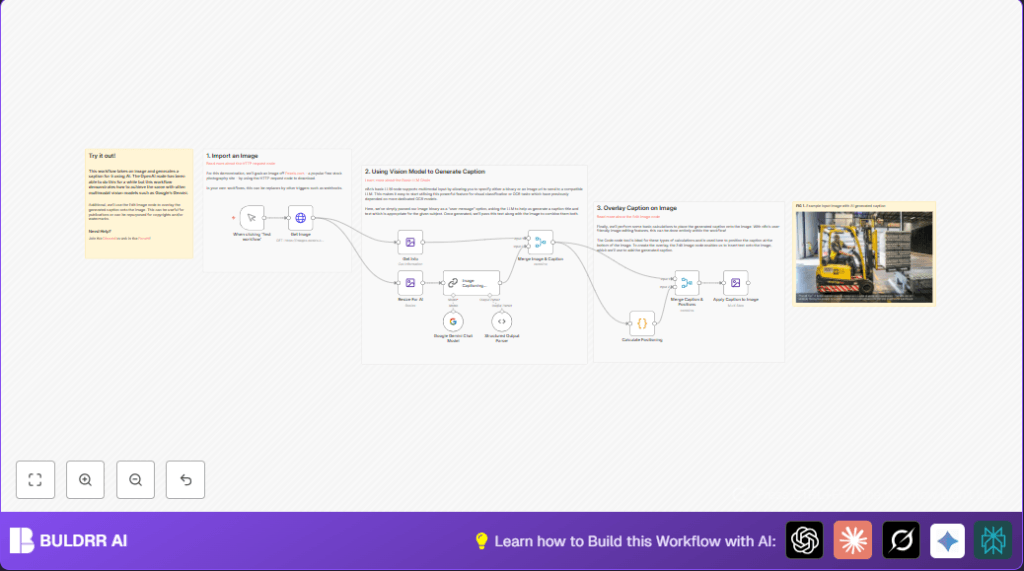
The workflow gets an image from a URL, resizes it, uses Google Gemini AI to make a caption with a witty title, calculates where the text should go on the picture, and then puts the caption onto the image perfectly. This saves time and keeps captions fitting and clear.
It stops mistakes from manual captioning and makes sure captions look nice every time. The end result is a professional, captioned image ready for digital content use.
Tools and Services Used
- n8n: Workflow automation platform where this process runs.
- Google Gemini (PaLM) API: AI model generating creative image captions.
- HTTP Request node: Downloads images using their URLs.
- Edit Image node: Resizes images and adds text overlays.
- Code node: Calculates best position for captions based on image size and text length.
Inputs → Processing Steps → Output
Inputs
- Image URL pointing directly to a photo or graphic.
- Google Gemini API credentials for AI captioning.
Processing Steps
- Download image data from the URL with the HTTP Request node.
- Resize the image to 512 by 512 pixels using Edit Image node to prepare the image for AI understanding.
- Extract image info such as width and height to help place caption text.
- Send the resized image to Google Gemini AI to get a caption with a punny and descriptive title.
- Parse the AI response and merge it with image metadata.
- Calculate exact caption position using JavaScript inside Code node, looking at image size and text length.
- Overlay a shaded box and the caption text onto the original image using Edit Image multi-step operations.
Output
- A professional-quality image with a caption title and text overlaid neatly at the bottom.
Who Should Use This Workflow
This automation fits content creators, editors, and social media teams who have many images to caption often. People who waste time on manual caption writing or make mistakes with mismatched captions will find big time savings.
Also good for anyone wanting consistent style in image captions. It works well if you don’t want to learn complicated coding or AI setups but need AI-made creative captions fast.
Beginner Step-By-Step: How to Use This Workflow in Production Inside n8n
Step 1: Import the Workflow
- Download the ready workflow file using the Download button on this page.
- Open your n8n editor (self-hosted or cloud).
- Click on the menu, choose Import from File, and select the downloaded workflow file.
Step 2: Add Your Credentials and Settings
- Go to the credential manager in n8n.
- Add or update the Google Gemini API Key with correct permissions.
- Check nodes needing URL or IDs and update any image URLs or specific details as needed.
- If there is any prompt, code, or URL input in the nodes, copy and paste exactly what is provided to keep it working.
Step 3: Test the Workflow
- Find the Manual Trigger node and run the workflow inside the editor.
- Review the outputs for the captioned image to make sure it looks right.
Step 4: Activate for Production
- Once testing goes fine, turn the workflow from draft mode to active.
- You can run it manually or connect a Webhook node to trigger automatically.
- Schedule or integrate with your image source system if desired.
If hosting on your own server, see self-host n8n for setup help.
Customization Ideas
- Change font colors, sizes, or background opacity in the final Edit Image node to match desired style.
- Switch Google Gemini AI with another Langchain-supported AI model if preferred for variety in text style or language.
- Use dynamic image URLs by replacing static URLs in HTTP Request node with variables from user input or webhooks.
- Modify the code in the Code node to put captions at the top or center instead of the bottom.
- Add watermark logos or copyright text via extra steps in the Edit Image node.
Troubleshooting
- Google Gemini API authentication problems: Check API Key in n8n credentials and correct permissions.
- Missing output from Edit Image node: Make sure input has binary image data and node is correctly connected.
- Errors parsing AI caption JSON: Update structured output parser schema if AI response changed format.
Pre-Production Checklist
- Confirm API Credentials for Google Gemini are active.
- Test HTTP Request node with a working image URL.
- Validate Edit Image node operations work as expected (resize, info, overlay).
- Run workflow with manual trigger and check the image output for caption correctness.
- Export and back up workflow before changes or deploying.
Deployment Guide
After activating the workflow, make sure to check the execution logs in n8n for errors or warnings.
Schedule this workflow or attach it to a webhook to process images automatically as needed.
This keeps caption creation fast and error-free in your production content pipeline.
Summary of Results
✓ Finished captioned image ready to publish in seconds.
✓ Saves hours of manual caption writing.
✓ Keeps captions consistent and well placed.
✓ Reduces caption errors and viewer confusion.
✓ Easier publishing with professional look images.
