

What This Automation Does
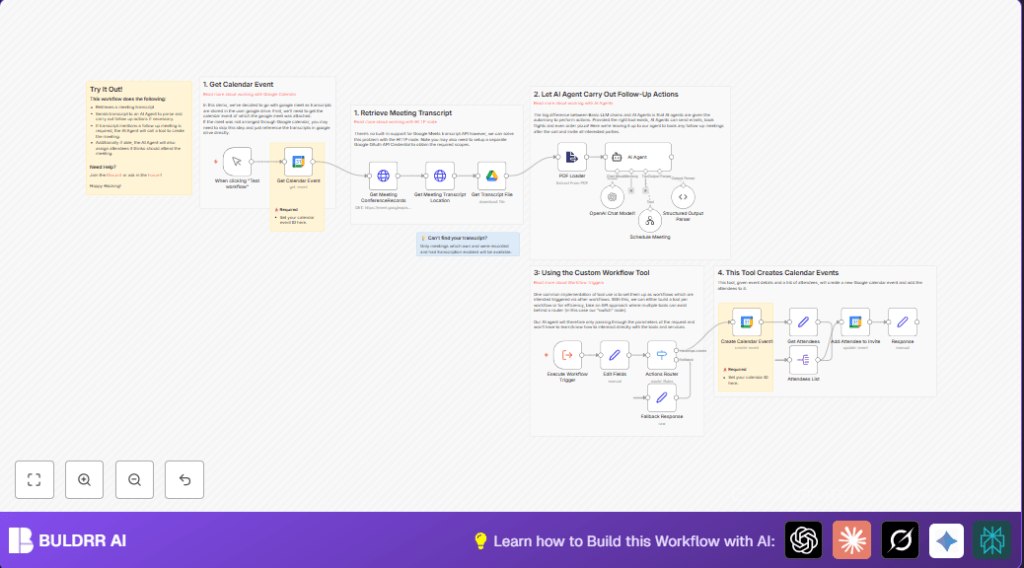
This workflow grabs Google Meet transcripts after a call and uses AI to make short summaries and key points.
It then finds if follow-up meetings are needed and adds those events with the right people to Google Calendar.
All steps happen automatically, saving time and avoiding missed actions.
The workflow connects Google Drive, Calendar, and Meet APIs to get meeting info and transcript files.
An AI agent reads the transcript text and tells which meetings to add next.
Tools and Services Used
- n8n: Workflow automation platform.
- Google Calendar API: Retrieve and create events.
- Google Drive API: Download transcript files.
- Google Meet API: Fetch conference records and transcript locations.
- OpenAI API: AI agent for summarizing and meeting action detection.
Inputs, Processing, and Output
Inputs
- Google Calendar Event ID where Google Meet was held.
- OAuth2 API credentials for Calendar, Drive, and Meet.
- OpenAI API key.
Processing Steps
- Get calendar event details by Event ID.
- Call Google Meet API to find conference records matching meeting code.
- Request transcript file location for meeting.
- Download transcript file from Google Drive.
- Extract raw text from transcript PDF.
- Send text to OpenAI agent for summarization, key points extraction, and next step detection.
- If next steps include follow-up meetings, create events and add attendees.
Output
- Structured meeting summary with key highlights.
- Created Google Calendar events for follow-ups.
- List of attendees invited to new meetings.
Beginner Step-by-step: How to Use in n8n Production
Import the Workflow
- Download the workflow file using the Download button on this page.
- Open the n8n editor.
- Click Import from File and select the downloaded workflow.
Configure Credentials and IDs
- Add Google OAuth2 API credentials for Calendar, Drive, and Meet in n8n’s credential manager.
- Add your OpenAI API Key in the credential setup.
- Open the Google Calendar node and update the event ID with your own calendar event ID.
- Update any email addresses, calendar IDs, or folder IDs as needed.
Test the Workflow
- Run the workflow manually using the Manual Trigger node.
- Check outputs at each node to confirm data is flowing as expected.
Activate for Production
- Switch the workflow to Active using the toggle button.
- Set up any webhook or event-based triggers to automate running in real cases.
If running self-host n8n, make sure the instance is reachable to external services.
Step-By-Step Workflow Description for Beginners
Step 1: Manual Trigger
- Add Manual Trigger node to start workflow when clicked.
- Connect this as workflow’s entry point.
Step 2: Get Calendar Event
- Use Google Calendar node with Get Event operation.
- Enter event ID and select calendar ID.
Step 3: Fetch Meet Conference Records
- Add HTTP Request node.
- Call
https://meet.googleapis.com/v2/conferenceRecordsusing query filter for meeting code. - Set OAuth2 credentials for authentication.
Step 4: Get Transcript Location
- Add another HTTP Request node.
- Query transcript file info using conference record name.
Step 5: Download Transcript
- Use Google Drive node to download transcript file by file ID.
- Enable PDF conversion if needed.
Step 6: Extract Text from PDF
- Add Extract from File node set for PDF.
- Get raw text for AI processing.
Step 7: Process with AI Agent
- Send transcript text to AI Agent (LangChain Agent) node.
- Agent analyzes text and summarizes meeting, finds key points and next meetings.
- Provide meeting context like creator and time.
Step 8: Create Follow-up Meetings
- Use Switch node to check if AI output requests meeting creation.
- If yes, send data to Create Calendar Event (Google Calendar) node.
Step 9: Add Attendees
- Use Set node to prepare attendee info.
- Split attendees list with SplitOut node.
- Update event with each attendee via Update Event operation.
Step 10: Finalize Response
- Format final output with Set node.
- Convert event data to readable string for logs or API caller.
Customization Ideas
- Change event ID input in Get Calendar Event node to dynamic value or webhook.
- Expand AI Agent prompt to add email sending or document updating.
- Use different calendars by changing calendar ID in Google Calendar nodes.
- Adjust transcript file format conversion in the Google Drive node.
- Add email or Slack alerts for errors in transcript retrieval or AI processing.
Handling Errors and Common Problems
401 Unauthorized Error: Happens when OAuth2 credentials lack Google Meet API scopes.
Fix by updating OAuth2 scopes and re-authenticating credentials.
No Transcript File or Empty Transcript: Occurs if meeting was not recorded or transcription off.
Fix by ensuring transcription is enabled before the meeting.
Pre-Production Checklist
- Check OAuth2 credentials for correct scopes on Calendar, Drive, and Meet.
- Run manual tests on trigger and watch each node output.
- Confirm event and calendar IDs exist and accessible.
- Make test calls to Google Meet API for conference records.
- Verify AI prompt captures meeting context and outputs properly.
Deploying the Workflow
After testing, activate workflow by toggling it on in n8n.
Start it manually or set triggers for automatic runs.
Monitor executions through n8n logs.
Add alerts via email or chat for failures.
Summary of Benefits
✓ Saves hours by automating transcript retrieval and meeting follow-ups.
✓ Reduces mistakes by handling calendar invites automatically.
✓ Makes meeting summaries clear and easy to read.
✓ Ensures next meetings get scheduled with correct participants.
✓ Lets project managers focus on work, not manual steps.
