
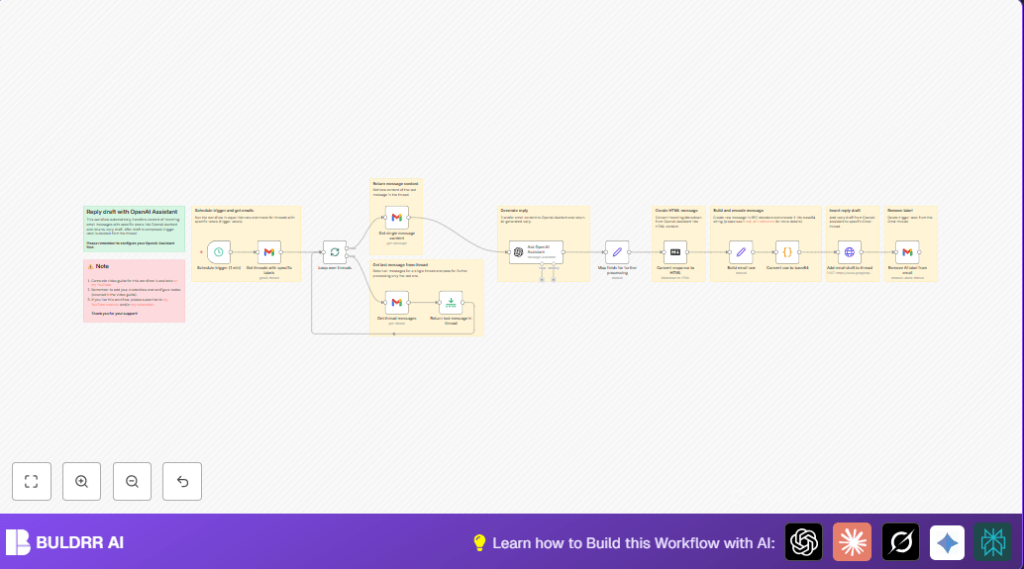

What this workflow does
This workflow automatically finds Gmail email threads with a chosen label and writes reply drafts using OpenAI AI assistant.
It helps save time by handling repeated email replies and makes draft emails that sound personal and clear.
The process stops running on threads after drafting answers by removing the label.
Who should use this workflow
This is for people who get many emails that need similar replies fast, like customer support managers.
Users who want to spend less time typing email answers can use this to automate drafts.
Some basic knowledge of Gmail labels and email threading is needed to set it up well.
Tools and services needed
- Gmail account: To get emails and save drafts. OAuth2 credentials set in n8n required.
- OpenAI account: API key for OpenAI Assistant to generate replies.
- n8n automation platform: To build and run the workflow. Can be cloud or self-host n8n.
Inputs, processing steps, and output
Inputs
- New Gmail threads with a specific “AI-Reply” label.
- Email content from the last message in each thread.
Processing Steps
- Schedule trigger runs every minute to check for new threads.
- Fetch Gmail threads filtered by the label.
- Split threads to process one at a time.
- Get the last message in each thread for current email text.
- Send email content to OpenAI Assistant for drafting reply.
- Convert AI reply from Markdown to HTML format.
- Create raw RFC 822 email with proper headers and HTML body.
- Encode the raw email in base64 for Gmail API use.
- Post draft reply into Gmail thread via API.
- Remove the trigger label to avoid re-processing.
Output
Draft reply emails added to Gmail threads, ready to send.
Beginner step-by-step: How to use this workflow in n8n
Import the workflow
- Download the workflow file from this page.
- In n8n editor, click on “Import from File” and load the workflow.
Configure credentials and settings
- Add Gmail OAuth2 credentials in the Gmail nodes.
- Add OpenAI API key and select the assistant ID in the OpenAI Assistant node.
- Update the Gmail label ID used to find email threads if needed.
- Check that all email addresses, thread IDs, and variables are set correctly.
Test and activate
- Run the workflow manually once to check it fetches emails and creates draft replies.
- Look for errors and fix any credential or ID issues.
- When working as expected, activate the workflow to run automatically.
Important process details
The workflow starts by regularly checking Gmail for threads labeled for AI reply.
It processes threads one by one to avoid hitting API limits or timeouts.
The last email in each thread is used because this is the newest message needing a reply.
The AI assistant gets the full email text and drafts a reply that sounds natural and relevant.
The reply is built into an email draft with correct headers and HTML body, then posted back to Gmail.
Finally, the label is removed to mark the thread as done.
Customization ideas
- Change the trigger Gmail label to fit your own email tagging system.
- Adjust how often the workflow runs by changing the Schedule Trigger settings.
- Modify the AI prompt in the OpenAI Assistant node to change reply tone or style.
- Add CC or BCC addresses in raw email format for special cases.
- Use different Gmail account credentials to apply this to multiple inboxes.
Handling common errors
If no threads show up, check if the Gmail label ID in the “Get Threads with Specific Labels” node is correct.
Failure in AI reply generation usually means incorrect OpenAI API key or assistant ID configuration.
Draft emails not saving can happen if the raw email format is wrong or the base64 encoding code has errors.
Best practices before going live
- Confirm Gmail OAuth2 credentials are working and allowed.
- Test label filtering to be sure emails get selected properly.
- Verify AI assistant creates good replies by testing with sample emails.
- Check that draft emails appear correctly in Gmail threads.
- Watch workflow logs for errors during test runs.
- Optionally backup important emails before starting automation.
How to run in production
Activate the workflow in n8n so it runs on schedule.
Monitor its runs to see thread drafts created and labels removed as expected.
For self-host n8n, set up proper cron jobs or keep the process running continuously.
Summary of results
✓ Saves many hours each week by automating email replies.
✓ Produces clear and personalized drafts for Gmail threads.
✓ Prevents repeated processing by removing trigger labels after draft creation.
→ Makes email support work faster and less tiring.
→ Frees user to focus on more important tasks than manual replying.
