
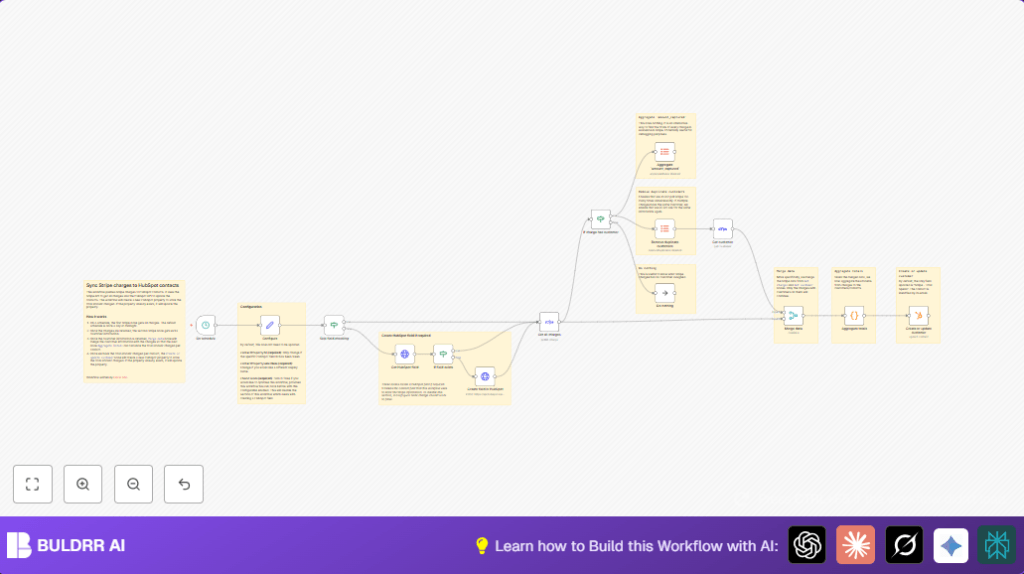

What This Automation Does
This workflow runs on a set time each day to keep customer payment info up to date between Stripe and HubSpot.
It finds all Stripe charges and updates the total spend amount on matching HubSpot contacts.
This stops manual updating and reduces errors in customer data syncing.
The result is always current total spend info in HubSpot for better sales and marketing work.
Tools and Services Used
- Stripe API: To get charges and customer details.
- HubSpot API with OAuth2: To check and update contact properties.
- n8n Automation Platform: To run and connect the workflow nodes.
Inputs, Processing, and Outputs
Inputs
- API access to Stripe charges and customers.
- HubSpot contact property ID and label for total spend.
Processing Steps
- Check if the HubSpot custom field exists and create if needed.
- Fetch all charges from Stripe.
- Filter charges that have linked customer IDs.
- Remove duplicate customer IDs.
- Get detailed customer info from Stripe.
- Combine charge and customer info.
- Sum total amounts spent per customer by email.
- Update HubSpot contacts with total spend data.
Outputs
- HubSpot contacts have an updated field showing total Stripe charge amounts.
- Accurate, up-to-date customer spend info improves sales and marketing insights.
Beginner Step-by-Step: Usage in n8n
Step 1: Import Workflow
- Download the workflow file using the Download button on this page.
- Open the n8n editor (cloud or self-host n8n).
- Click menu and select “Import from File”.
- Choose the downloaded workflow file to import.
Step 2: Configure Credentials and Settings
- Add API credentials for Stripe and HubSpot if not already present in n8n.
- Open the Set (Configure) node and update contactPropertyId if needed.
- If you use a different HubSpot field for total spend, update contactPropertyLabelName.
Step 3: Test the Workflow
- Trigger the workflow manually with the schedule node by choosing “Execute Workflow Now.”
- Observe the execution and check the output data for correctness.
Step 4: Activate for Production
- Enable the scheduled trigger node to run automatically at your chosen interval.
- Monitor initial runs from the n8n dashboard for any errors.
Common Edge Cases and Failures
- Missing HubSpot custom property causing 404 errors on fetch.
- Stripe charges with no linked customer ID are filtered out to avoid errors.
- HubSpot contact not updating due to bad email mappings or missing permissions.
Customizations
- Change HubSpot property names by editing variables in Set (Configure).
- Change schedule frequency in the Schedule Trigger node.
- Add more Stripe charge data fields by adjusting merge and update steps.
- Set boolean checkFields to false in the configure node to skip redundant HubSpot property checks after initial run.
Code for Step 11: Aggregate Total Captured Amount per Customer
The workflow uses a Code node to sum amounts spent by customers.
Amounts are converted from cents to dollars.
Below is the JavaScript to run in that node.
const customerTotals = {};

for (const charge of items) {
  const email = charge.json.customer_email;
  const amount = charge.json.amount_captured / 100;

  if (!email) continue;

  if (!customerTotals[email]) {
    customerTotals[email] = 0;
  }

  customerTotals[email] += amount;
}

return Object.entries(customerTotals).map(([email, total]) => ({
  json: { email, total_spend: total }
}));
Summary of Benefits and Results
✓ Saves about 5 hours of manual work each week.
✓ Prevents mistakes caused by manual updates.
✓ Keeps HubSpot contact spend info always current.
✓ Helps sales and marketing teams focus better.
→ Makes customer payment data syncing automatic and reliable.
