
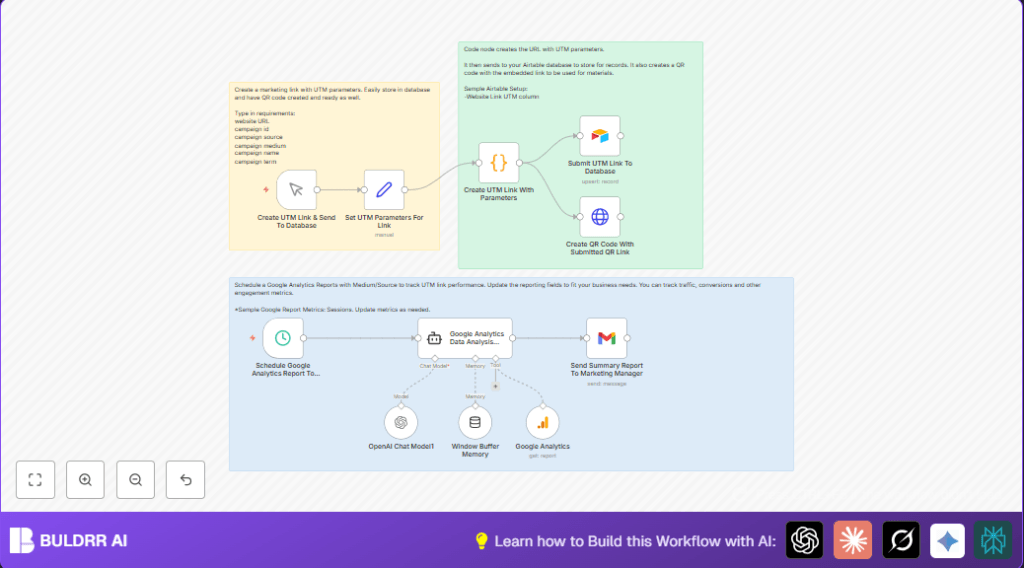

What This Workflow Does
This workflow automates creating UTM campaign links with correct parameters, saves them in an Airtable database, makes QR codes for print use, and sends scheduled Google Analytics reports analyzed by AI. It reduces repeated manual work and fixes human mistakes in tracking URLs. Users get clean UTM links, stored records, offline QR codes, and smart summary emails for marketing campaigns.
The workflow inputs campaign details, builds URLs with UTM parameters, stores those URLs, generates QR codes, pulls Google Analytics data on sessions and sources, uses GPT-4 AI to make an executive report, and emails the report automatically.
Who Should Use This Workflow
Digital marketers who manually make UTM links, track campaigns, and create QR codes will save many hours with this workflow. It suits teams needing controlled URL tracking and insights without human errors.
It is helpful if tracking consistency, offline QR code generation, centralized URL storage, and scheduled Google Analytics reporting are important.
Tools and Services Used
- n8n: Executes automation workflows.
- OpenAI GPT-4 API: Analyzes Google Analytics data and writes report summaries.
- Google Analytics API: Provides campaign traffic and session metrics.
- Airtable: Saves and stores UTM link records.
- QuickChart.io QR Code API: Generates QR code images from URLs.
- Gmail via OAuth2: Sends scheduled campaign summary emails.
Inputs, Processing Steps, and Outputs
Inputs
- Website URL and campaign parameters like source, medium, name, term, and campaign ID.
- Schedule timing for when to pull Google Analytics data and send reports.
Processing Steps
- Manual trigger starts UTM link creation on user input.
- A Set node defines campaign variables for UTM parameters.
- A Code node builds a full UTM URL by joining parameters properly.
- An Airtable node saves the UTM URL to a database table.
- An HTTP Request node generates a QR code image URL from the UTM link using QuickChart.io.
- A scheduled trigger runs periodically to pull Google Analytics session and source data.
- A Google Analytics node queries the specified property’s metrics.
- A Langchain Agent node sends Google Analytics data to OpenAI GPT-4 to get a marketing report summary.
- A Gmail node sends the AI-generated report to the marketing manager’s inbox automatically.
Outputs
- Accurate UTM-tagged URLs saved in Airtable for easy tracking.
- QR code URLs from UTM links, ready for offline marketing use.
- Scheduled AI-analyzed Google Analytics reports emailed directly to stakeholders.
Beginner Step-by-Step: How To Use This Workflow In n8n
Import the Workflow
- Download the workflow file by clicking the Download button on this page.
- Open n8n editor and choose “Import from File” to load the workflow.
Configure Credentials and Settings
- Add credentials in n8n for OpenAI API, Google Analytics, Airtable (using your personal token), and Gmail (OAuth2 setup).
- Update any values such as Airtable base and table IDs, Google Analytics property ID, email recipient, campaign parameter defaults, or QR code API URL if needed.
Test and Activate
- Run the manual trigger Manual Trigger to create a test UTM link and check it is saved in Airtable.
- Verify the QR code URL is generated and links to the correct page.
- Check scheduled Google Analytics data pulls and AI report generation by manual execution if desired.
- Send a test email through the Gmail node to confirm delivery.
- Activate the workflow to enable manual and scheduled triggers in live production.
For users running self-host n8n, make sure all API keys and credentials have correct permissions. Monitor workflow runs regularly for errors.
Common Failures And How To Fix Them
- No data from Google Analytics node? Check if Google Analytics property ID and OAuth credentials are set correctly.
- Airtable records missing? Confirm Airtable base and table IDs, and API token permissions are accurate.
- QR code image not created? Ensure the UTM URL is properly inserted in the QuickChart.io request URL with correct encoding.
- Emails not sent? Verify Gmail API permissions and OAuth2 credentials for sending mail.
Customization Ideas
- Change default UTM parameters or add new fields inside the Set node.
- Add more Google Analytics metrics like conversions or bounce rate by editing the Google Analytics node.
- Adjust report schedule timing in the Schedule Trigger to daily, weekly, or monthly.
- Swap the QuickChart.io API URL in the HTTP Request node for a different QR code provider.
- Change recipient emails or add multiple recipients in the Gmail node.
Summary of Results
✓ Saves hours weekly by automating link creation and tracking setup.
✓ Ensures UTM URLs are consistent and error-free.
✓ Provides stored, searchable UTM data in Airtable.
✓ Generates QR codes for offline marketing use.
✓ Sends scheduled, AI-written Google Analytics reports.
✓ Helps users quickly understand campaign performance.
