

What This Workflow Does
This workflow runs a long interview about the UK practical driving test without needing a human interviewer.
It solves the problem of slow and error-prone manual interview processes.
The result is a complete interview transcript saved neatly for easy review.
Users start by submitting their name.
The system creates a unique session and uses AI to ask open questions.
Answers are saved in a Redis database.
The interview keeps going until the user types “stop interview.”
At the end, the whole interview is uploaded to Google Sheets.
Users can also see the transcript on a webpage.
Inputs, Processing Steps, and Outputs
Inputs
- User input: Name and answers via a form.
- AI model: Receives user answers, generates new questions.
- Redis database: Stores session transcripts and state.
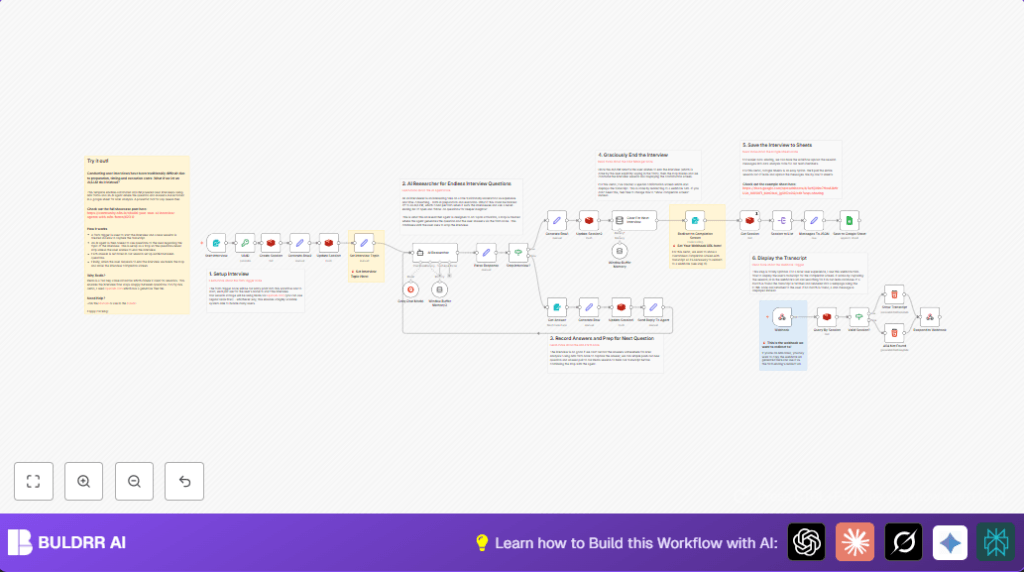
Processing Steps
- User submits name through Form Trigger.
- Crypto node creates unique session ID.
- Redis node sets up session storage with expiration.
- Initial interview details are recorded into Redis.
- Interview topic is defined to guide AI question generation.
- Groq Chat Model with AI Researcher node creates follow-up questions based on prior answers.
- AI JSON output is cleaned and parsed.
- IF node checks if the user wants to stop.
- If continuing, Form node shows next question and collects answer.
- User answers get appended to Redis.
- The loop repeats until stop condition is met.
- When stopped, session is cleared and user redirected.
- Full transcript is fetched from Redis and saved to Google Sheets.
- Webhook node optionally serves a formatted transcript webpage.
Outputs
- Organized interview data persisted in Google Sheets.
- Interview transcript accessible via webpage.
- Temporary session data in Redis with expiration.
Who Should Use This Workflow
The workflow suits people needing fast, repeatable interviews.
It helps researchers who want standardized data on UK driving test experiences.
It fits users wanting to avoid manual scheduling and transcription tasks.
It works well for those wanting all session data automatically saved.
Advanced AI users can customize questions for other research topics.
New users benefit from easy form-based interaction.
Tools and Services Used
- n8n: Automates workflow steps.
- Upstash Redis: Stores session data with TTL.
- Groq AI with Llama model: Generates interview questions dynamically.
- Google Sheets: Stores interview transcripts.
- n8n Form Trigger and Form nodes: Collect user inputs.
Beginner Step-by-Step: How to Use This Workflow in n8n
Step 1: Import the Workflow
- Download the workflow from this page using the Download button.
- In the n8n editor, choose Import from File.
- Select the downloaded file to load the workflow.
Step 2: Configure Credentials
- Add credentials for Upstash Redis with your API keys.
- Enter Groq AI API credentials and verify access to the llama-3.2-90b-text-preview model.
- Connect Google Sheets by entering OAuth2 credentials.
Step 3: Update IDs and Paths if Needed
- Check Redis key patterns match your setup.
- Update Google Sheets ID, email, or sheet name if required.
- Verify webhook paths for the Form Trigger and Webhook node.
Step 4: Test the Workflow
- Submit the starting form with a test name.
- Answer the questions as they appear.
- Confirm the interview cycles through questions.
- Type “stop interview” to end.
- Verify data saved in Redis and Google Sheets.
Step 5: Activate for Production
- Set the workflow to active in n8n.
- Share the Form Trigger URL with interview participants.
- Monitor logs and storage to ensure smooth operation.
Users running self-host n8n may refer to that link for hosting resource.
Customization Ideas
- Change interview topic in the “Set Interview Topic” node to suit your research.
- Adjust Redis session TTL to keep sessions longer or shorter.
- Replace Groq AI node with OpenAI or another model supported by n8n.
- Modify completion redirect URL to point to a custom webpage.
- Add language support by translating AI prompts and form instructions.
Handling Errors and Troubleshooting
Redis Connection Errors
If Redis credentials are wrong or network fails, sessions cannot be saved.
Fix by checking Upstash Redis keys and testing with a simple Redis node.
Parsing AI JSON Errors
When AI output format is broken, parsing fails.
Fix by ensuring the “Parse Response” node properly strips markdown and uses parseJson(), and keep AI prompt strict.
Form Trigger Webhook Issues
If users cannot reach the form, check n8n accessibility.
Ensure webhook URLs and ports are correct, and that instance is public or hosted with cloud.
Pre-Production Checklist
- Verify Redis credentials and connection.
- Test form trigger by submitting name.
- Check AI questions for sense and continuity.
- Confirm session data is stored and exported.
- Test redirect and transcript display flows.
- Have backup for credential or API failures.
Deployment Tips
Activate the workflow after all credentials are set.
Share the form URL with users.
Watch Redis session size and Google Sheets limits.
Turn on execution logs for troubleshooting.
For many users, consider scaling Redis or multiple n8n instances.
Summary
→ This workflow runs automated interviews with AI questions.
→ It stores answers in Redis and saves transcripts to Google Sheets.
✓ Saves time by replacing manual interviews.
✓ Keeps data organized and easy to review.
✓ Allows interview stop at any time.
✓ Supports multiple users concurrently.
