

What This Workflow Does
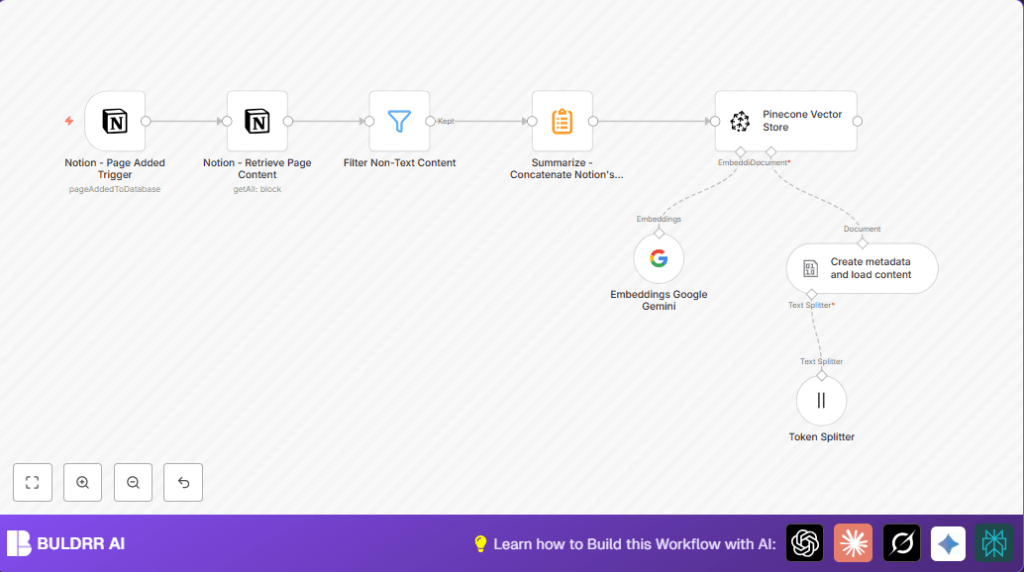
This workflow watches for new pages added in a Notion database.
It pulls out text content from these pages, cleans and splits the text, and then turns the text into number vectors.
After that, all vectors with useful info about the page get saved in a Pinecone vector index.
This gives a quick searchable database of all Notion page content for smart AI search later.
Who Should Use This Workflow
This is useful for anyone who uses Notion a lot to store notes or documents.
If teams find it hard to find info quickly because they have many pages, this workflow helps.
It is made for users who want to keep making content in Notion without extra manual work to organize or summarize.
Tools and Services Used
- n8n: Platform to automate workflow steps.
- Notion API: To detect new pages and get page content.
- Google PaLM API (Google Gemini): To create text embeddings, representing meaning as numbers.
- Pinecone: Cloud vector database to store and search embeddings by similarity.
- Langchain Integration in n8n: To split large text and add metadata.
Inputs, Processing Steps, and Output
Inputs
Notion database receives new pages.
API credentials for Notion, Google PaLM, and Pinecone are needed.
Processing Steps
- Detect when a new Notion page appears.
- Get all content blocks on that page.
- Remove blocks that are images or videos, keeping only text.
- Join all text blocks into one big text.
- Split big text into parts around 256 tokens each, keeping a bit of overlap.
- Add metadata like page ID, title, and creation date to each part.
- Send each text part to Google Gemini to create an embedding vector.
- Save all embedding vectors and metadata in Pinecone index called “notion-pages”.
Output
A Pinecone vector index filled with vectors that represent Notion pages.
This vector store helps find relevant information fast using semantic search.
Beginner Step-by-Step: How to Use This Workflow in n8n
Step 1: Import the Workflow
- Download the workflow file using the Download button on this page.
- Open the n8n editor where you want to run the workflow.
- Choose “Import from File” and select the downloaded workflow file.
Step 2: Add Credentials and Settings
- Go to credential settings and add your Notion API Key and database ID.
- Enter Google PaLM API Key for embedding generation.
- Connect to your Pinecone account and choose the index named “notion-pages” or update if named differently.
Step 3: Test the Workflow
- Trigger the workflow manually or add a new page in your Notion database to test.
- Check if all steps run without errors and vectors get added to Pinecone.
Step 4: Activate for Production
- Turn on the workflow toggle in n8n to run automatically every minute.
- Watch for any errors in execution and fix if needed.
If self hosting n8n, check links to manage the server securely and with uptime: self-host n8n.
Customization Ideas
- Change token chunk size in token splitting node to make bigger or smaller text parts.
- Add more metadata like author or tags in metadata node to improve search filters.
- Try different embedding models that work with Langchain if you want.
- Filter out other block types like files or audio if not needed.
- Use a different Pinecone index name if managing multiple projects.
Common Problems and How to Fix Them
Problem: No data from Notion Retrieve node
Cause: API credentials missing rights or wrong blockId expression.
Fix: Make sure Notion app has permission. Use expression code exactly as {{$json["url"]}} for blockId.
Problem: Embeddings generation fails or empty
Cause: Wrong Google PaLM API key or model name set incorrectly.
Fix: Check API key is correct. Use model name models/text-embedding-004.
Problem: Pinecone vectors not inserting
Cause: Pinecone API key or index name wrong, or index not ready.
Fix: Confirm Pinecone API key, index name spelling, and index is active.
Summary of Results
✓ Automatic detection of new Notion pages for vector conversion.
✓ Text content extracted, cleaned, split, and enriched with metadata.
✓ High quality embeddings created with Google Gemini.
✓ Vectors stored in Pinecone for speedy semantic search.
→ Less manual work and faster access to important Notion information.
