
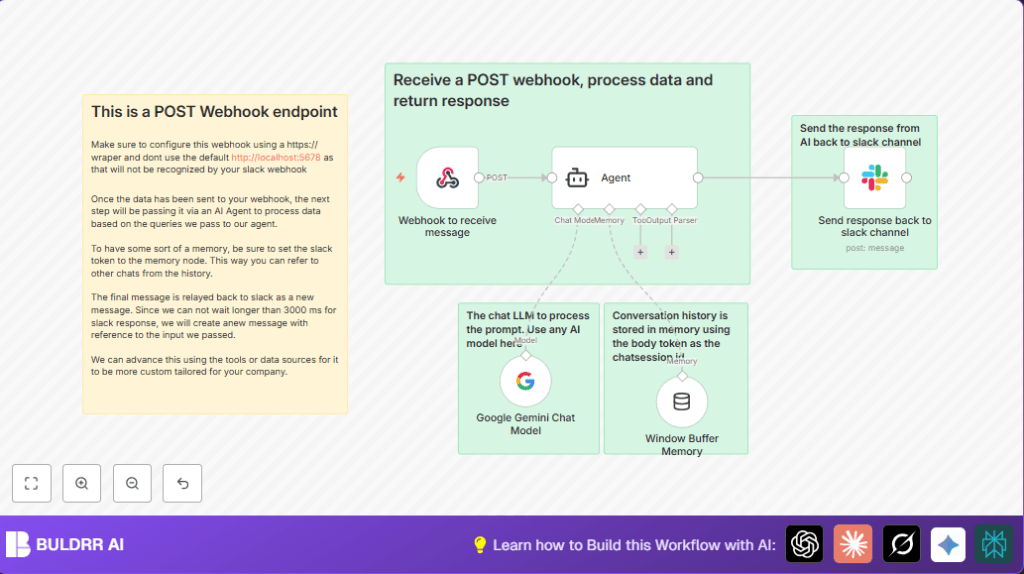

What this workflow does
This n8n workflow automates answering Slack messages using Google Gemini Chat AI.
It receives Slack messages, understands them using AI, remembers past chat history, and replies back in Slack.
It solves delayed responses and repeated manual replies by automating smart answers while keeping conversation context intact.
Who should use this workflow
This automation suits teams that get many Slack questions and need quick, consistent replies.
It helps customer support, automation engineers, or anyone managing busy Slack channels.
Tools and services used
- n8n: Automation platform to build and run the workflow.
- Slack API: Receives and sends messages inside Slack channels.
- Google Gemini Chat Model: AI language model that understands and replies to messages.
- Langchain Agent Node: Processes messages using AI with conversation memory.
- Window Buffer Memory Node: Remembers recent chat to keep replies relevant.
- Secure HTTPS Webhook: Receives message events from Slack safely.
Inputs, Process, and Outputs
Inputs
- Slack messages sent as POST requests to the Webhook node.
- Incoming message text and metadata from Slack payload.
Processing Steps
- Message text is extracted and sent to the Agent node for AI response creation.
- Window Buffer Memory node stores recent chat messages per unique Slack chat session token.
- Google Gemini Chat Model node provides the AI language understanding and reply generation.
- AI reply is formed considering past messages for context and returned by the Agent node.
Outputs
- The AI-generated reply is posted to the correct Slack channel using the Slack node.
- The message is sent as the bot persona with proper formatting and markdown support.
Beginner step-by-step: How to build and use this workflow in n8n
Importing the workflow
- Download the workflow file from this page using the Download button.
- Open your n8n editor (cloud or self-hosted).
- Click on “Import from File” and select the downloaded workflow file.
Configuring the workflow
- Add your Slack API credentials in the Slack node to enable message posting.
- Enter Google Cloud API credentials and set access for Google Gemini Chat Model node.
- Check and update channel IDs or tokens in the Slack node if needed to match your Slack workspace.
- Verify webhook URL matches your secure HTTPS endpoint registered in Slack event subscriptions.
Testing and activating
- Send a test message in Slack to trigger the webhook and observe if n8n receives the request.
- Confirm that the AI generates a reply and the Slack node posts the response back correctly.
- If the test works, activate the workflow using the toggle switch in the top right of the n8n editor.
After these steps, the workflow runs continuously in production to automate Slack replies with AI.
If using self-hosting n8n, refer to self-host n8n for hosting help.
Customization ideas
- Change the system message in the Agent node to set a different AI assistant personality or add company style.
- Adjust the Window Buffer Memory node contextWindowLength to remember more or fewer past messages.
- Add multiple Slack nodes to send AI replies to several Slack channels or groups.
- Extend the workflow with APIs or database queries for AI to access external data in answers.
- Rename the bot user display name in the Slack node to match your brand or chatbot persona.
Common failures and fixes
- Webhook not triggering: Check Slack app webhook URL uses HTTPS and is properly configured in Slack event subscriptions.
- AI replies off-topic: Improve or add a clear system message in the Agent node to guide AI responses.
- Memory lost between messages: Ensure Window Buffer Memory node sessionKey uses dynamic Slack chat tokens, not static keys.
- Slack messages not posting: Verify the right channelId is used in Slack node and markdown is enabled for formatting.
Summary of benefits and outcome
✓ Automatically replies to Slack messages using AI.
✓ Maintains chat context for better answers.
✓ Saves time by reducing manual replies.
✓ Easy to set up with n8n and Google Gemini Chat.
✓ Flexible customization for different team needs.
✓ Supports multiple simultaneous Slack conversations.
