
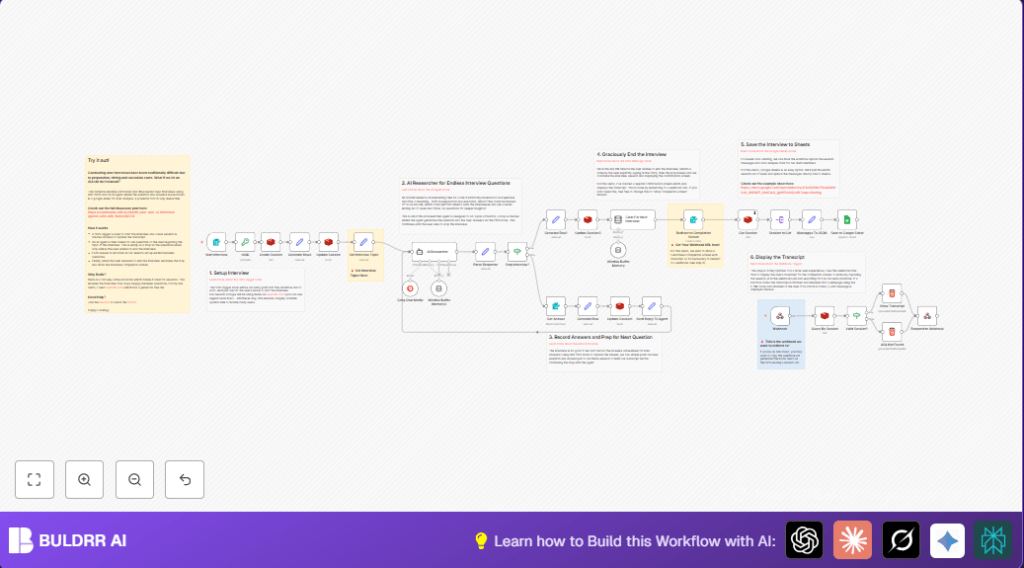

1. What this workflow does
This workflow runs online interviews using AI. It solves the problem of slow, hard-to-manage live interviewing. Users answer questions in a web form. AI makes new questions based on their answers. The full talk is saved automatically. This saves time and avoids errors.
The workflow guides a user through an interview about UK driving tests. It stores questions and answers step-by-step. Users can stop anytime. At the end, the full interview can be seen and saved in Google Sheets.
2. Who should use this workflow
This is made for user researchers or teams who want many interviews without manual scheduling. It helps if you want reliable, clear data without typing notes. Anyone who wants easy access to talk data and a way to run interviews 24/7 can use it.
3. Tools and services used
- n8n workflow: Runs automation and holds the interview steps.
- Redis (Upstash): Stores ongoing interview Q&A as a session.
- Groq AI (Langchain Agent): Generates smart questions from answers.
- Google Sheets: Saves final transcript data row by row.
- Web forms and webhooks: Collects user entries and shows transcripts.
4. Beginner step-by-step: How to use this workflow in n8n
Import the workflow
- Download the workflow using the Download button on this page.
- Open n8n editor and click “Import from File”.
- Select the downloaded workflow file to add it.
Configure credentials and settings
- Add Redis credentials (Upstash recommended) in the Create Session (Redis) nodes.
- Add Groq AI API Key in the AI Researcher (Langchain Agent) node.
- Connect Google Sheets account and update
documentIdandsheetNamein the Save to Google Sheet node. - Check that webhook URLs and form fields have correct names like
driving-lessons-surveyand fields like “What is your name?”.
Test run the workflow
- Start the form using the webhook URL from Start Interview (Form Trigger).
- Answer the questions and verify new questions appear as expected.
- Type “stop interview” to end and check if transcript is shown.
Activate workflow for production
- Switch on the workflow inside n8n editor.
- Share the form webhook URL with your users to begin interviews anytime.
- Regularly monitor Redis usage and Google Sheets entries.
If running many interviews or for higher safety, consider running self-host n8n for better control and scale.
5. Inputs, Processing, and Outputs
Inputs
- User starts interview by submitting name on the form.
- User answers each AI-generated question in sequence.
- User can type “stop interview” to end at any time.
Processing Steps
- UUID node creates unique session ID for tracking.
- Redis nodes store all questions and answers as lists in session keys.
- AI Researcher (Langchain Agent) generates next suitable question based on last answer and interview topic.
- Response JSON is parsed to check if interview should stop or continue.
- Each Q&A pair is saved incrementally back to Redis.
- When stopped, session memory in Redis is cleared for next user.
- Full session is retrieved for display and saving.
Outputs
- User is shown a transcript page with the full interview text.
- Transcript data is appended into Google Sheets in a “transcripts” tab.
- Sessions expire from Redis after 24 hours to save space.
6. Customizations
- Change the Set Interview Topic node to use a new subject. For example, replace “UK Practical Driving Test experience” with a topic you want.
- Replace AI Researcher (Langchain Agent) with another Langchain-supported AI node, like ChatGPT or Claude.
- Adjust the Redis session TTL in the Create Session (Redis) node to keep data longer or shorter.
- Modify the redirect URL in the Redirect to Completion Screen (Form) node to send users to a custom page.
- Swap Save to Google Sheet with database or CRM nodes to store data elsewhere.
7. Troubleshooting common issues
Invalid JSON from AI Researcher node
This means the AI returned text that is not a valid JSON object. This breaks the parse step.
Fix by checking the system prompt in AI Researcher (Langchain Agent). Make sure the prompt asks only for JSON output with triple backticks and nothing else.
Redis connection or data missing
Check Redis credentials in Create Session (Redis). Also confirm keys use session_{{UUID}} format exactly.
Google Sheets append not working
Verify Google Sheets authentication and that documentId and sheetName match the real sheet and tab names.
8. Pre-production checklist
- Test initial form submission to confirm webhook works and name is captured.
- Answer questions to see Redis session list fill with Q&A.
- Confirm AI generates sensible questions on the chosen topic.
- Test if typing “stop interview” ends and redirects properly.
- Check Google Sheets for appended transcript rows.
- Visit the transcript display URL with a session ID to verify output.
- Save a backup copy of your workflow before going live.
9. Deployment guide
Activate the workflow in n8n after import and set credentials.
Share the /driving-lessons-survey form webhook to start interviews anytime.
Monitor Redis and Google Sheets limits when running many sessions.
For stable use with more interviews, explore self-host n8n to run the workflow on your own server or VPS.
10. Summary of benefits
✓ Saves hours by automating interviews using AI and forms.
✓ Improves data accuracy by storing all Q&A digitally.
✓ Allows endless interviewing without manual scheduling.
✓ Provides instant transcripts and stores them for review.
✓ Easy to customize for other topics or AI providers.
✓ Can scale by running on hosted or self-host n8n platforms.
