
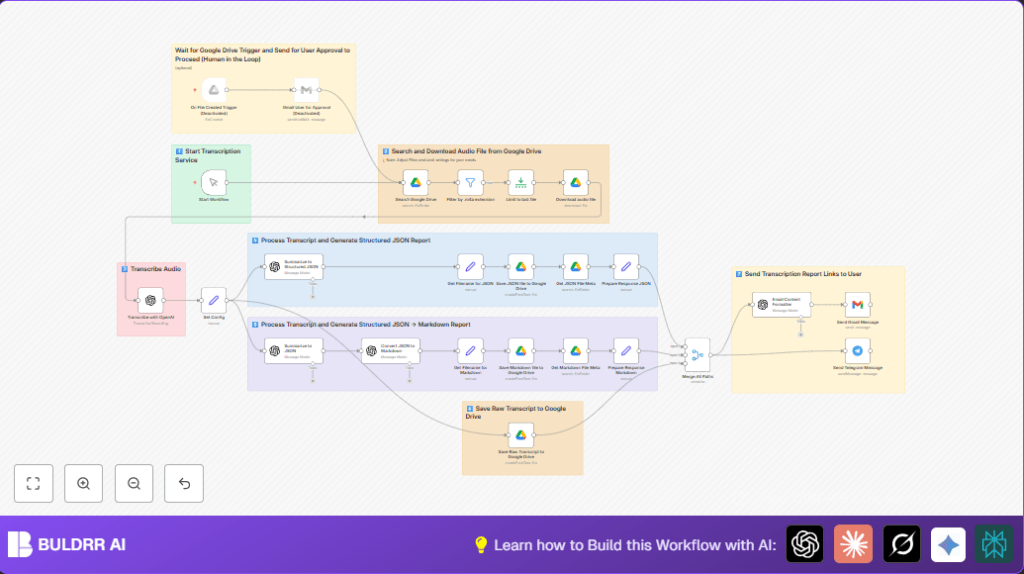

What this workflow does
This workflow watches a Google Drive folder for new .m4a audio files. It downloads the newest audio, transcribes it using OpenAI, and creates a summary in JSON and Markdown formats. Then, it saves all results back to the folder and sends notifications by Gmail and Telegram.
The main problem solved is automating manual audio transcription and report creation which usually takes hours and can have mistakes. The workflow gives fast, accurate transcripts and neat reports without manual work.
Who should use this workflow
This workflow is for anyone who handles many audio files in Google Drive and wants quick transcripts and summaries. It helps content managers, interviewers, and teams who need fast meeting notes without typing or outsourcing.
Users with basic n8n knowledge can run it. It suits people with Google Drive, OpenAI, Gmail, and Telegram accounts.
Tools and services used
- Google Drive: Store audio files and save transcripts and reports.
- OpenAI: Turn audio to text and create summaries.
- Gmail: Send email notifications.
- Telegram Bot API: Send chat notifications with report links.
- n8n automation platform: Connect all steps and run the workflow.
How this workflow works
Inputs
The workflow starts by either manual trigger or Google Drive trigger when a new audio appears in the “Audio Recordings” folder. It searches that folder for the newest .m4a file.
Processing steps
- Filter only .m4a audio files from search results.
- Limit to newest file to avoid batch processing.
- Download the selected audio file.
- Send audio to OpenAI transcription API to get the text transcript.
- Create a structured JSON summary with main points, action items, and sentiments using OpenAI.
- Make a detailed JSON report with headers and analysis from the transcript.
- Convert the JSON summary into user-friendly Markdown format.
- Generate dynamic filenames for JSON and Markdown files based on audio file info and time.
- Save JSON and Markdown files back to Google Drive in the same folder.
- Get Google Drive metadata for saved files to create shareable links.
- Save the raw transcript text file in Google Drive as .txt.
- Send emails and Telegram messages with links to generated reports.
Outputs
The workflow outputs three files per audio: the raw transcript (.txt), a structured JSON summary, and a Markdown report. Notifications provide quick access to these files.
Beginner step-by-step: How to use this workflow in n8n
1. Import workflow
- Download the workflow file using the Download button on this page.
- Open your n8n editor.
- Choose “Import from File” and select the downloaded workflow file.
2. Configure credentials and settings
- Add your Google Drive, OpenAI, Gmail, and Telegram API credentials in n8n.
- Update folder IDs in Google Drive nodes if your “Audio Recordings” folder is different.
- Check email addresses and Telegram chat ID environment variables to match your accounts.
3. Test and activate
- Run the workflow manually once to test with a recent audio file.
- Check if transcript files save correctly and notifications arrive.
- Enable the Google Drive Trigger node to start automatic processing when new audio uploads arrive.
Note
If hosting on your own server, use self-host n8n services for better control.
Inputs and outputs
Inputs
- New .m4a audio files uploaded to Google Drive “Audio Recordings” folder.
- User triggers workflow manually or automatically via Google Drive trigger.
Outputs
- Raw transcript saved as .txt file in same Drive folder.
- Structured summary saved as JSON file in Drive.
- Readable Markdown report saved in Drive.
- Email and Telegram notifications with links to these files.
Edge cases and common issues
- OpenAI transcription fails or returns empty text: Check audio file integrity and format. Convert to .m4a if needed. Confirm OpenAI API quota is sufficient.
- Google Drive nodes cannot find or save files: Ensure folder IDs are correct. Confirm OAuth credentials have full permissions.
- Notifications not received: Verify email addresses and Telegram chat IDs set as environment variables are correct.
Customization ideas
- Change audio filter to other formats (.mp3, .wav) by editing the filter node extension.
- Skip manual email approval by disabling the Gmail User node for full automation.
- Modify notification nodes to send alerts via Slack or other messaging apps.
- Tweak OpenAI prompts to adjust summary style or add different report structures.
- Update Google Drive folder IDs to save reports in a different location.
Summary of benefits and outcomes
✓ Saves many hours of manual transcription and report writing.
✓ Reduces errors by automating transcription and summarization.
✓ Keeps all files organized in one Google Drive folder.
✓ Sends notifications to keep users informed of new reports.
✓ Helps teams get quick and clear meeting or interview summaries.
✓ Easy to run inside n8n with minimal setup and credentials.
