
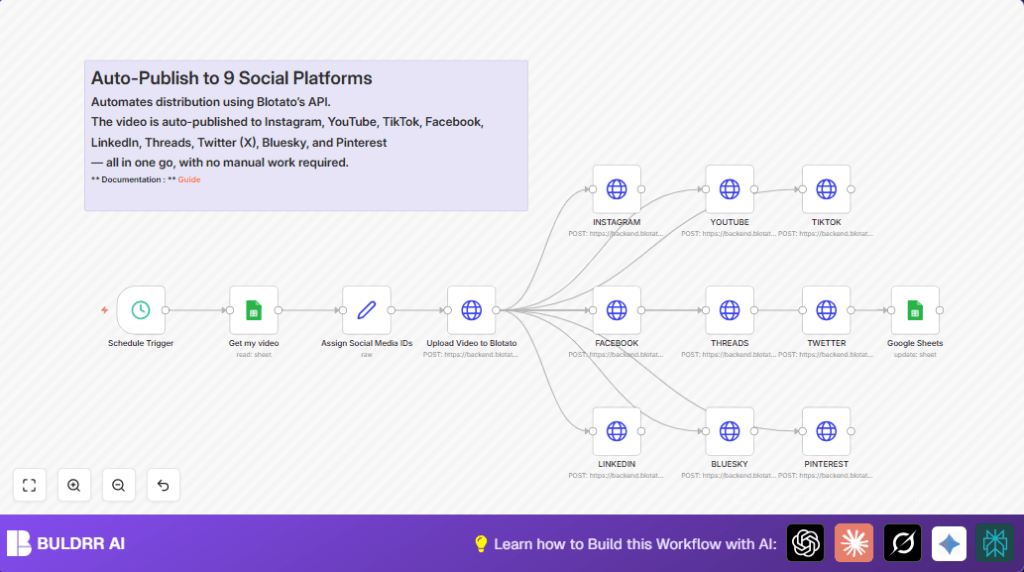

What this workflow does ⚙️
This workflow posts videos to nine social media platforms at once every day at 10 PM.
It reads video data from Google Sheets.
Uploads the video to Blotato.
Makes posts on Instagram, YouTube, TikTok, Facebook, LinkedIn, Twitter (X), Threads, Bluesky, and Pinterest.
After posting, it marks videos as done in the Google Sheet.
It saves many hours and avoids posting mistakes.
Who should use this workflow
Anyone who posts videos daily on many social networks.
Users who want to save time and reduce errors in video posting.
Tools and services used
- n8n: Automation platform that runs the workflow.
- Google Sheets: Stores video URLs, descriptions, and titles.
- Blotato API: Uploads videos and posts content to social media.
Beginner step-by-step: How to use this workflow in n8n
Download and import
- Click the Download button on this page to get the workflow file.
- Open the n8n editor and click “Import from File”.
- Select the downloaded workflow file and import it.
Configure credentials and settings
- Add your Google Sheets credentials in the Google Sheets nodes.
- Enter your Blotato API Key in all HTTP Request nodes needing it.
- Update social media account IDs in the Set node labeled “Assign Social Media IDs”.
- Check and update spreadsheet ID, sheet names, and any other identifiers if needed.
Test and activate
- Run the workflow manually once to confirm it works.
- Check the log output for any errors or missing data.
- If all works, toggle the workflow to active to run on schedule.
Remember to verify the schedule trigger time matches your timezone.
Inputs, Process, and Outputs
Inputs
- Video URL, description, title, and row number from Google Sheets.
- Social media account IDs from the Set node.
- Blotato API Key in HTTP request headers.
Processing steps
- Fetch video metadata from Google Sheets.
- Assign social media account IDs.
- Upload video to Blotato via HTTP POST.
- Post video and description to each social media platform using separate HTTP requests.
- Update video status to “DONE” in Google Sheets.
Outputs
- Published video posts on nine social media platforms.
- Updated Google Sheet row marking video as posted.
Customization Ideas ✏️
- Add more social media platforms by copying HTTP request nodes and changing account IDs.
- Change the posting time by adjusting the schedule trigger node.
- Filter videos dynamically based on tags or priorities in Google Sheets query.
- Include image posting by modifying the HTTP request bodies if needed.
Troubleshooting 🔧
- API key problems: Recheck API key in all HTTP Request headers.
- Wrong Google Sheet row update: Verify “row_number” value matches the correct sheet row.
- JSON errors: Use n8n’s expression preview to verify syntax.
Pre-Production Checklist ✅
- Confirm Google Sheet access and correct document ID.
- Verify all social media account IDs are valid.
- Test Blotato API key manually before using.
- Run the workflow manually and check for errors.
- Confirm timezone and schedule timing in n8n.
- Backup Google Sheets regularly.
Deployment Guide
Activate the workflow by toggling it on in n8n.
Watch logs for errors during execution.
Keep n8n running constantly using cloud or server.
If self-hosting, check self-host n8n for helpful info.
Summary
✓ Saves 14+ hours weekly in video posting.
✓ Posts to nine social platforms in one go.
✓ Automates video upload to Blotato API.
✓ Updates Google Sheets to track progress.
→ Reduces manual errors and fatigue.
→ Ensures posts publish on time every day.
