

Automate Study Notes with n8n and Mistral Cloud AI

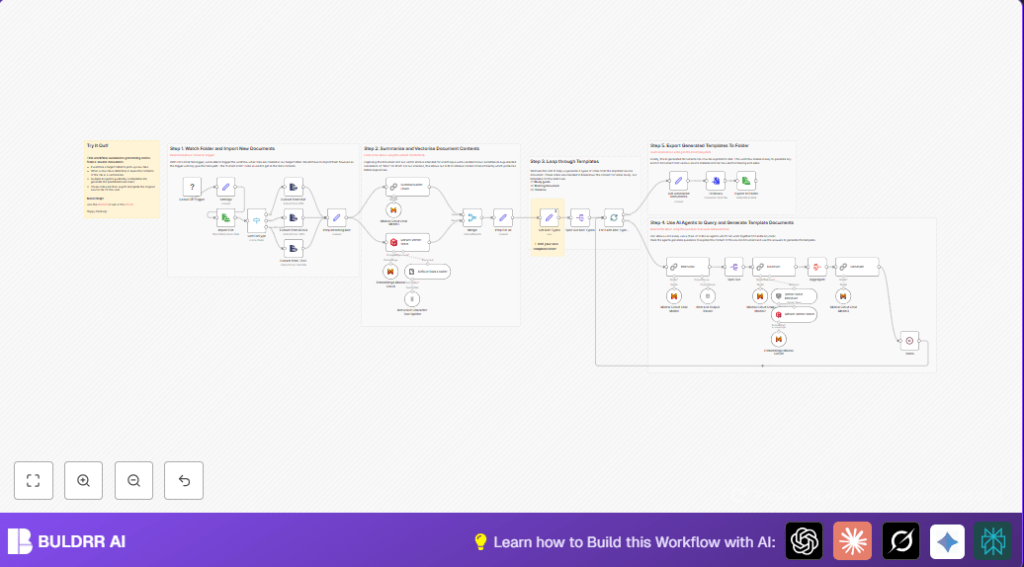
This workflow automates the process of generating study notes and summaries from documents added to a local folder. By leveraging n8n’s Local File Trigger and Mistral Cloud AI models, it transforms source files into structured study guides, briefing docs, and timelines efficiently saving hours of manual note-taking.
localFileTrigger
lmChatMistralCloud
vectorStoreQdrant
+12
Workflow Identifier: 1070
NODES in Use: Local File Trigger, Set, Read/Write File, Switch, Extract From File, Langchain Embeddings Mistral Cloud, Langchain Chat Mistral Cloud, Qdrant Vector Store, Langchain Chain Summarization, Langchain Chain Llm, Langchain Chain Retrieval Qa, Langchain Output Parser Item List, Langchain Text Splitter Recursive Character Text Splitter, Langchain Document Default Data Loader, Langchain Retriever Vector Store

Press CTRL+F5 if the workflow didn't load.

Learn how to Build this Workflow with AI:

Visit through Desktop for Best experience

Opening Problem Statement

Meet Sarah, a university student drowning in a sea of study materials. Each week, she downloads dozens of lengthy research papers, lecture notes, and textbooks, all scattered as PDFs, DOCXs, and plain text files. Manually creating study guides or summaries from these documents takes her hours, leading to burned-out nights and missed deadlines. Sarah wishes she could have quick, well-organized notes that highlight the key facts and questions without combing through endless pages herself.

This is exactly the problem this n8n workflow solves. It automates the entire process of converting raw documents into meaningful, structured study notes using AI, so Sarah and students like her can save precious time and gain deeper understanding effortlessly.

What This Automation Does

This n8n workflow transforms any new document added in a set folder into comprehensive study materials through multiple AI-driven steps. Here’s what happens when the workflow runs:

  • Automated File Detection: The Local File Trigger node watches a specified folder and starts the workflow when a new document appears.
  • Dynamic Document Import and Extraction: Depending on the file type (PDF, DOCX, or plain text), the workflow extracts readable text content seamlessly.
  • Content Summarization: Large documents are summarized using Mistral Cloud’s language model to provide concise overviews.
  • Vectorization and Storage: Documents are converted into vector embeddings and stored in a Qdrant vector database, enabling efficient AI retrievals.
  • Template-Based Note Generation: Utilizing a set of three templates (Study Guide, Briefing Doc, Timeline), multiple AI agents query the documents and generate structured notes with quizzes, timelines, glossaries, and summaries.
  • Export Generated Notes: Finally, the AI-created documents are saved back to the local disk for easy access and study.

Sarah now gains back hours previously spent manually summarizing content, allowing her to focus more on learning and less on organizing.

Prerequisites ⚙️

  • n8n account – either cloud or self-hosted for automation workflows.
  • Local file system access with a folder to monitor for new documents.
  • Mistral Cloud API account for AI embeddings and chat language model nodes.
  • Qdrant vector database account to store and retrieve document embeddings efficiently.
  • Basic file handling knowledge for PDFs, DOCX, and text files.

Step-by-Step Guide

Step 1: Set Up Folder Monitoring with Local File Trigger

Navigate to the n8n workflow editor. Add the Local File Trigger node. Configure it to watch your target document folder (e.g., /home/node/storynotes/context). Select event “add” for new files. Enable options “usePolling” and “followSymlinks” for more reliable detection. This node starts the workflow whenever a new file is added to the folder.

Expected outcome: The workflow triggers automatically when a file is dropped into the folder.

Common mistake: Not enabling polling might miss some file events.

Step 2: Capture File Metadata with Settings Node

Add a Set node named “Settings”. This node extracts the project folder name, full file path, and file name from the trigger data using expressions like {{$json.path.split('/').slice(0,4)[3]}}. This organizes the metadata for downstream processing.

Expected outcome: Metadata for each detected file is neatly prepared for the next steps.

Common mistake: Incorrect expression paths causing empty metadata values.

Step 3: Import and Identify File Type

Use the Read/Write File node with operation “read” and set the file selector to use the path from the Settings node ({{$json.path}}). Connect this to a Switch node that checks the file’s extension (pdf, docx, or others).

Expected outcome: The file content is loaded, and the workflow follows the correct extraction path.

Common mistake: Misidentifying filetype or missing extensions can cause processing errors.

Step 4: Extract Text Content from Files

Based on the switch, the workflow uses Extract from PDF, Extract from DOCX, or Extract from TEXT nodes to get text content from the file.

Expected outcome: The extracted text is available for AI processing.

Common mistake: Unsupported file formats or corrupted files might result in blank extraction.

Step 5: Prepare Document Text

The Set node named “Prep Incoming Doc” captures the extracted text into a field called data with the expression {{$json.text}}.

Expected outcome: The raw text is ready for AI embedding and summarization.

Common mistake: Wrong field mapping leading to missing or undefined text.

Step 6: Generate Vector Embeddings and Store in Qdrant

Connect the Embeddings Mistral Cloud node to generate embeddings from the document text. Then, insert these into the Qdrant Vector Store node configured to use your “storynotes” collection.

Expected outcome: Document vectors saved enabling fast AI queries.

Common mistake: Incorrect credentials or collection names can fail storage.

Step 7: Summarize Document Content

Use the Summarization Chain node with Mistral Cloud Chat Model as its language model to create a concise summary of the document.

Expected outcome: A brief summary is produced for use in generating notes.

Common mistake: Overly large documents may need chunking to avoid timeouts.

Step 8: Merge Summarized Data and Metadata

The Merge node collects summarized text and metadata together preparing for the note generation stage.

Expected outcome: Clean, consolidated data object ready for templates.

Step 9: Iterate Through Note Templates

The workflow splits out a list of note templates using a Set node called “Get Doc Types” defining Study Guide, Timeline, and Briefing Doc templates. It then uses Split Out Doc Types and Split In Batches nodes to process each template in batch.

Expected outcome: Each template is handled individually for custom note generation.

Step 10: Question Generation Using AI

Inside the batch processing, the Interview node (a Langchain ChainLlm node with Mistral Chat Model) generates 5 questions related to the document summary. This primes the AI note generation with relevant queries.

Expected outcome: AI-generated insightful questions to inform full notes.

Step 11: Retrieve Vector Context for AI Generation

The Vector Store Retriever node queries the Qdrant vector store to fetch relevant document chunks as context for the AI agents.

Expected outcome: AI has enriched context improving accuracy.

Step 12: Discover Answers and Generate Notes

The Discover node (Chain Retrieval QA) uses AI to answer the questions from the vector context, guiding the content creation. Then, the Generate node formats these answers into complete note documents in markdown using AI.

Expected outcome: Complete, well-structured study notes generated in markdown format.

Step 13: Export the Generated Documents

Finally, the notes are converted to text files using the Convert to File node and saved to disk in a descriptive filename using the Read/Write File node for export.

Expected outcome: Accessible study notes saved locally for review.

Customizations ✏️

  • Add More Note Templates: In the Get Doc Types node, append additional templates with new filenames, titles, and descriptions to create new note types suited to your study needs.
  • Change Vector Database Collection: Modify the collection name in both Qdrant Vector Store nodes to target different storage spaces for separating projects.
  • Adjust Summarization Chunk Size: In the Summarization Chain node, tweak the chunk size parameter to better handle larger or smaller documents efficiently.
  • Switch AI Models: Swap the Mistral Cloud Chat or Embeddings nodes to other providers or newer models by updating credentials and model parameters.
  • Modify File Watch Folder: Change the folder path in Local File Trigger to any directory you want to monitor for new documents.

Troubleshooting 🔧

Problem: “Workflow doesn’t trigger when new files are added.”

Cause: The Local File Trigger node polling is not enabled or path is incorrect.

Solution: Check Local File Trigger settings for “usePolling” enabled and verify the folder path is correct and accessible by n8n.

Problem: “AI model returns incomplete or no summary.”

Cause: Input text is too long or format issues.

Solution: Confirm text extraction works properly and adjust chunk size in Summarization Chain node.

Problem: “Documents not saving to disk after generation.”

Cause: Filename or path formation errors in Read/Write File node.

Solution: Review expressions building filenames and ensure folder permissions allow writes.

Pre-Production Checklist ✅

  • Verify Local File Trigger folder is accessible and correct.
  • Test text extraction nodes with sample PDFs, DOCX, and text files to ensure content is captured.
  • Validate Mistral Cloud API credentials and Qdrant API access before running the workflow.
  • Run a full test by dropping a new file and check the exported study notes for quality and formatting.
  • Backup your workflow JSON and document data for rollback.

Deployment Guide

Once verified, activate your workflow in n8n by toggling the active switch in the workflow editor. The Local File Trigger will keep watching your designated folder and automate note generation whenever a new file arrives.

Monitor execution logs in n8n to catch any errors or performance issues early. Adjust chunk sizes and retry logic as needed depending on document sizes and AI API response consistency.

FAQs

Q: Can I use another AI provider instead of Mistral Cloud?
A: Yes! You can swap the Mistral Cloud nodes for other OpenAI or Langchain-compatible models by updating credentials and node parameters accordingly.

Q: Does this workflow consume a lot of API credits?
A: It depends on the number and size of documents processed. Summarization and embedding operations call API endpoints per document chunk, so optimize chunk sizes wisely to control usage.

Q: Is my data secure throughout this process?
A: The workflow runs locally on your infrastructure or n8n cloud, and credentials are stored securely in n8n’s credential manager. Still, avoid processing sensitive documents unless you trust your AI provider.

Q: Can this handle dozens of documents at once?
A: Yes, with batching nodes and vector store retrieval this workflow is designed for scalability. Monitor resource usage and scale your n8n instance accordingly.

Conclusion

By following this comprehensive n8n workflow guide, you have automated a previously tedious and time-consuming task: creating structured study notes from varied document types. Thanks to the integration of the Local File Trigger, Mistral Cloud AI models, and Qdrant vector database, the workflow efficiently ingests, summarizes, and transforms raw documents into valuable study resources.

This automation could save users like Sarah multiple hours per week and boost learning retention by providing well-organized, tailored study notes automatically. Next, consider adding more note types or integrating this with cloud storage platforms for enhanced collaborative learning environments.

Happy automating and studying!

Promoted by BULDRR AI

Related Workflows

Automate Viral UGC Video Creation Using n8n + Degaus (Beginner-Friendly Guide)

Learn how to automate viral UGC video creation using n8n, AI prompts, and Degaus. This beginner-friendly guide shows how to import, configure, and run the workflow without technical complexity.
Form Trigger
Google Sheets
Gmail
+37
Free

AI SEO Blog Writer Automation in n8n

A complete beginner guide to building an AI-powered SEO blog writer automation using n8n.
AI Agent
Google Sheets
httpRequest
+5
Free

Automate CrowdStrike Alerts with VirusTotal, Jira & Slack

This workflow automates processing of CrowdStrike detections by enriching threat data via VirusTotal, creating Jira tickets for incident tracking, and notifying teams on Slack for quick response. Save hours daily by transforming complex threat data into actionable alerts effortlessly.
scheduleTrigger
httpRequest
jira
+5
Free

Automate Telegram Invoices to Notion with AI Summaries & Reports

Save hours on financial tracking by automating invoice extraction from Telegram photos to Notion using Google Gemini AI. This workflow extracts data, records transactions, and generates detailed spending reports with charts sent on schedule via Telegram.
lmChatGoogleGemini
telegramTrigger
notion
+9
Free

Automate Email Replies with n8n and AI-Powered Summarization

Save hours managing your inbox with this n8n workflow that uses IMAP email triggers, AI summarization, and vector search to draft concise replies requiring minimal review. Automate business email processing efficiently with AI guidance and Gmail integration.
emailReadImap
vectorStoreQdrant
emailSend
+12
Free

Automate Email Campaigns Using n8n with Gmail & Google Sheets

This n8n workflow automates personalized email outreach campaigns by integrating Gmail and Google Sheets, saving hours of manual follow-up work and reducing errors in email sequences. It ensures timely follow-ups based on previous email interactions, optimizing communication efficiency.
googleSheets
gmail
code
+5
Free