
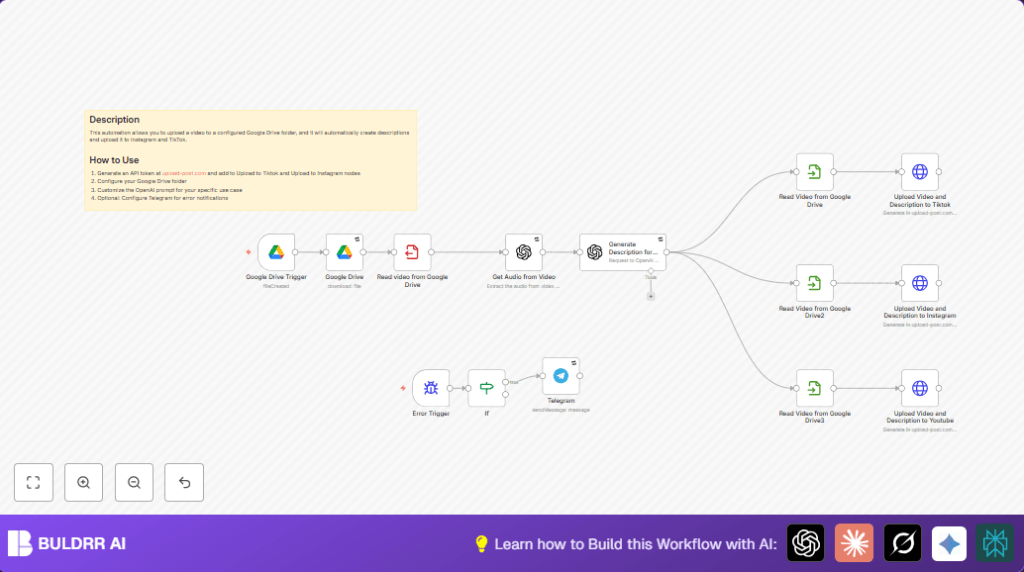

What this workflow does
This workflow watches a specific Google Drive folder and starts automatically when a new video file arrives.
It downloads that video, listens to the audio inside, and writes a short text description based on what the audio says.
Then, it sends the video and the description to TikTok, Instagram, and YouTube all at once.
If any step fails, it sends an alert message on Telegram so the user knows quickly.
Who should use this workflow
This workflow is for social media managers or content creators who upload many videos and want to save time.
It helps avoid manual uploads by automating video sharing and writing captions faster.
Tools and services used
- Google Drive: Source folder for new videos.
- OpenAI API: Transcribes video audio and makes video descriptions.
- upload-post.com API: Sends video posts to TikTok, Instagram, and YouTube.
- Telegram Bot API: Sends error alerts.
- n8n platform: Runs and connects all these steps.
Inputs, processing, and outputs
Inputs
New video file uploaded to a special Google Drive folder.
Processing steps
- Detect new video file upload.
- Download the video file
- Save video locally for processing
- Use OpenAI audio transcription to get text from video sound
- Use OpenAI GPT-4o model to write a short, catchy social media description from transcription
- Read saved video file again for each platform
- Upload video and description to TikTok via upload-post.com API
- Upload video and description to Instagram via upload-post.com API
- Upload video with truncated description to YouTube via upload-post.com API
- If error occurs, send a message through Telegram bot
Outputs
Videos posted on multiple social platforms with autogenerated descriptions.
Telegram notifications on errors so issues are caught fast.
Beginner step-by-step: How to use this workflow inside n8n
Step 1: Import the workflow
- Download the workflow JSON file using the Download button on this page.
- Open n8n editor already logged in.
- Use the menu option “Import from File” and select the downloaded workflow.
Step 2: Add your credentials
- Go to Google Drive Trigger → Credentials and add your Google Drive OAuth2 credentials.
- Add OpenAI API Key in the OpenAI nodes.
- Put your upload-post.com API keys for TikTok, Instagram, and YouTube upload nodes.
- Enter your Telegram Bot API token and chat ID for the Telegram node.
Step 3: Update folder IDs and user info
- Check the Google Drive folder ID matches your actual video folder.
- Confirm the user IDs or usernames for each social platform in the HTTP request nodes.
Step 4: Test the workflow
- Run the workflow manually with a test video inside your Google Drive folder.
- Check that description text is generated.
- Verify videos upload successfully to TikTok, Instagram, and YouTube.
Step 5: Activate the workflow
- Turn on the workflow toggle within n8n to enable auto running.
- Now new videos placed in the folder will start this chain automatically.
Note: For self-host n8n, ensure that the n8n instance has enough disk space to handle video files.
Common errors and how to fix them
- Google Drive folder not triggering: Check folder ID and OAuth scopes.
- OpenAI API failures: Confirm valid API key and enough credits.
- Upload-post.com HTTP errors: Verify API key and form-data format.
- Missing Telegram notifications: Validate Telegram bot token and chat ID.
Simple customization tips
- Change social platforms by editing the “platform[]” field in the HTTP upload requests.
- Improve video description style by changing OpenAI prompt messages.
- Adjust Google Drive polling speed from 1 minute to 5 or 10 minutes.
- Add thumbnail extraction nodes to send thumbnails if supported.
- Customize Telegram messages with extra error details.
Summary of results
✓ Save 8-10 hours every week from manual video uploads.
✓ Videos automatically posted with good captions on multiple platforms.
✓ Instant Telegram error notifications to respond quickly.
✓ Keep social media posting consistent and on time.
