
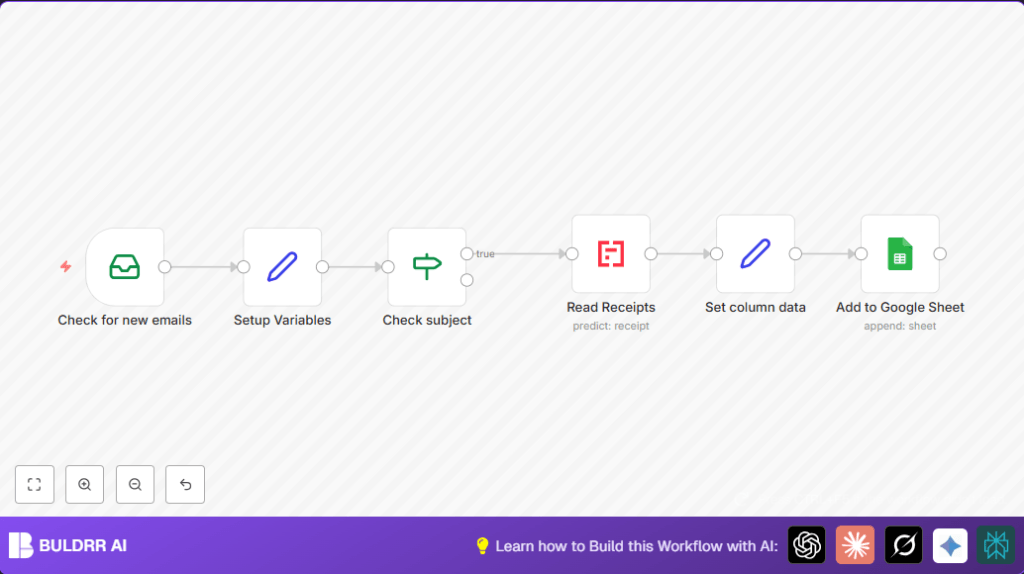

What This Automation Does
This workflow checks emails, finds receipts, pulls expense info, and adds it to a Google Sheet automatically.
It saves you time and reduces errors by avoiding manual entry.
It reads Gmail inbox emails with receipt keywords, extracts data using AI, formats it, and adds it to a spreadsheet.
You get a neat, up-to-date budget tracker without extra work.
Tools and Services Used
- Gmail IMAP: To read emails and attachments.
- Mindee Receipt API: To extract structured data from receipt images.
- Google Sheets: To store the extracted expense details.
- n8n Automation Platform: To run the workflow.
Inputs, Processing, and Output
Inputs
- Emails from Gmail Inbox matching specific subject patterns.
- Attachment images containing expense receipts.
Processing Steps
- Filter emails with subjects including keywords like “expenses” or “reciept”.
- Extract receipt information with Mindee AI on the attachment.
- Format the extracted info into date, description, category, currency, and amount.
Output
- Rows appended automatically to a Google Sheets expense tracker.
- Up-to-date, error-reduced expense records for easy review.
Beginner Step-by-Step: How to Use This Workflow in n8n
Importing the Workflow
- Download the workflow JSON file using the Download button on this page.
- Open the n8n editor where you want to use it.
- Use the “Import from File” feature to load the workflow.
Configuring the Workflow
- Add your Gmail IMAP credentials in the EmailReadImap node settings.
- Enter your Mindee API Key in the Mindee Receipt node.
- Set up Google Sheets OAuth2 credentials in the Google Sheets node.
- Check and update Spreadsheet ID, sheet name, and range if your setup is different.
Testing and Running
- Run the workflow once manually to make sure it works.
- Look at the output in Google Sheets to confirm data appears correctly.
- Activate the workflow by toggling the “Active” switch to run automatically for new emails.
Remember, if running self-host n8n, visit this resource for help.
Step-by-Step Guide
Step 1: Set Up Email Retrieval from Gmail
In n8n, add an EmailReadImap node.
Navigate to Nodes → EmailReadImap.
Configure the node to use your Gmail IMAP credentials (allow unauthorized certs if needed).
Set mailbox to “Inbox”.
You should see emails and their subjects when node runs.
Make sure IMAP is enabled in Gmail settings.
Step 2: Define Subject Patterns to Identify Receipt Emails
Add a Set node named Setup Variables.
Create string variable subjectPatterns with value (expenses|reciept), note misspelling.
This tells workflow which emails to pick.
Step 3: Filter Emails Based on Subject Using the If Node
Add an If node named Check subject.
Set condition: email subject lowercase matches regex subjectPatterns.
Only matching emails go forward.
Convert subject to lowercase or it might not match.
Step 4: Extract Receipt Data from Email Attachments with Mindee Node
Insert Mindee Receipt node.
Connect it after Check subject node for filtered emails.
Use attachment_0 as binaryPropertyName.
Add Mindee API Credentials.
Receives data like date, total, currency, and category.
Ensure emails have attachments properly loaded.
Step 5: Format Extracted Data into Sheet Columns
Add a Set node named Set column data.
Map fields from Mindee output:
- Date =>
{{$json["date"]}} - Description => second part of email subject split by “-” (e.g. “Expense – Uber”)
- Category =>
{{$json["category"]}} - Currency =>
{{$json["currency"]}} - Amount =>
{{$json["total"]}}
This makes spreadsheet neat.
Check for typos or field name errors.
Step 6: Append Data to Google Sheets
Add Google Sheets node set to append mode.
Put right spreadsheet ID, e.g. 1xAtx1ORZYKu4urgqpOe3DawFjiWeOZO0VCVvOlQYnaE.
Set range to A:E.
Use OAuth2.
New expenses show up as new rows.
Verify Sheet ID and permissions if errors happen.
Customizations ✏️
- Expand keywords in Setup Variables node by changing
subjectPatternsto include “invoice” or “bill”. - Process multiple attachments by modifying Mindee Receipt node to use
attachment_1or others. - Add a Function node to calculate tax on the total after data extraction.
- Insert email or Slack notification nodes after the Google Sheets append to alert on new entries.
- Make Google Sheets range selection dynamic, e.g., by header names, for future-proofing.
Troubleshooting 🔧
Problem: No emails appear in the EmailReadImap node.
Cause: IMAP not enabled or wrong credentials.
Solution: Enable IMAP in Gmail, check username and password.
Problem: Mindee Receipt node errors or returns empty.
Cause: Missing or wrong attachments.
Solution: Confirm emails have attachments and node uses correct binaryPropertyName.
Problem: Google Sheets append fails silently.
Cause: Wrong Sheet ID or no permission.
Solution: Verify Sheet ID from URL and OAuth2 setup.
Pre-Production Checklist ✅
- Check Gmail IMAP is enabled and credentials are right.
- Test Mindee API connection and email attachments.
- Confirm Google Sheets ID and OAuth2 permissions for edits.
- Run workflow with sample emails to verify outputs.
- Backup spreadsheet or duplicate it before live run.
Deployment Guide
After tests succeed, turn on the workflow in the n8n editor using the “Active” switch.
This lets the workflow auto-run on new receipt emails.
Watch the execution logs for problems.
Add notifications nodes if needed to alert on errors.
Conclusion
This workflow stops manual data entry of receipt expenses.
It saves hours weekly and lowers errors by automating from email to spreadsheet.
Users can next expand automation for invoices or sync with accounting software.
Try self-host n8n to keep control on own servers.
Summary
✓ Saves time by automating expense entry from emails.
✓ Reduces mistakes by using AI to extract data.
✓ Keeps expense spreadsheet updated instantly.
✓ Easy to configure and test inside n8n.
✓ Works well with Gmail, Mindee, and Google Sheets.
