
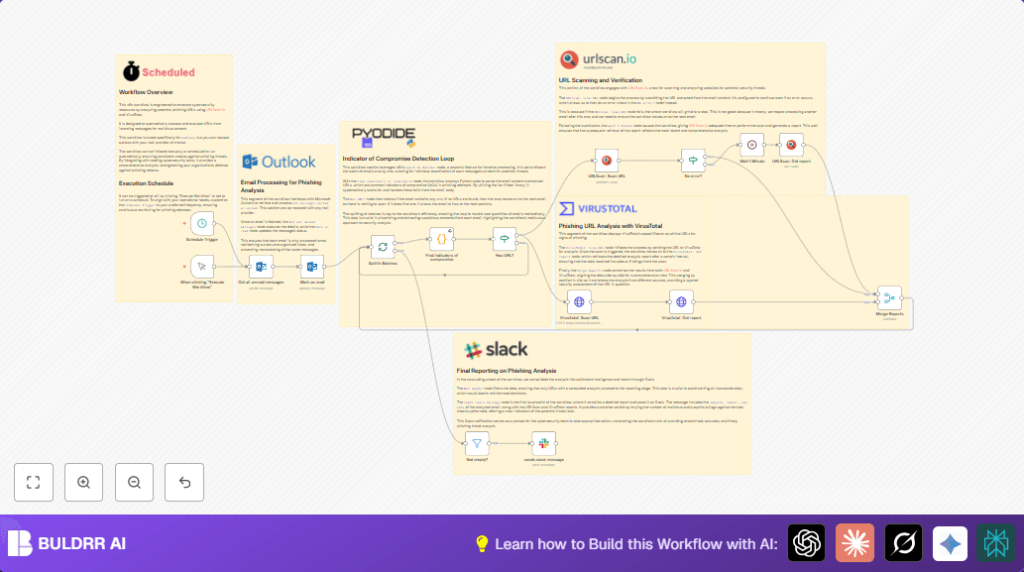

2. What This Automation Does
This workflow finds unread emails in Microsoft Outlook and looks for URLs that might be dangerous.
It then sends these URLs to URLScan.io and VirusTotal to check if they are harmful.
After getting the scan results, it sends a summary message to a Slack channel.
This saves time by doing the scanning and alerting automatically.
4. Step-by-Step Guide
Step 1: Setup the Trigger
Add a Schedule Trigger node in n8n to run the workflow at times you want, like every hour.
Or use the Manual Trigger node to start it when needed.
How to configure the schedule trigger
- Click on Schedule Trigger node.
- Set how often the workflow runs, for example every 60 minutes.
- Save the node.
Remember
- Make sure the trigger node is active, else the workflow will not run.
Step 2: Fetch Unread Emails from Outlook
Add a Microsoft Outlook node with operation Get All messages.
Use filter isRead eq false to get unread emails.
Connect Microsoft Outlook credentials using OAuth2.
Test the node to see if unread emails load correctly.
Common error to avoid
- Not setting OAuth2 credentials properly.
- This causes authentication failure, stopping the workflow.
Step 3: Mark Emails as Read
Add a second Microsoft Outlook node set to Update operation.
Use message IDs from fetched emails to mark them as read.
This avoids scanning the same email again.
Step 4: Split Emails into Batches
Add a Split In Batches node.
Set batch size to 1 to process one email at a time.
This makes debugging and processing more controlled.
Step 5: Detect URLs Using Python Code
Add a Code node and choose Python as the language.
Paste the code below to find URLs in email content.
try:
  from ioc_finder import find_iocs
except ImportError:
  import micropip
  await micropip.install("ioc-finder")
  from ioc_finder import find_iocs

text = _input.first().json['body']['content']
iocs = find_iocs(text)

return [{"json": { "domain": item }} for item in iocs["urls"]]
This code uses the ioc-finder library to detect URLs.
Note: The code installs the library if missing, so micropip must be available.
Step 6: Check if URLs Exist
Add an If node to check if URLs were found.
If no URLs, skip scanning and continue to next email batch.
Step 7: Submit URL to URLScan.io
Add a URLScan.io node set to Scan URL.
Pass the URLs found to this node and add your API key.
Set “Continue on Fail” to true to prevent errors stopping the workflow.
Step 8: Submit URL to VirusTotal
Add a HTTP Request node.
Configure it to POST the URL to VirusTotal URL scan endpoint.
Provide the VirusTotal API Key in headers.
This requests VirusTotal to scan the URL.
Step 9: Wait for Results
Add a Wait node.
Set wait time to 60 seconds to allow scan processing.
Step 10: Retrieve URLScan.io Report
Add another URLScan.io node.
Set operation to Get Report using previous scan’s UUID.
This fetches detailed URLScan scan results.
Step 11: Retrieve VirusTotal Report
Add another HTTP Request node.
Retrieve VirusTotal URL report using the scan ID from Step 8.
Step 12: Merge Both Reports
Add a Merge node set to combine by position.
This pairs URLScan and VirusTotal results side by side for the same URL.
Step 13: Filter Non-Empty Results
Add a Filter node.
Only pass URLs with finished scan results to next steps.
Step 14: Send Slack Notification
Add a Slack node.
Compose a message including email subject, sender, and date.
Include scan summaries from both URLScan and VirusTotal.
Send this message to your selected Slack channel to notify your team.
Beginner Step-by-Step: How to Use This Workflow in n8n
Import the Workflow
- Download the workflow file using the “Download” button on this page.
- Open your n8n editor.
- Click on “Import from File” in n8n and select the downloaded file.
Configure Credentials and Settings
- Add Microsoft Outlook OAuth2 credentials in n8n credentials manager.
- Enter valid API Keys for VirusTotal and URLScan.io in the respective nodes.
- Set Slack Bot Token and channel ID in the Slack node to send notifications.
- Check or update any IDs, email folders, or any other necessary fields as per your environment.
Test and Activate the Workflow
- Manually run the workflow using the Manual Trigger node to verify it works correctly with your data.
- Check Slack for the alert messages.
- Once confirmed, activate the workflow for scheduled automatic runs.
- Adjust the Schedule Trigger frequency to your preferred interval.
If you plan to do self-host n8n, import and configure similarly on your server.
Tools and Services Used
- Microsoft Outlook: Retrieves unread email messages.
- URLScan.io: Scans URLs for malicious behavior.
- VirusTotal: Analyzes URLs for threats.
- Slack: Sends alerts with scan results.
- n8n Platform: Runs the automation workflow.
Inputs, Processing, and Outputs
Inputs
- Unread emails from Microsoft Outlook with email content.
- URLs extracted from email bodies.
Processing
- Mark emails as read after fetching.
- Extract URLs using Python script and ioc-finder.
- Submit each URL to URLScan.io and VirusTotal for scanning.
- Wait and retrieve reports from both services.
- Merge and filter scan results.
Outputs
- Slack messages with email info and scan summaries for suspicious URLs.
Customization Ideas
- Replace Microsoft Outlook with Gmail nodes by remapping email fields.
- Change schedule to run scans more or less often.
- Add more detail to Slack alerts like malware types.
- Extract more types of IoCs like IPs or file hashes using the Python code.
- Send alerts to other platforms such as Microsoft Teams or email.
Troubleshooting Common Problems
Authentication Failed Fetching Emails
Check if Microsoft Outlook OAuth2 tokens are correct and not expired.
Reauthorize or refresh credentials in n8n Credentials Manager.
VirusTotal API Quota Exceeded
Reduce scan frequency or upgrade the VirusTotal plan.
URLScan.io Node Errors
Check network and API key validity.
Enable “Continue on Fail” option to prevent workflow blocking.
Pre-Production Checklist
- Test Microsoft Outlook credentials fetching unread emails.
- Verify VirusTotal and URLScan.io API keys work.
- Run the workflow manually and confirm Slack alert is received.
- Check Slack channel and bot permission for posting messages.
- Make sure Python code runs and installs ioc-finder with micropip.
Summary
✓ The workflow finds unread emails and checks URLs for phishing threats.
✓ Uses URLScan.io and VirusTotal for scanning.
✓ Sends scan results automatically to Slack channel.
✓ Saves hours of manual email scanning daily.
→ Helps quickly find dangerous URLs and alerts the security team.
→ Can expand to scan more IoC types and alert platforms.
